Home>Gadgets>The Casting Guide: Getting Any Screen Onto Your TV
Gadgets
The Casting Guide: Getting Any Screen Onto Your TV
Modified: 30 October 2026
Table of Contents
- Why Casting Isn’t One-Size-Fits-All
- What You Actually Need: Wi-Fi, HDMI, or a Dongle?
- Chromecast: The Universal Standard (Google Cast)
- AirPlay: The Apple Way (and What You’ll Pay)
- Miracast: The Windows Option (and Its Quirks)
- Roku, Fire TV, and Smart TV Built-Ins
- The Wired Fallback: USB-C to HDMI (No Dongle Needed)
- Troubleshooting the Top 3 Casting Failures
- Frequently Asked Questions
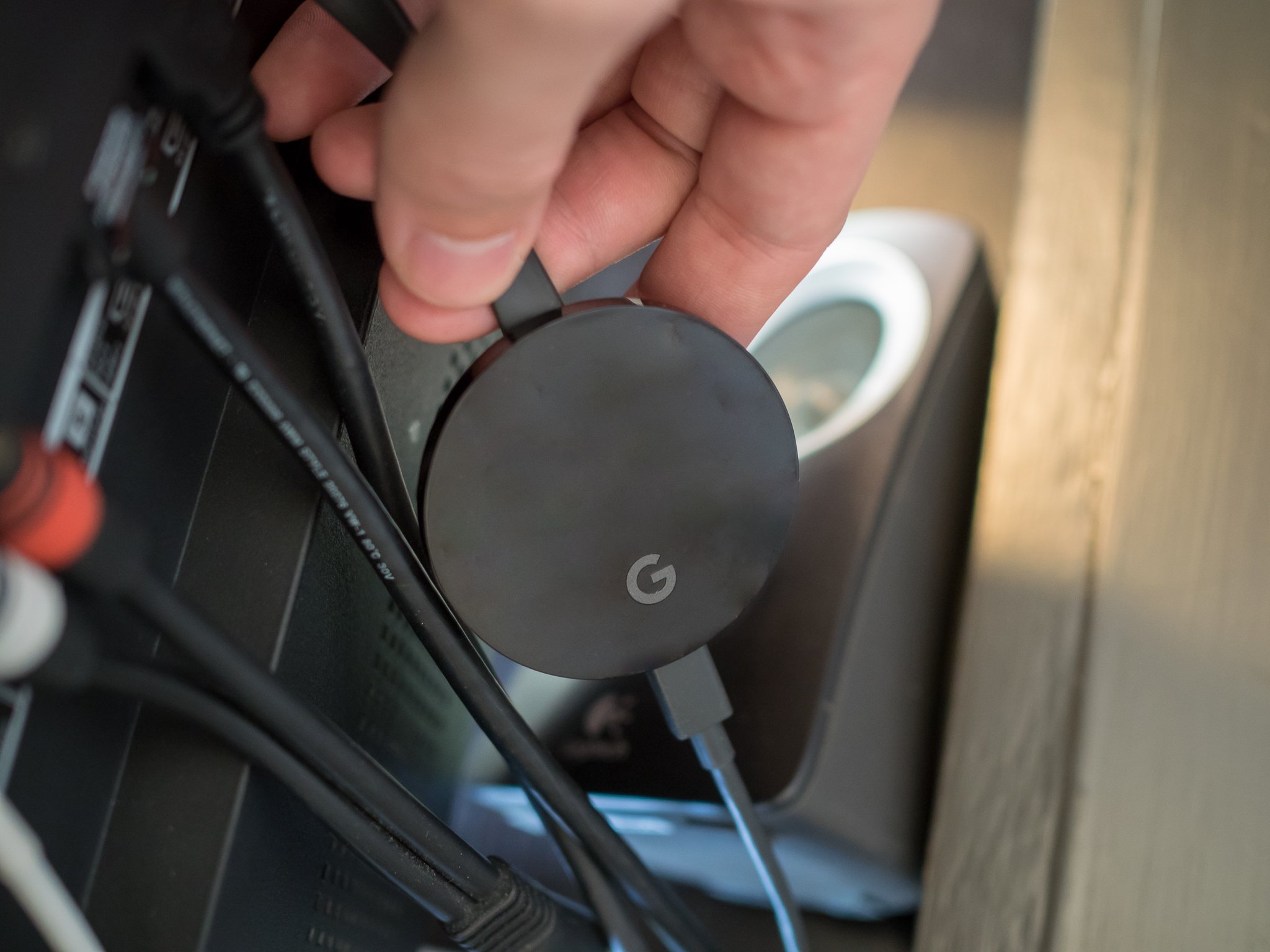
Plug a Chromecast with Google TV (HD, $29.99) into your TV’s HDMI port, connect it to Wi-Fi, and tap the Cast button on your phone. That’s it. Every major screen-mirroring setup works the same way—pick the right hardware for your devices, and the problem’s solved in under two minutes. This guide covers the exact gear, prices, and quirks for each method so you skip the trial-and-error.

Why Casting Isn’t One-Size-Fits-All
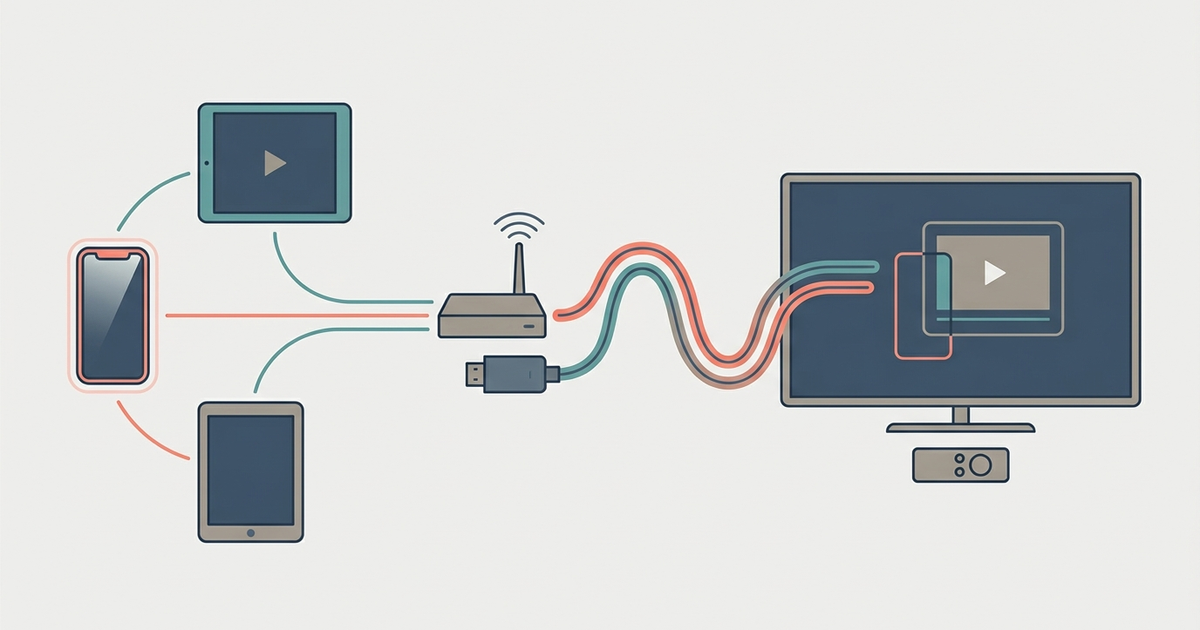
Your TV doesn’t speak every device’s language. An iPhone uses AirPlay. A Windows laptop prefers Miracast. An Android phone defaults to Google Cast. Buy the wrong dongle—like a Miracast-only adapter for an iPad—and you waste money.
The fix: identify what you’re casting from first. Then match it to the protocol your TV or streaming stick supports. Most modern smart TVs handle two or three of these standards. Older sets need a $30 dongle. Below, each method explains what works, what doesn’t, and exactly what hardware you need.
What You Actually Need: Wi-Fi, HDMI, or a Dongle?
Three options exist. Wi-Fi casting (Chromecast, AirPlay, Miracast) requires a stable 5 GHz network. HDMI direct connection needs a cable and USB-C or HDMI output on your device. A dongle—like a Chromecast or Roku—bridges the gap for TVs without built-in support.
For most people, the best balance is a $30 Chromecast with Google TV. It handles iOS, Android, and Windows via Google Cast. If you’re all-Apple, pay $129 for an Apple TV 4K. For a cheap, single-device solution to mirror a Windows laptop, a $25 Miracast adapter like the Microsoft Wireless Display Adapter works fine.
Chromecast: The Universal Standard (Google Cast)
Google Cast is the simplest cross-platform method. It works from an iPhone, Android phone, Chrome browser on Windows or Mac, and even the Chrome OS desktop. You don’t need the Google Home app after initial setup—just tap the Cast button inside streaming apps like Netflix, YouTube, or Plex.
Hardware options:
- Chromecast with Google TV (HD) — $29.99, 1080p output, supports Google Cast and also runs the Android TV interface.
- Chromecast with Google TV (4K) — $49.99, adds Dolby Vision and 4K HDR.
What you can cast: Any app with a Cast icon. Full screen mirroring from Android via the Google Home app. Chrome tabs from a laptop. You can’t mirror an iPhone screen to Chromecast without a third-party app that may lag.
Trade-off: Chromecast requires Wi-Fi. No internet, no casting. It doesn’t support Miracast or AirPlay, so a Windows laptop won’t connect natively without using Chrome. If you need direct Windows mirroring, skip this.
AirPlay: The Apple Way (and What You’ll Pay)
AirPlay 2 lets you mirror your iPhone, iPad, or Mac screen to a TV with zero lag. It’s proprietary—Apple keeps the chips in its own hardware—so the cheapest entry point isn’t a $20 dongle.
Hardware options:
- Apple TV 4K (2022) — $129, supports AirPlay 2 plus HomeKit integration.
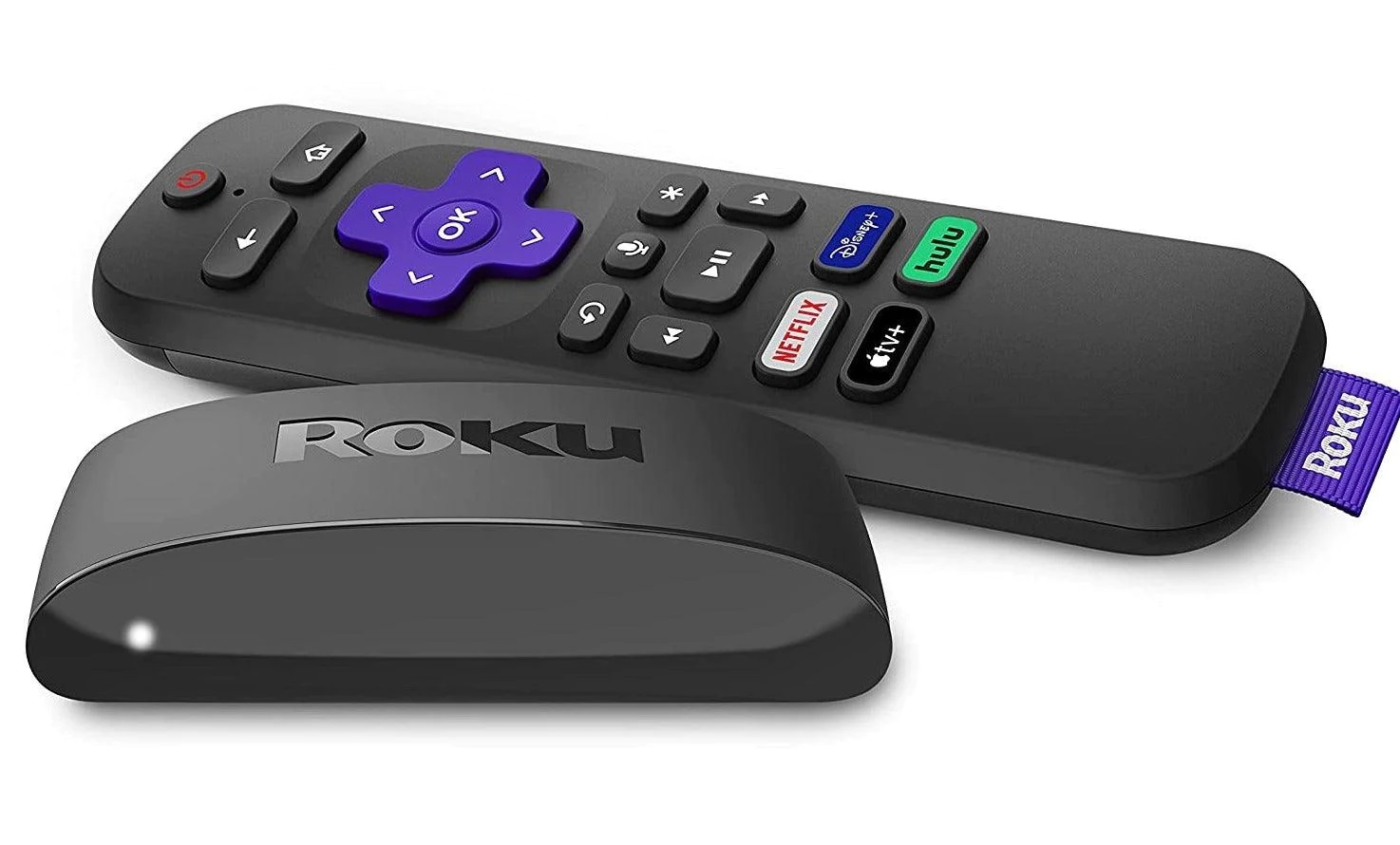
- Roku Express 4K+ (2024 model) — $39.99, added AirPlay support in a firmware update.
- Fire TV Stick 4K Max (2023) — $54.99, supports AirPlay through the Fire TV interface.
Most new Samsung and LG smart TVs (2024 and later) include AirPlay 2 built-in. Check your TV’s settings menu under “General” or “Network”—if you see AirPlay listed, you don’t need extra hardware.
What you can cast: Full screen mirroring from any iPhone, iPad, or Mac. Audio streamed wirelessly to HomePod or compatible speakers. Works with apps designed for iOS, not for Android or Windows.
Trade-off: AirPlay is Apple-only. You can’t cast from an Android phone or a Windows laptop. Even a $40 Roku is a dedicated device—if you only have Apple gear, the Apple TV 4K’s extra cost buys you a smoother experience and better streaming performance.
Miracast: The Windows Option (and Its Quirks)
Miracast is a peer-to-peer Wi-Fi standard—no router required. It mirrors your Windows 10 or 11 laptop screen directly to a TV or dongle. It also works with most Android phones produced before 2020. Newer models have dropped support in favor of Google Cast.
Hardware options:
- Microsoft Wireless Display Adapter — $49.99, plug-and-play, supports 1080p at 60 Hz.
- Built-in Miracast on many smart TVs (check under “Screen Mirroring” or “Smart View”).
Requirements: Your Windows laptop needs an Intel Wi-Fi 6 (AX200 or newer) chip for smooth 1080p. Older Wi-Fi 5 chips cause stutter and latency. Enable “Projecting to this PC” in Windows Settings—search for “wireless display.”
What you can cast: Full desktop mirroring from Windows laptops. Works with most Android phones that have a “Cast” button in the quick settings panel. Not from iPhones or Chromebooks—Chrome OS dropped Miracast support in 2023.
Trade-off: Miracast is flaky on cheap TVs. It disconnects randomly if the Wi-Fi channel overheats. You can’t run other apps while casting—the TV shows your entire screen, not just a single app window. For presentations, it’s passable. For streaming Netflix, use Chromecast instead.
Roku, Fire TV, and Smart TV Built-Ins
Smart TV platforms often bundle multiple casting protocols. They’re not as dedicated as a standalone dongle, but they save you a port.
Roku: Most Roku models (except the very old ones) support both Google Cast and AirPlay 2. The Roku Voice Remote Pro ($29.99) adds hands-free voice casting—you can say “Play Stranger Things on Netflix” and it finds the right app. To cast from Android/iOS, install the Roku app (free) and tap the Cast icon inside it. Works with YouTube, Netflix, and many more.
Fire TV: Amazon’s Fire TV Stick 4K Max ($54.99) supports Google Cast natively in the Fire OS interface. It also supports AirPlay 2 via a separate app download. For screen mirroring from Android, use the “Display Mirroring” setting in the Fire TV menu.
Smart TV built-ins: Samsung Tizen and LG webOS (2024+ models) include both Google Cast and AirPlay 2. No add-on needed. Older sets (2019-2023) may only support Miracast or proprietary screen-mirroring apps that require installing specific software on your phone. If your TV is more than five years old, buy a Chromecast.
The Wired Fallback: USB-C to HDMI (No Dongle Needed)
When Wi-Fi fails—or you need zero-latency mirroring for a presentation or gaming—use a cable. A USB-C to HDMI adapter costs $25.99 (Anker USB-C Hub, supports 4K@60Hz) and requires no network.
Requirements: Your laptop or phone must support DisplayPort Alt Mode. Most Windows laptops and MacBooks (2016 and later) do. Some Android flagships (Samsung Galaxy S24, Google Pixel 9) support it. iPhones do not—you need a Lightning Digital AV Adapter (Apple, $49).
What it does: Mirror or extend your screen exactly as an HDMI cable does. No lag, no compression. Works for gaming, video editing, or streaming 4K Blu-ray rips. The adapter plugs into your device, and a standard HDMI cable connects to your TV.
Trade-off: Cables tether you to the TV. No casual tossing of content from the couch. Not every USB-C port outputs video—budget laptops and tablets may skip this feature. Check your device manual for “DisplayPort Alt Mode” or “video output.”
Troubleshooting the Top 3 Casting Failures
Most casting problems boil down to three causes. Fix these and you’ll stay connected.
1. No Cast Button Appears
Your device and TV aren’t on the same Wi-Fi network. Hard-wire the TV if possible, or unplug the dongle for 30 seconds to reset it. On iOS, go to Settings > Wi-Fi and confirm you see the same network name. On Android, open the Google Home app—the TV should appear under the “Devices” tab. If not, restart your router.
2. Laggy Video or Audio Desync
Your Wi-Fi is congested. Switch to the 5 GHz band—2.4 GHz is too slow for 1080p casting. In your router settings, change the channel to one with less interference (use a Wi-Fi analyzer app). If you’re using AirPlay, ensure your Apple TV or Roku is within 15 feet of the router. Wired connection via USB-C to HDMI eliminates this entirely.
3. Connection Drops After a Few Minutes
Power-saving features on your laptop or phone may cut the cast stream. On Windows, open Control Panel > Power Options and set “Sleep” and “Display” to Never while casting. On Android, disable “Optimize battery usage” for the casting app (Google Home, Roku app, etc.). On iOS, turn off “Auto-Lock” temporarily. If it still drops, the dongle is overheating—put it in a ventilated spot, not behind a TV stand.
Frequently Asked Questions
How do I cast from an Android phone without the Google Home app?
Swipe down from the top of your screen to open Quick Settings and tap "Cast" or "Screen cast" (or "Smart View" on Samsung devices), then select your TV or Chromecast. Both devices must be on the same Wi-Fi network for the TV to appear in the list.
Can I use AirPlay on a Samsung TV from 2022?
Most Samsung smart TVs from 2024 and later include AirPlay 2 built-in, but 2022 models may only support Miracast or proprietary screen-mirroring apps. Check your TV's settings menu under "General" or "Network" for an AirPlay listing to confirm compatibility.
Why does my Windows laptop say it doesn't support Miracast?
Your PC's wireless adapter must support Wi-Fi Direct and NDIS 6.30 or higher, and the graphics driver needs WDDM 2.0 or later for Windows 10/11. An Intel Wi-Fi 6 chip (AX200 or newer) is required for smooth 1080p performance.
Does the Roku Express 4K+ support screen mirroring from an iPhone?
Yes, the Roku Express 4K+ supports AirPlay 2, which lets you mirror your iPhone or iPad screen. Open Control Center on your iPhone, tap the "Screen Mirroring" button, and select your Roku from the list.