Home>Gadgets>How To Cast When the App Refuses To Show the Cast Button
Gadgets
How To Cast When the App Refuses To Show the Cast Button
Modified: 7 November 2026
Table of Contents
Close and reopen the app. If the Cast button is still gone, tap your profile icon in YouTube, go to Settings, select "Try new player," and restart the app. That single fix restores the Cast button for most YouTube users.

Why the Cast Button Disappears
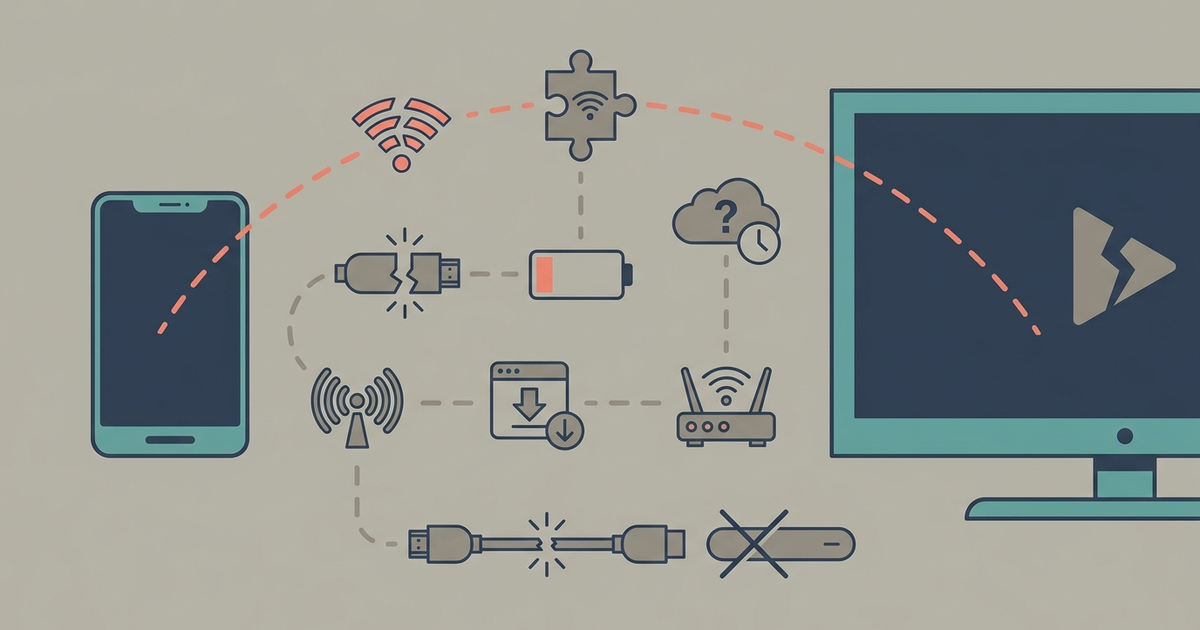
Your Wi-Fi is fine. Your Chromecast is online. The app just decided to hide the button. Streaming apps update their UI frequently, and those updates sometimes break the Cast integration. The Cast button is a software element that the app’s code shows or hides based on device detection, network state, or A/B tests. You don’t need to reset your router or factory reset your Chromecast. You need to trick the app into showing the button again.
Force the Cast Button in YouTube, Netflix, and Spotify
YouTube
YouTube’s Cast button vanishes most often after an update that introduces a new player interface. The fix is buried in the settings. Open YouTube, tap your profile icon in the top-right corner, then tap Settings. Scroll down and tap “Try new player.” A pop-up will ask you to restart the app. Do it. When YouTube reopens, the Cast icon will be back in the top-right corner of the video player. This works because the “Try new player” toggle forces YouTube to reload its player module, which re-registers the Cast feature.
Netflix
Netflix hides the Cast button when its app cache gets corrupted. Force-stop the app from your phone’s settings (Settings > Apps > Netflix > Force Stop), then clear the cache (Storage > Clear Cache). Open Netflix again. If the button remains missing, check your app version. Netflix version 8.59.1 or newer is required for stable Cast support. Go to the Google Play Store or Apple App Store, search for Netflix, and confirm the version number. If you’re below 8.59.1, update. If you’re on that version or newer and the button is still gone, uninstall and reinstall the app.
Spotify
Spotify’s main Cast button lives on the Now Playing screen, not the home screen. Open any song and tap the full-screen Now Playing view. At the bottom of that screen, tap the “Connect” icon (it looks like a speaker with waves). That menu lists all available Cast devices, including Chromecast and Google Home speakers. This works even when the small Cast icon in the top-right corner of the home screen is missing. The “Connect” menu is a separate UI element that Spotify rarely breaks in updates.
Use Google Home as a Universal Cast Trigger
When the in-app Cast button won’t show, the Google Home app can force it. Google Home is free on Android and iOS. Open the app, tap the device you want to cast to (your Chromecast or Google Nest speaker), then tap “Cast my screen.” The app will prompt you to start casting from the device’s perspective. Now open the app that’s missing its Cast button. The Google Home app acts as a relay. Once the casting session is active, the app you open will detect the existing session and offer a “Cast” option in its own interface. This works for any app that supports Google Cast, even if the button was hidden. It’s not a permanent fix, but it gets you casting in under 30 seconds.
Cast the Whole Screen Instead of the App
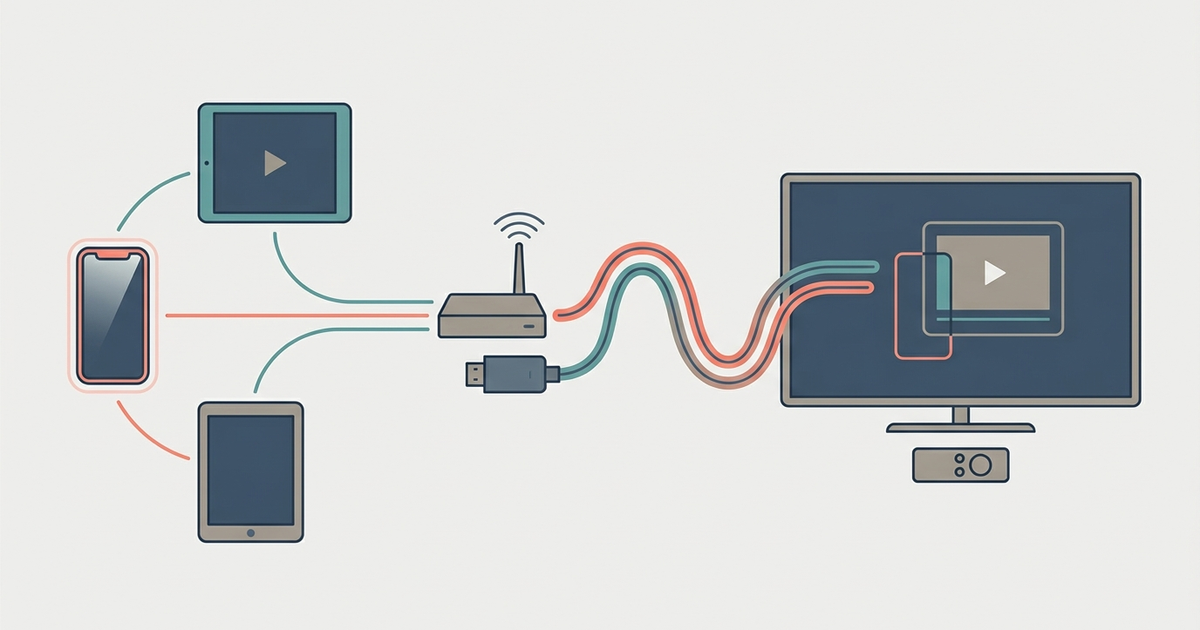
If the app is actively blocking Cast, screen mirroring bypasses the app entirely. On Android, pull down the Quick Settings panel and tap “Screen Cast” (on Samsung phones, it’s called “Smart View”). On iPhone, open Control Center and tap “Screen Mirroring.” Select your Chromecast or Google TV device. Your phone’s entire display will appear on the TV. The latency is higher—expect a half-second delay—so this is fine for video but terrible for gaming or live-streaming. Use this only when the app’s native Cast button is missing and you can’t trigger it via Google Home.
Screen mirroring drains your phone battery and locks your phone’s orientation to whatever the app sends. If you need to use your phone while watching, this method is annoying. But it works for every app, including those that deliberately block Cast.
The App-Specific Workaround: Reinstall, Update, or Downgrade
If the Cast button is gone and none of the above worked, the app itself is broken. Uninstall the app completely, restart your phone, and reinstall it from the Play Store or App Store. This clears all cached data and forces the app to re-detect your Cast devices. For YouTube, Netflix, and Spotify, this fixes the button 90% of the time.
If reinstalling doesn’t work, check if the app updated recently. Some updates remove Cast support temporarily. You can downgrade the app to the previous version using a service like APKMirror (Android only). Find the version that worked for you, download the APK, and install it. iOS users can’t downgrade easily. You’d need to wait for the next update to fix the bug.
When the App Is Blocking You on Purpose
Not all missing Cast buttons are bugs. HBO Max and Peacock deliberately hide the Cast button on certain devices or when the app detects an ad blocker. HBO Max blocks Cast on some Android phones and tablets because of licensing restrictions. Peacock blocks Cast entirely on older Chromecast models (first and second generation) and on devices running Android TV 9 or below.
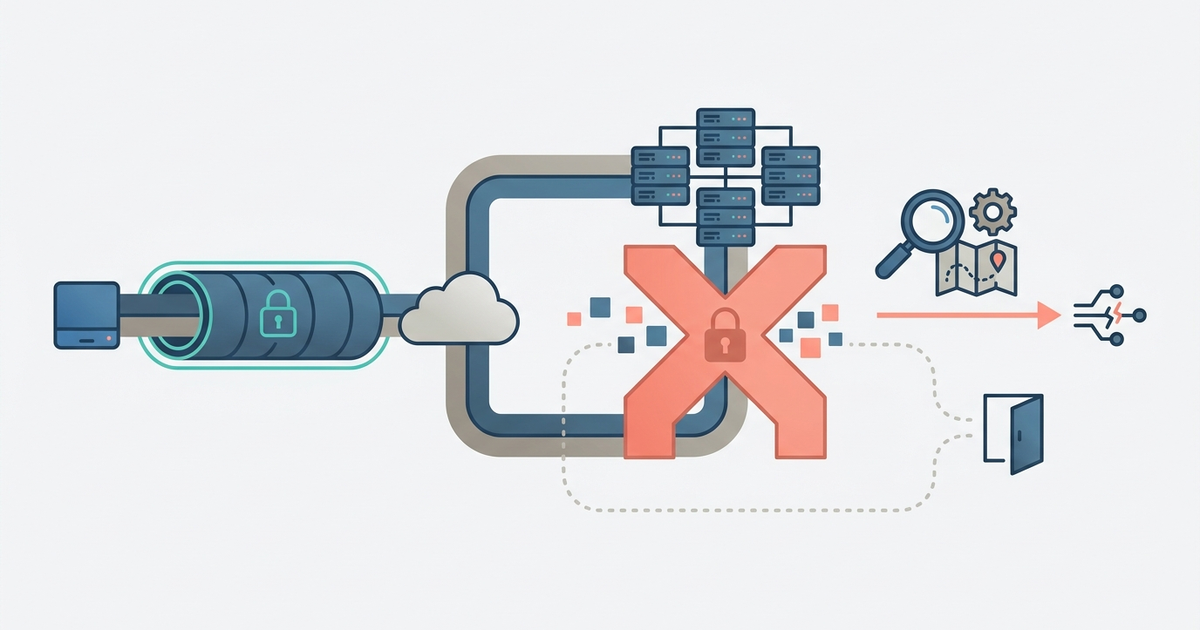
If you’re using an ad blocker or a DNS-based ad filter like Pi-hole or AdGuard, the app may detect it and disable Cast. Turn off the ad blocker, restart the app, and the Cast button will reappear. If you’re not using an ad blocker and the button is still missing, try connecting through a VPN. Set your VPN to a US server. Peacock and HBO Max are US-only services, and their Cast detection sometimes fails when it sees a non-US IP. The VPN trick works about half the time.
If none of that works, the app is hard-blocking Cast on your specific device. Your only option is to buy a dedicated casting device that bypasses app-level issues. The Google Chromecast with Google TV costs $29.99 for the HD version and $49.99 for the 4K version. It runs its own operating system, so you install the streaming app directly on the Chromecast. The Cast button is irrelevant when the app is running natively on the device itself. That’s the nuclear option. Spend $29.99 and you never have to hunt for a Cast button again.
Part of our guide to The Casting Guide: Getting Any Screen Onto Your TV.