Home>Software and Apps>How To Move Your Authenticator to a New Phone
Software and Apps
How To Move Your Authenticator to a New Phone
Modified: 21 November 2026
Table of Contents
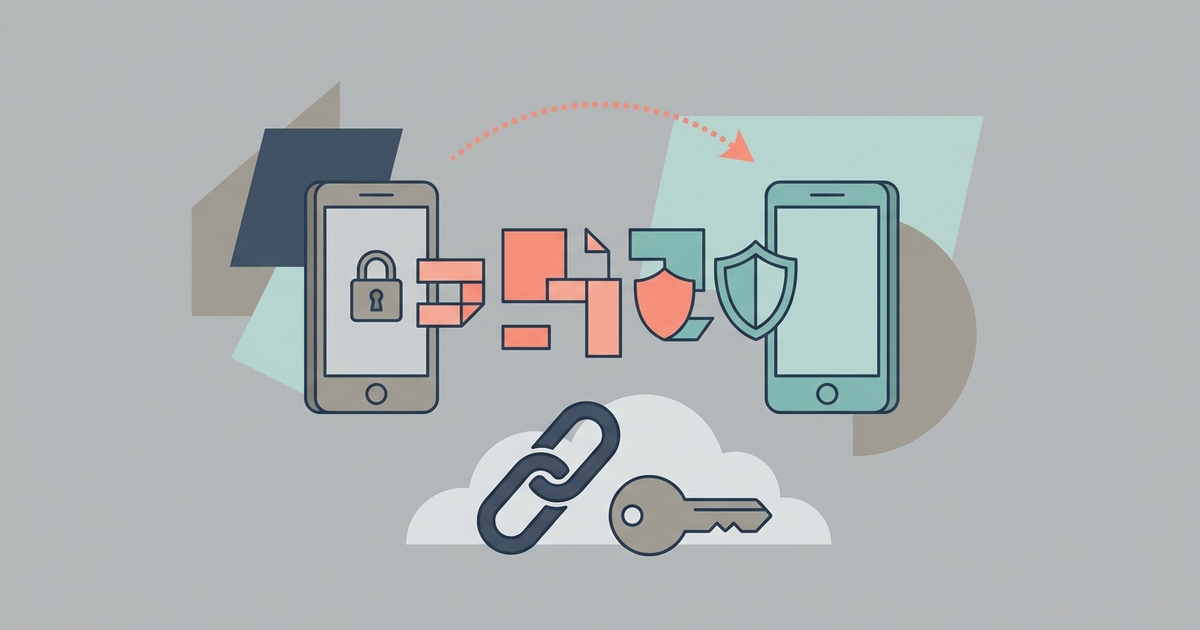
You transfer your authenticator app from the old phone to the new one before you wipe the old device. The method depends on which app you use. Google Authenticator, Microsoft Authenticator, Authy, and 2FAS each handle the move differently. Below are the steps for the four most common apps, followed by what to do if you still have your old phone and what to do if you don’t.

How to Move Google Authenticator to a New Phone
Google Authenticator 6.x on both Android and iOS lets you export accounts by scanning QR codes directly between the two phones. This is the most reliable method. It does not rely on cloud backup, which was added in 2023 but is optional and must be enabled beforehand.
On your old phone, open Google Authenticator. Tap the three-dot menu in the top-right corner (Android) or the three-line icon (iOS). Select Transfer accounts then Export accounts. Choose the accounts you want to move. A QR code appears on the old phone’s screen.
On your new phone, install the free Google Authenticator app from Google Play or the App Store. Open it and tap Get started. Then tap Import accounts and point the camera at the QR code on the old phone. The accounts transfer instantly.
If you enabled cloud sync beforehand (Settings > Google Account backup on Android, or Settings > iCloud backup on iOS), you can instead sign in to the same Google Account on the new phone. But this sync is off by default. If you never turned it on, it will not help you. The QR method always works, regardless of cloud settings.
On an iPhone running iOS 15 or newer, Google Authenticator does offer cloud sync to your Google Account. Still, it is off by default. You must toggle it in Settings before switching phones. The QR transfer method is simpler and requires no pre-configuration.
How to Move Microsoft Authenticator to a New Phone
Microsoft Authenticator 6.2312.1378 uses your Microsoft account for cloud sync, but only if you turned on App lock in the app’s settings. Without app lock enabled, you must re-add each account manually.
On your old phone, open Microsoft Authenticator. Tap the three-dot menu and go to Settings. Under App lock, turn it on and set a PIN or use biometrics. This triggers cloud backup. Once app lock is active, your accounts sync to your Microsoft account automatically.
On your new phone, install the free Microsoft Authenticator app from Google Play or the App Store. Open it and sign in with the same Microsoft account you used on the old phone. The app should prompt you to restore your existing accounts. Tap Restore and your tokens appear.
If you never enabled app lock on the old phone, you lose the sync. In that case, you must manually re-add each account using the original QR codes or setup keys from each service. This is tedious but necessary. Microsoft does not provide a QR-based transfer like Google Authenticator does.
If you use Microsoft Authenticator for work or school accounts, the restore process may require approval from your IT department. That is separate from the app lock setting.
How to Move Authy to a New Phone
Authy 26.3.0 uses your phone number and a backup password. You must set the backup password during initial setup on the old phone. If you forgot it, you cannot move your tokens.
On your new phone, install the free Authy app from Google Play or the App Store. Open it and enter your phone number. You receive an SMS with a verification code. Enter that code. Then Authy asks for your backup password. Type it in. Your tokens sync from Authy’s servers.
That is the entire process. No QR codes. No direct device-to-device transfer. It relies entirely on the backup password you created when you first set up Authy on the old phone.
If you did not set a backup password, or if you forgot it, you cannot restore your tokens. Authy does not allow password recovery. You would need to contact each service individually and re-add 2FA using backup codes or account recovery.
Authy is free. It supports multiple devices if you enable multi-device in settings before switching. If multi-device is off, the new phone becomes the only device with your tokens.
How to Move 2FAS Authenticator to a New Phone
2FAS 5.3.0 backs up your tokens to Google Drive on Android or iCloud on iOS. The backup is encrypted. You must have already initiated a backup from your old phone before switching.
On your old phone, open the free 2FAS app. Go to Settings > Backup. Tap Backup to Google Drive (Android) or Backup to iCloud (iPhone). The app encrypts the backup with a password you choose. Write that password down. Without it, the backup is useless.
On your new phone, install 2FAS from the App Store or Google Play. Open it and select Restore backup. Sign into the same Google Drive or iCloud account. Enter the encryption password. Your tokens appear.
If you never backed up on the old phone, there is no way to transfer. 2FAS does not offer device-to-device QR transfer like Google Authenticator does. You must have the backup file already saved.
2FAS is free. It works on Android 6+ and iOS 13+.
What to Do If You Still Have Your Old Phone
Keep the old phone powered on and connected to Wi-Fi. Do not wipe it until you confirm tokens work on the new device.
Test each app on the new phone. Generate a new code and check it against the code on the old phone. They should match. If they do, you are safe to factory reset the old phone.
If your app does not support transfer or you cannot get it to work, use the old phone to access your accounts directly. Go to each account’s security settings. Disable 2FA and re-enable it with the new phone. This requires the original setup keys or backup codes. It is slower but works for any app.
Do not delete the authenticator app from the old phone until you are certain you have moved everything. Deleting the app removes all tokens permanently on that device.
What to Do If Your Old Phone Is Lost or Broken
You cannot move the authenticator app. The tokens on the lost phone are gone. Your only option is to recover access to each account using the 2FA backup codes you stored when you set up two-factor authentication.
If you saved backup codes in a password manager, a printed paper, or an offline file, use them now. Each service provides between 8 and 16 codes. A single code logs you in and disables that old 2FA method. Then you can set up 2FA on the new phone from scratch.
If you do not have backup codes, your situation is harder. You must go through each service’s account recovery process. This usually involves confirming identity via email, SMS, or answering security questions. It can take days. Some services, like Google, allow a multi-day recovery period during which they send alerts to your trusted devices.
You should have stored backup codes at the moment you enabled 2FA. If you did not, do it now for every account once you regain access. Write them down or put them in a password manager. Without backup codes, a lost phone means permanent account loss for some services.
For a detailed guide on handling 2FA recovery when you have no backup codes, see our hub section Handling the Recovery Problem: Backup Codes and Physical Keys. That covers the exact steps for major services including Google, Microsoft, and Apple.
Part of our guide to Two-Factor Authentication, Properly Set Up.