Home>Software and Apps>Two-Factor Authentication, Properly Set Up
Software and Apps
Two-Factor Authentication, Properly Set Up
Modified: 17 November 2026
Table of Contents
- What Two-Factor Authentication Actually Does—and Doesn't
- The Only Three Methods You Should Use (and Which to Skip)
- How to Enable 2FA on Your Google Account (Including Gmail)
- Microsoft Account: Authenticator App Over SMS
- Apple ID: The Right Way to Handle Trusted Devices
- Setting Up 2FA on Password Managers (Bitwarden, 1Password, and LastPass)
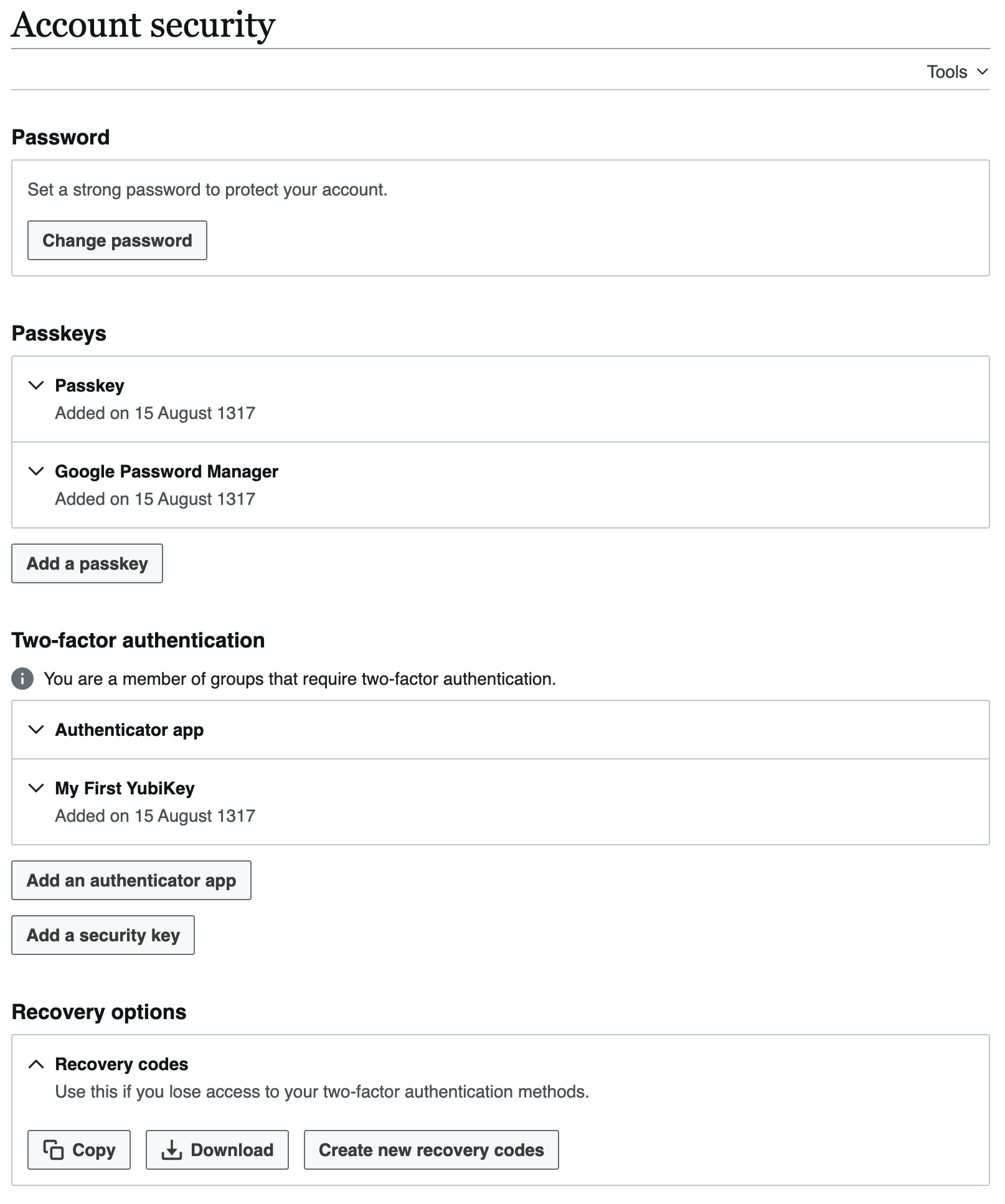
- Handling the Recovery Problem: Backup Codes and Physical Keys
- What to Do When You Lose Your Phone or Change Your Number
- Frequently Asked Questions
Two-factor authentication is useless if you set it up wrong.

Most people enable the default option—SMS codes—and assume they are safe. They are not. A SIM swap attack costs a few dollars and can nullify that "extra layer" in minutes. This guide walks you through the specific methods, the exact settings pages, and the backup strategies that actually work.
What Two-Factor Authentication Actually Does—and Doesn't
2FA adds a second proof—something you have—to something you know (your password). The "something you have" is typically a code from an authenticator app, a hardware key, or a text message. It makes password reuse and phishing harder because a stolen password alone won't unlock the account.
What 2FA does not do: protect you from malware on your device, from a compromised recovery email, or from a lost backup code. If an attacker already controls your phone or your desktop session, 2FA won't stop them. It also does nothing against account-recovery attacks that bypass the second factor entirely.
The Only Three Methods You Should Use (and Which to Skip)
Use these:
- Time-based one-time passwords (TOTP) via an authenticator app. This is the sweet spot: free, device-independent (you can store seeds), and not interceptable over the phone network.
- FIDO2/WebAuthn with a hardware key. The gold standard. A physical device like a YubiKey 5 NFC ($55) or YubiKey 5C Nano ($65) can't be phished, cloned, or intercepted.
- Passkeys (platform authenticators). Built into iOS, Android, and Windows Hello. Better than TOTP but tied to your device ecosystem.
Skip these:
- SMS codes. T-Mobile still allows SIM swaps with minimal verification. Outside the US, each SMS costs the provider about 30 cents—but the cost to you in security is higher. Use it only as a last resort.
- Email codes. Email is the weakest link. If your email is compromised, the code arrives in the attacker's inbox.
- Push notifications from apps you don't control. Some services send "approve this login" pushes without a code. They are convenient but susceptible to fatigue attacks.
Which authenticator app should you pick? Here is the comparison:
- Google Authenticator — Free, simple, no backup by default (unless you enable cloud sync on Android or iOS). Seeds are stored locally. If you lose your phone without a backup, you lose all codes.
- Microsoft Authenticator — Free, backs up to iCloud or Google Drive (encrypted). Supports passwordless logins for Microsoft accounts. The backup feature works only if you enable it beforehand.
- Authy — Free, encrypted cloud backup, multi-device sync (e.g., iPad + phone). Desktop app available. Proprietary backup scheme that locks you into Authy—harder to migrate away.
- Duo Mobile — Free, good for enterprise, but its backup is tied to a Duo account. Not recommended for personal use unless your work requires it.
My pick: Authy for its multi-device sync and encrypted backup, or Google Authenticator if you enable cloud sync (iOS/Android) and manually export your seeds to a second device.
How to Enable 2FA on Your Google Account (Including Gmail)
Google makes this straightforward. The steps below work as of 2026.
- Go to myaccount.google.com and sign in.
- Click Security in the left navigation.
- Under "How you sign in to Google," click 2-Step Verification. You may need to enter your password again.
- Click Get started.
- Choose Authenticator app (not "Text message" or "Phone call").
- Select Android or iPhone — not "Can't scan it" unless you need the manual key. Google will show a QR code.
- Open your authenticator app (e.g., Google Authenticator, Authy), tap the + icon, and scan the QR code. A six-digit code appears every 30 seconds.
- Enter the current six-digit code into Google's prompt. Click Verify.
- On the next screen, Google asks for a backup phone number. Skip this if you can—or provide a number you trust. Google will offer SMS as a fallback by default; you can disable it later in the same settings page under "Second factor options."
- Click Turn on.
Once enabled, go back to the 2-Step Verification page and scroll to "Backup codes." Generate five backup codes (you get 10 by default). Copy them immediately.
Where to store them: not in your email. Store them in your password manager's secure note field. Bitwarden users: create a new note in your vault labeled "Google backup codes" and paste them there. Do not save them in Gmail.
Microsoft Account: Authenticator App Over SMS
Microsoft defaults to SMS for consumer accounts. Change that.
- Go to account.microsoft.com/security and sign in.
- Click Advanced security options.
- Under "Two-step verification," click Turn on (or Edit if already on).
- Choose Use an authenticator app. Microsoft recommends its own Microsoft Authenticator, but any TOTP app works.
- Click Set up. A QR code appears. Scan it with your authenticator app.
- Enter the six-digit code Microsoft shows. Click Next.
- Microsoft will ask for a backup email or phone. Provide one you control—ideally a secondary email not tied to Microsoft.
- Click Done.
Now go back to the same page and disable SMS as a verification option. Under "Additional security options," remove your phone number from the "Phone" section if you don't want SMS fallback. Microsoft still allows SMS as a backup by default—you have to explicitly remove the phone number.
Microsoft Authenticator app allows backup to iCloud or Google Drive. For Android, enable "Cloud backup" in the app settings (three dots menu > Settings > Cloud backup). This saves your TOTP seeds. If you use a different authenticator, export the seeds via QR code (if supported) or write down the manual setup keys.
Apple ID: The Right Way to Handle Trusted Devices
Apple's two-factor authentication is mandatory for new accounts as of 2026. It uses trusted devices and trusted phone numbers. You cannot turn it off—but you can configure it correctly.
- Go to appleid.apple.com and sign in.
- Under "Sign-In and Security," click Two-Factor Authentication. It should say "On."
- Under "Recovery Key," click Manage > Turn On. Apple generates a 28-character recovery key. Write it down on paper and store it in a safe place (e.g., a locked drawer). Do not save it in iCloud Notes—that defeats the purpose. Also store it in your password manager's secure note.
- Under "Trusted Phone Number," add at least one number that you control and can receive SMS at. This is the fallback if you lose all trusted devices. Apple will not let you remove all trusted numbers.
- Under "Security Keys," you can add physical FIDO2 keys (e.g., YubiKey 5 NFC). Click Add Security Keys and follow the prompts. This replaces SMS fallback for iCloud sign-ins—but your trusted phone number remains for account recovery.
The biggest mistake: thinking your trusted devices are enough. If you lose your iPhone and your iPad simultaneously, you need the recovery key or a trusted phone number. Apple will not unlock your account without one of these. The recovery key is a 28-character string—no one can reset it for you. Keep it safe.
Setting Up 2FA on Password Managers (Bitwarden, 1Password, and LastPass)
Your password manager is your most important account. If it gets compromised, everything else falls. Enable 2FA on it immediately.
Bitwarden:
- Free tier supports email + TOTP. Premium ($10/year) adds FIDO2/WebAuthn support for hardware keys (YubiKey, etc.).
- Go to vault.bitwarden.com > Settings > Security > Two-step login. Click Manage next to "Authenticator app" (TOTP). Scan the QR code with your authenticator. Then click Manage next to "FIDO2 WebAuthn" and insert your YubiKey when prompted.
- Bitwarden allows up to five hardware keys. Register two: one for daily use, one stored in a safe place.
1Password:
- 1Password does not use TOTP for its own account. Instead, it uses a Secret Key (a 34-character random string) combined with your master password. This is effectively 2FA. Enable two-factor on your 1Password account (via the web interface) only if you want an extra TOTP code for web logins—but it is optional.
- Go to my.1password.com > My Profile > More Actions > Manage Two-Factor Authentication. Follow the prompts. Store your Secret Key securely (it's already in your Emergency Kit PDF).
LastPass:
- LastPass Free as of 2026 includes one type of 2FA. Go to lastpass.com > Account Settings > Multifactor Options. Choose "Authenticator App." Scan the QR code.
- LastPass also supports YubiKey (FIDO U2F) on Premium ($3/month). Do not rely on LastPass's SMS option.
Handling the Recovery Problem: Backup Codes and Physical Keys
Every service provides backup codes when you enable 2FA. Ignore them and you lose access.
Generate backup codes immediately after enabling TOTP. Google gives 10 codes; Microsoft gives 10; Apple gives a recovery key (28 characters). Bitwarden gives two recovery codes.
Store them in two places:
- In your password manager's secure note field (not in your email).
- On a physical piece of paper in a fireproof safe or a locked drawer. Yes, paper. It cannot be hacked.
Do not store backup codes in email, in a cloud document (Google Drive, iCloud Drive), or in a notes app that syncs across devices. If your email is compromised, the attacker sees your backup codes and defeats your 2FA.
For hardware keys: buy two. Use one daily, store the second off-site (e.g., a safe deposit box or a trusted family member's house). YubiKey 5 NFC ($55) works with most phones (NFC tap) and computers (USB-A). YubiKey 5C Nano ($65) is USB-C and tiny—stays in a laptop but is easy to lose.
What to Do When You Lose Your Phone or Change Your Number
Losing your phone with TOTP seeds but no backup codes is a crisis. Here's the order of operations:
- If you backed up your authenticator app (Authy cloud, Microsoft Authenticator to iCloud/Google Drive, Google Authenticator cloud sync), install the app on your new phone and restore from backup.
- If you did not back up, use your recovery codes. You stored them in your password manager and on paper. Retrieve them.
- If you have a hardware key registered (YubiKey), you can log in to each service using the key. Do that first, then remove the old phone from the account's trusted devices.
- If you have none of the above, you must use the account recovery process. Each service has one: Google requires you to answer security questions or prove ownership via a recovery email. Microsoft sends a code to an alternate email. Apple requires you to wait—sometimes days—and verify identity with a credit card or device serial number. This is painful.
If you change your phone number, update your trusted phone number on every account before you port the old number out. Most services require SMS verification to change the phone number. If the old number is deactivated, you are locked out of that step.
Do not rely on SMS as your primary 2FA. If you change your number, even temporarily, you lose access to every account that uses SMS fallback. TOTP apps move with you—your number does not.
Frequently Asked Questions
How do I export TOTP seeds from Google Authenticator on Android?
Open Google Authenticator, tap the three-dot menu, and select Transfer accounts then Export accounts. The app shows a QR code you can scan with another device. This works only if you are moving seeds to a second phone and have both devices present.
Can I use a YubiKey with my Microsoft account without the Authenticator app?
Yes. Go to account.microsoft.com/security, click Advanced security options, and under Ways to prove who you are select Add a new way to sign in or verify. Choose Security key and insert your YubiKey when prompted. Microsoft supports FIDO2 keys directly without requiring the app.
What happens to my Authy codes if I lose access to my phone number?
Authy backups are tied to your phone number for account recovery. If you lose that number before disabling multi-device in Authy settings, you must contact Authy support to recover the account. The encrypted cloud backup still holds your seeds once you regain access.
How do I add a second hardware key to my Bitwarden account?
Go to vault.bitwarden.com, open Settings then Security then Two-step login, and click Manage next to FIDO2 WebAuthn. Insert your first key to authenticate, then select Add key and insert the second one. Bitwarden allows up to five hardware keys registered to one account.