Home>Software and Apps>How To Convert a PDF to Excel Without Retyping the Data
Software and Apps
How To Convert a PDF to Excel Without Retyping the Data
Modified: 19 September 2026
Table of Contents
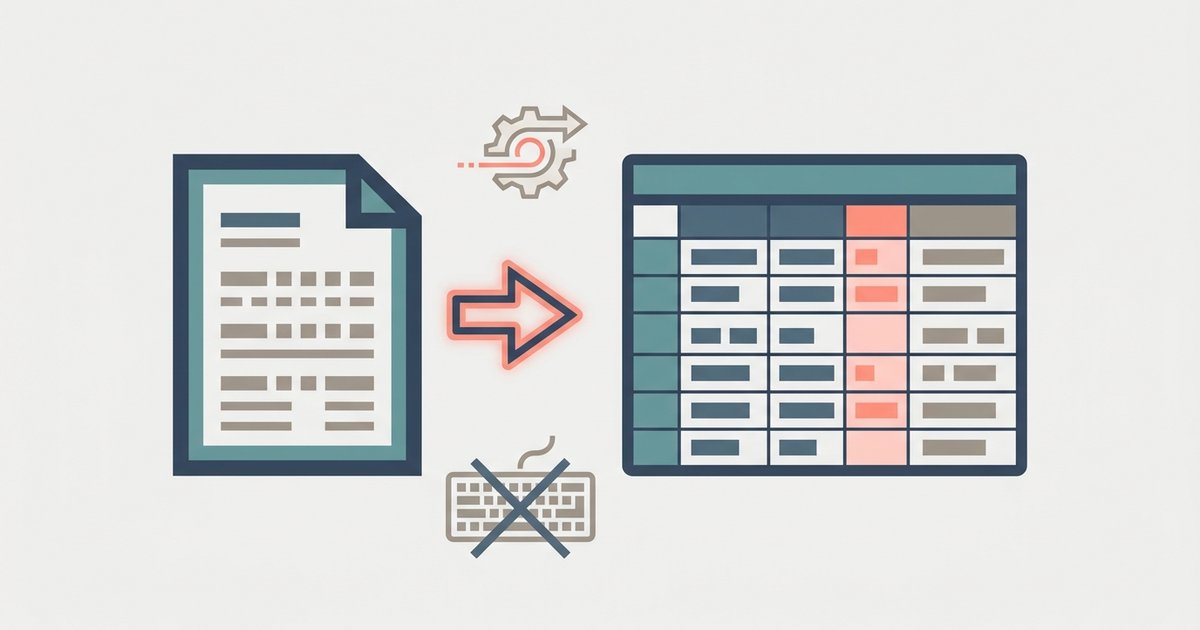
To get a table out of a PDF without retyping it, upload the file to a PDF to Excel converter, download the spreadsheet it produces and check the numbers against the original. Converters work best on PDFs that were created digitally, such as exported reports and statements. Scanned pages need text recognition first, and tables without gridlines may need some tidying.
Why Retyping Is the Wrong Answer
Bank statements, supplier price lists, sales reports and invoices often arrive as PDFs even though the data inside belongs in a spreadsheet. You can read the numbers, but you cannot sort, filter or total them. Retyping them row by row takes time and invites mistakes, and a single swapped digit can throw off a budget or a reconciliation without anyone noticing.
Copying and pasting is not much better. Pasting a PDF table into Excel often dumps everything into one column, or turns numbers into text that will not add up.
Convert the PDF With PDFBEAR
PDFBEAR's PDF to Excel converter pulls tables from a PDF into an Excel spreadsheet in your browser. The site says it detects ruled tables, maps them into rows and cells, and keeps numbers as values you can calculate with. The output is an XLSX file that opens in Excel and most other spreadsheet apps.
- Open the tool and upload your PDF. You can drag it in or browse for it.
- Check the page order. The tool shows page thumbnails you can drag into a different order, and you can add more files to combine documents before converting.
- Click Convert to Excel and wait for the conversion to finish. Free downloads can join a queue when the servers are busy, so keep the page open.
- Download the spreadsheet and open it in Excel.
- Check the results against the original PDF before you rely on them.
The site lists a 50 MB free file size limit. Guests get a small number of free conversions per day, and a free account removes that cap. Password-protected PDFs need to be unlocked first.
Know What Kind of PDF You Have
The single biggest factor in how well a conversion goes is how the PDF was made.
- Digital PDFs were created by software, for example a report exported from accounting software or a statement downloaded from your bank's website. The text is real text, and you can usually highlight individual words. These convert best.
- Scanned PDFs are pictures of pages. If you cannot select a single word, the PDF is a scan. A converter sees pixels, not characters, so it needs optical character recognition (OCR) to read the numbers first.
PDFBEAR routes scanned PDFs through its OCR. In our test, the tool asked us to log in and upgrade to convert a PDF it treated as scanned, and the site's pricing page lists OCR as a Premium feature. If your file is a scan, expect that step, or look for a digital copy of the same document. Many banks and suppliers let you download statements and invoices as CSV or Excel files directly, which skips the PDF entirely.
Clean Up the Spreadsheet
Even a good conversion usually needs a few minutes of tidying. PDFBEAR's own page is upfront about the common issues, and they apply to most converters.
Columns merged together. Tables without drawn gridlines give the converter no clear boundaries, so neighboring columns can land in one cell. In Excel, select the affected column and use Data > Text to Columns to split it by spaces or another delimiter.
Numbers stored as text. Values with currency symbols, thousands separators or leading zeros can come through as text. Select the range and change its format to Number, or use Excel's error indicator to convert text to numbers.
Shifted headers. Merged header cells in the PDF can push values into the wrong column. Fix the header row by hand and check that each column lines up with its label.
Missing prose and charts. Only data inside a detectable table ends up in cells. Paragraphs, footnotes and charts are mostly left out, which is usually what you want.
Check the Numbers Before You Use Them
Automated extraction is fast, but you are still responsible for the figures. A few quick checks catch most problems:
- Compare row counts. Count the rows in the PDF table and in the spreadsheet. Missing or extra rows show up immediately.
- Compare totals. If the PDF shows a total or closing balance, add up the column with SUM and make sure it matches.
- Spot check a few rows at the start, middle and end of each page, where page breaks can cause trouble.
- Check dates. Dates can switch between day-month and month-day formats or come through as text. Make sure they sort correctly.
The Built-In Option in Excel
Excel can import some PDFs itself using Power Query. In recent versions of Excel for Windows, go to Data > Get Data > From File > From PDF, choose the file and pick the tables you want in the Navigator window. Then select Load to drop the data into a sheet, or Transform Data to clean it up first in the Power Query Editor.
Microsoft's documentation for the PDF connector notes that very large PDFs may be slow, suggests importing a page or a small range at a time in that case, and says rows that span multiple lines may need cleaning up afterward. This route keeps the file on your computer, which is useful for sensitive statements. It is not available in every edition of Excel, so if you do not see the From PDF option, an online converter is the simpler path.
Keep Financial Documents Private
Statements and invoices often contain account numbers, balances and addresses. Before you upload one, check how the service handles files. PDFBEAR says uploads travel over encrypted HTTPS, files are used only for the conversion you requested and no human reviews them. With a free account, your files are kept in a personal file manager for a limited time after your last activity, and you can delete them yourself at any time.
If you only need a few columns, consider removing pages with sensitive details before you upload, or use Excel's own PDF import so the file never leaves your computer.
When Conversion Is Not the Right Tool
Conversion works for tables. If you need the paragraphs rather than the numbers, a PDF to Word converter is a better fit. If the PDF is a form rather than a table, fill it in instead of converting it. And if you receive the same report every month, ask the sender for a spreadsheet or CSV version. It is almost always available somewhere upstream.
The Bottom Line
You do not need to retype a PDF table. Upload a digital PDF to a PDF to Excel converter, download the XLSX, fix any merged columns or text-formatted numbers, and check totals against the original. Scanned files need OCR first, and Excel's own From PDF import is a good offline option when your version includes it.
Frequently Asked Questions
Can I convert a PDF to Excel on my phone?
Yes, PDFBEAR's converter runs in a mobile browser. Upload the PDF, tap Convert to Excel and download the XLSX. The same 50 MB file size limit applies, and scanned pages still need OCR, which requires an account.
Why is the From PDF option missing in my Excel?
The Power Query PDF connector is only in recent versions of Excel for Windows. It is not available in every edition. If you do not see it under Data > Get Data > From File, use an online converter instead.
Can I pull a PDF straight from Google Drive into a converter?
Some online converters let you import PDFs directly from cloud storage services like Google Drive, Dropbox or OneDrive. PDFBEAR's tool accepts a drag-and-drop upload or a file browse, so you would download from Drive first.
How do I split a column that combined first and last names?
Select the column in Excel and use Data > Text to Columns. Choose Delimited, then pick Space as the delimiter. This splits merged columns that lacked clear gridlines in the original PDF table.