Home>Gadgets>Troubleshooting Chromecast on a Guest or Hotel Network
Gadgets
Troubleshooting Chromecast on a Guest or Hotel Network
Modified: 11 November 2026
Table of Contents
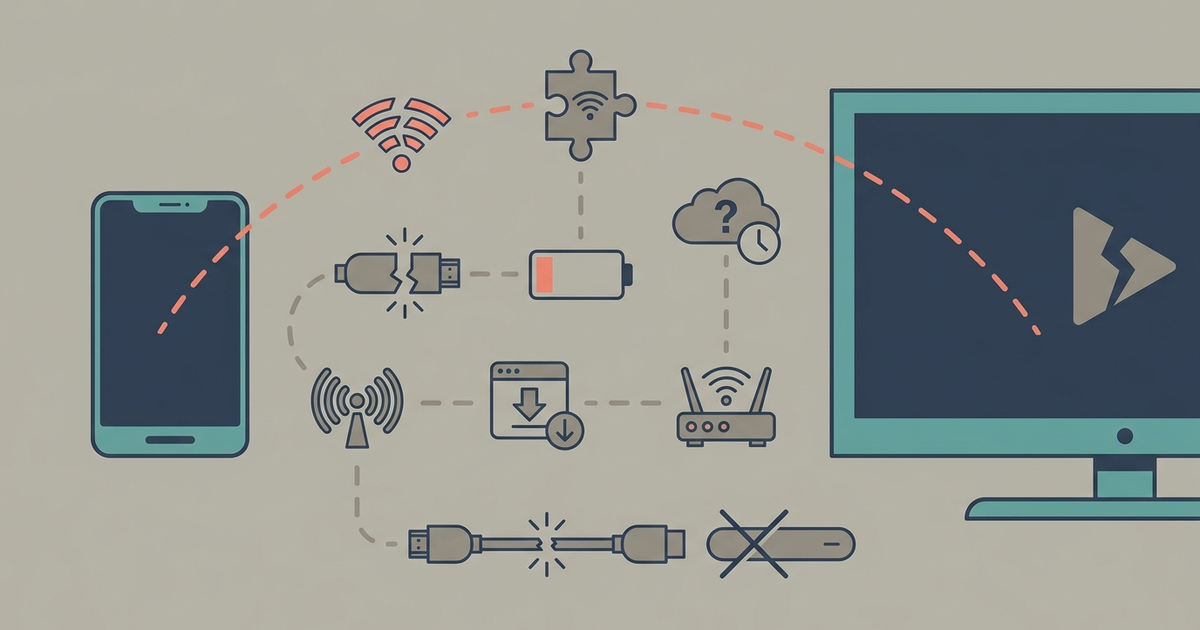
You need a second device to bridge the connection. Hotel and guest Wi-Fi networks isolate each client from every other client, so your phone can’t find your Chromecast. That’s the core problem, and no setting on the Chromecast fixes it. The workaround is to create your own private network that both your phone and the Chromecast can join.

Why Hotel Wi-Fi Breaks Chromecast
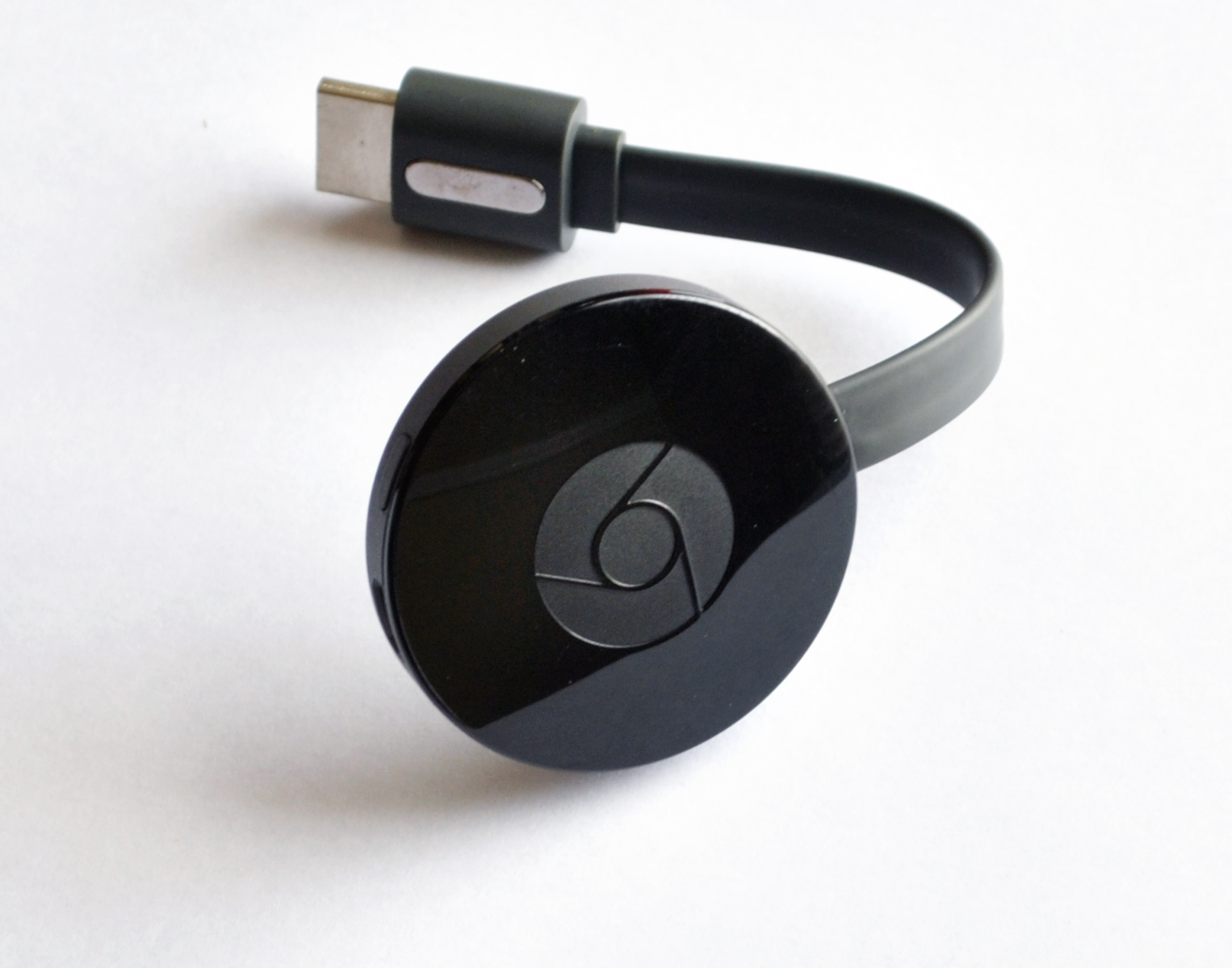
A Chromecast with Google TV (4K, $49.99) and a Chromecast Ultra ($69.99, discontinued but still common in hotel bags) need two things: internet access and a local network that allows device-to-device communication. Hotel Wi-Fi provides the first but blocks the second. The captive portal—that web page where you enter your room number or accept terms—adds another layer. Even after you log in, the network typically uses client isolation. Your phone and your Chromecast are invisible to each other. You can’t change that. You can’t call the front desk and ask them to disable it. You have to bypass the hotel’s network entirely.
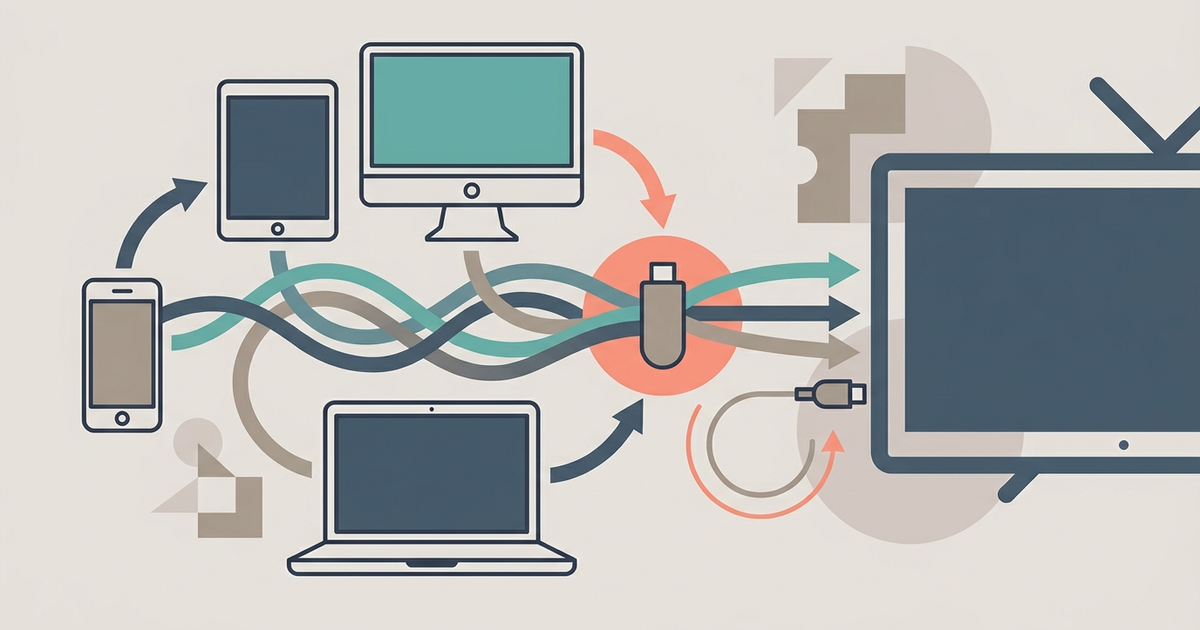
You cannot connect the Chromecast directly to the hotel Wi-Fi and expect your phone to find it. That won’t work. Every method below creates a second network that your Chromecast and your phone share. A bridging device handles the actual internet connection through the hotel’s Wi-Fi.
What You’ll Need Before You Start
You need a device that connects to the hotel Wi-Fi and re-broadcasts that connection as its own network. Three common devices can do this: a laptop running Windows 11 or macOS Ventura, a travel router like the TP-Link TL-WR902AC AC750 ($39.99 on Amazon), or an Android phone that supports Wi-Fi sharing (tested on a Pixel 8 Pro running Android 14). You also need the Chromecast’s power adapter and HDMI cable, and the Google Home app on your phone (version 3.28 or later).
Log into the hotel’s captive portal on the bridging device before you start setup. If your laptop or phone hasn’t completed the portal login, the bridged network will have no internet and the Chromecast will show a connection error.
Method 1: The Laptop Hotspot Tether (Windows/Mac)
This is the most reliable method. Laptops don’t have the carrier restrictions that phones do. You turn your laptop into a Wi-Fi hotspot, connect the Chromecast to that hotspot, and then connect your phone to the same hotspot to control it.
Windows 11
Connect your laptop to the hotel Wi-Fi. Complete the captive portal login in a browser. Open Settings > Network & internet > Mobile hotspot. Set “Share my internet connection from” to Wi-Fi. Turn on Mobile hotspot. Write down the default network name and password, or change them to something simple like “HotelCast” and “password123.”
Plug the Chromecast into the TV and switch to the correct HDMI input. During setup, select your laptop’s hotspot network and enter the password. The Chromecast will connect and show “Ready to cast” on the TV. Disconnect your phone from the hotel Wi-Fi and connect it to the same laptop hotspot. Open the Google Home app. Your Chromecast should appear within 10 seconds. Cast normally.
The downside: your laptop must stay on, awake, and within range of both the hotel Wi-Fi and the Chromecast. If the laptop goes to sleep, the hotspot drops and the Chromecast loses internet. Set your laptop’s power plan to “Never sleep” while you cast.
macOS Ventura
Connect your Mac to the hotel Wi-Fi and complete the captive portal. Open System Settings > General > Sharing. Click the “i” next to Internet Sharing. Select “Wi-Fi” from the “Share your connection from” dropdown. Under “To devices using,” check Wi-Fi. Click “Wi-Fi Options,” set a simple network name and password, and click OK. Toggle Internet Sharing on and confirm.
Your Mac is now broadcasting a Wi-Fi network. Connect the Chromecast to it. Connect your phone to it. Open the Google Home app. That’s it.
macOS handles sleep better than Windows. You can close the lid if the Mac is plugged in and you’ve set “Prevent automatic sleeping on power adapter” in Battery settings. It’s still a tethered solution—you can’t walk around with the laptop.
Method 2: The Travel Router Workaround (TP-Link TL-WR902AC, $39.99)
A travel router is the cleanest solution. It costs $39.99, fits in a pocket, and works without a laptop. The TP-Link TL-WR902AC AC750 is the standard choice because it has a dedicated “Hotel Wi-Fi” mode that handles captive portals automatically. No other router at this price does that reliably.
Plug the router into a wall outlet. Connect your phone to the router’s default Wi-Fi network (printed on the bottom of the unit). Open a browser and go to tplinkwifi.net. Set the operation mode to “Hotel Wi-Fi.” The router will scan for available networks. Select the hotel’s Wi-Fi. The router opens the captive portal page in a browser window on your phone—complete the login. Once the router confirms internet access, it rebroadcasts that connection as its own secure network.
Connect your Chromecast to the travel router’s network. Connect your phone to the same network. Cast. The router handles everything, and your laptop stays in your bag.
The trade-off: you carry one more gadget and remember its USB power cable. But it’s the only method that works when you have no laptop and your phone doesn’t support Wi-Fi sharing. If you travel often, buy one and leave it in your toiletry kit.
Method 3: The Mobile Hotspot Hack (Android Only, Pixel 8 Pro Tested)
Some Android phones can re-broadcast a Wi-Fi connection as a hotspot. This takes the hotel Wi-Fi and shares it over a second Wi-Fi network. It is not the same as using mobile data. Not all phones support this. On the Pixel 8 Pro running Android 14, the feature is called “Wi-Fi hotspot” and it works. On a Samsung Galaxy S24 Ultra (One UI 6.1), the option is labeled “Wi-Fi sharing” and it also works. On an iPhone 16 Pro Max (iOS 18), this feature does not exist. You cannot share a Wi-Fi connection as a hotspot on any iPhone.
On the Pixel 8 Pro: Connect to the hotel Wi-Fi and complete the captive portal. Open Settings > Network & internet > Hotspot & tethering > Wi-Fi hotspot. Tap “Use Wi-Fi sharing” (the toggle appears only if your phone supports it). Set a network name and password. Turn on the hotspot. The phone warns you that sharing a Wi-Fi connection uses more battery—it’s accurate. Expect about 2.5 hours of casting before the battery hits 20% on a Pixel 8 Pro.
Connect the Chromecast to the phone’s hotspot. Connect your phone to the same hotspot—you’re using the phone as both the router and the controller, which is fine. Open the Google Home app. Cast.
This is the most portable method, but it has two hard limits. First, it drains your phone battery fast. Plug the phone into a charger while casting. Second, the phone’s Wi-Fi radio does double duty (receiving from the hotel and broadcasting to the Chromecast), so range is short. Keep the Chromecast and the phone in the same room, within 10 feet.
When All Methods Fail: HDMI Dongle Fallback
Sometimes nothing works. The hotel Wi-Fi might block all peer-to-peer traffic even on a bridged connection. The captive portal might require a browser with JavaScript that a travel router can’t handle. Your laptop’s hotspot might not support the Chromecast’s Wi-Fi standard (rare, but possible on older laptops with single-band cards). Stop trying to make Chromecast work. Use a direct wired connection.
The Anker PowerExpand USB-C to HDMI adapter costs $14.99 on Amazon. If you have a modern laptop or a phone with USB-C video output (Pixel 8 Pro, Samsung Galaxy S24, iPad Pro with USB-C), plug the adapter into the device, connect an HDMI cable to the TV, and mirror your screen. This bypasses every network problem. You lose the ability to use your phone independently while casting, and you’re limited to content on the device you’re using. But it works on every TV with an HDMI port, on every network, every time.
If you don’t have a USB-C adapter and none of the network methods work, download content to your phone or tablet before you leave your room, then cast from local storage. Netflix, Disney+, and Amazon Prime Video allow downloads on their mobile apps. The Chromecast can play local files from the Google Home app if you’re on the same network—but you’re back to needing a working bridged network. The USB-C adapter is the true fallback. Keep one in your bag next to the Chromecast.
Part of our guide to The Casting Guide: Getting Any Screen Onto Your TV.