Home>Software and Apps>What Passkeys Change, and What They Do Not
Software and Apps
What Passkeys Change, and What They Do Not
Modified: 25 November 2026
Table of Contents
- What a Passkey Replaces (and What It Does Not)
- The One Thing Passkeys Kill: Phishing
- Where Passkeys Still Need a Backup (and Why That Backup Is Still 2FA)
- The Platform Lock-In Problem: Apple, Google, and Microsoft Don’t Talk to Each Other
- What Happens When You Lose Your Only Passkey-Protected Device
- The Bottom Line: Use Passkeys Where They Fit, Keep 2FA Where They Don’t
Passkeys replace your password and the “something you know” factor. They do not replace the device in your hand or your face. That distinction matters more than most articles admit.

What a Passkey Replaces (and What It Does Not)
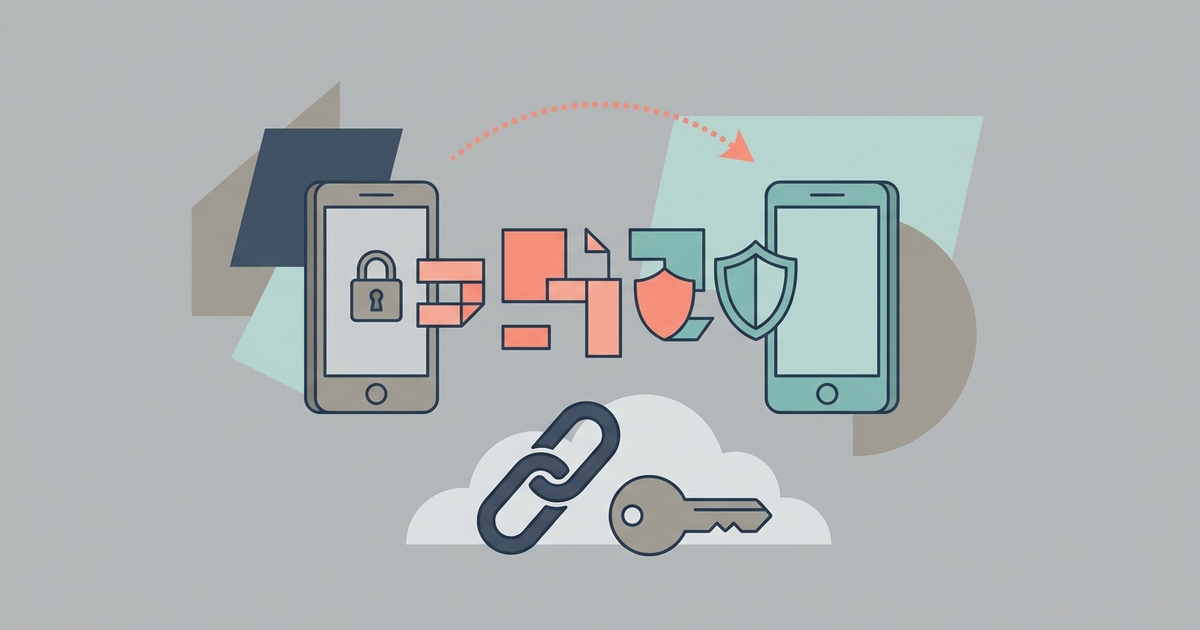
A passkey is a cryptographic key pair stored on your device. When you log in, your device proves it holds the private key. The website checks the public key. That eliminates the password entirely. No typed text, no hash to steal, no reuse across sites.
A passkey still relies on two other factors. You need “something you have”—the phone, laptop, or security key that stores the private key. You also need “something you are”—your fingerprint, face scan, or device PIN to unlock it. The passkey replaces only the password. It does not replace the hardware or the biometric. Lose the device, and you lose access. If someone steals your phone and cracks your PIN, they can use your passkeys.
The security upgrade is real, but it is not magic. Passkeys shift the attack surface from guessable secrets to physical possession and biometrics.
The One Thing Passkeys Kill: Phishing
Passkeys are bound to the website’s origin. Your device checks the domain before sending the cryptographic proof. A fake login page at “g00gle.com” cannot request your passkey because its URL does not match the registered origin. The browser refuses.
This is the single biggest improvement. Phishing attacks—where a malicious site tricks you into typing your credentials—are the dominant vector for account takeovers. With a passkey, that attack fails instantly. No password to type, no code to forward, no callback to intercept.
Even if you visit the wrong site deliberately, your passkey will not work. The protocol enforces domain binding at the hardware level. That is why security researchers call passkeys “phishing-resistant.”
Where Passkeys Still Need a Backup (and Why That Backup Is Still 2FA)
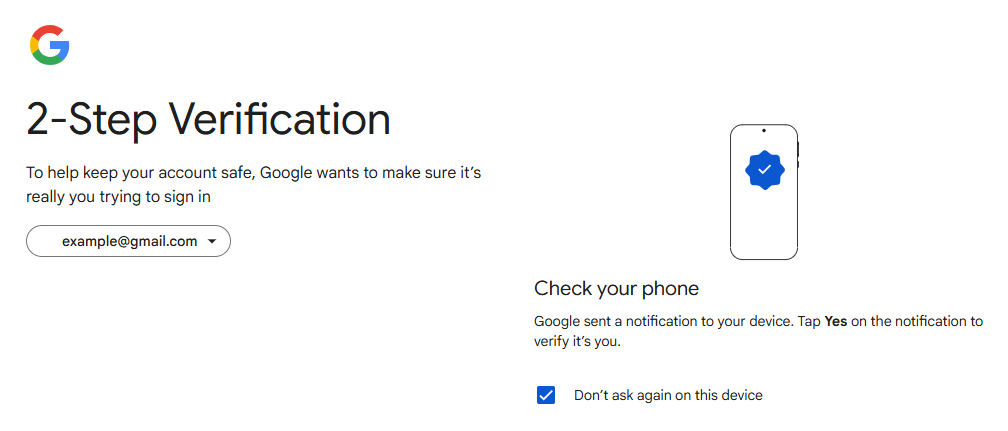
Passkeys handle daily login. They do not handle account recovery. If you get a new phone and have not synced your passkeys beforehand, you need a way back in. The old 2FA rules still apply.
Every major platform—Apple, Google, Microsoft—requires backup codes or an alternate second factor for recovery. You generate those codes when you enable passkeys. They are single-use and printed or stored in a password manager. Lose those codes and lose your recovery device, and the account is gone.
Keep a physical security key as a fallback. A YubiKey 5C costs $55 as of 2026. Register it as a second factor on every account that supports passkeys. If you lose your phone, you can still authenticate with the key and recover your passkey sync.
Do not rely on SMS 2FA for recovery. SIM swapping is still a threat, and passkeys do not fix it. Use an authenticator app or a hardware key instead.
The Platform Lock-In Problem: Apple, Google, and Microsoft Don’t Talk to Each Other
Apple iCloud Keychain syncs passkeys across your iPhone, iPad, and Mac. Google Password Manager does the same on Android and Chrome. Microsoft’s Authenticator handles Windows and Edge. None of them sync across platforms.
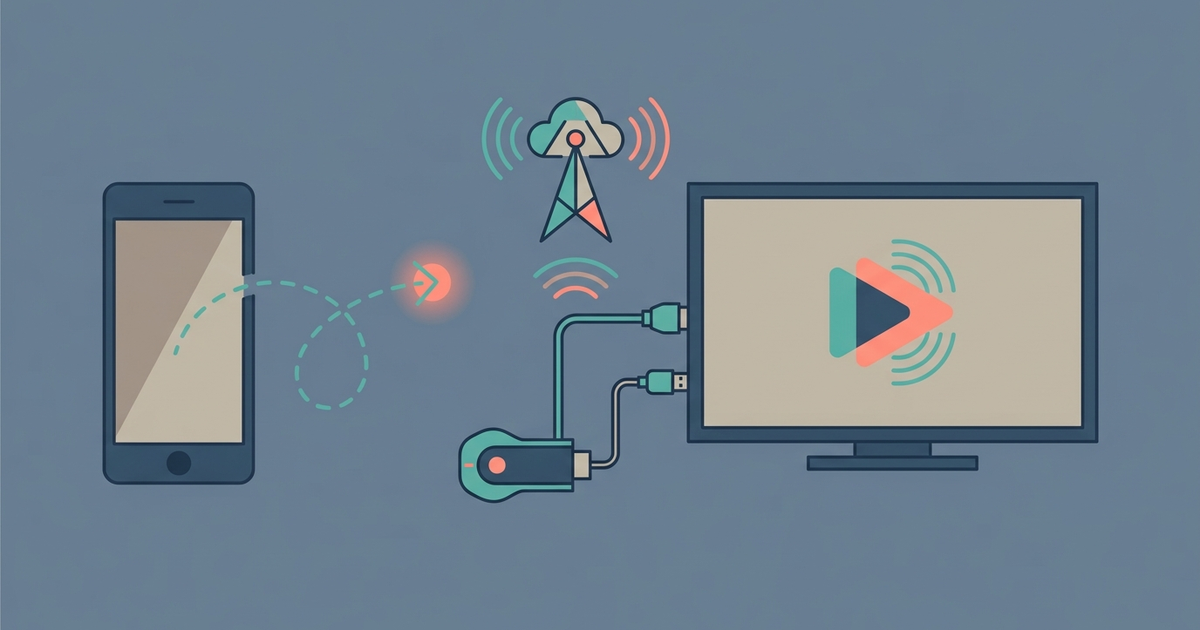
If you use an iPhone and a Windows laptop, your passkey on iCloud Keychain will not appear on your Windows machine. You can scan a QR code with your iPhone to log in on Windows. That is a workaround, not a sync. It adds friction every time.
The only cross-platform solution as of 2026 is a third-party password manager with passkey support. 1Password added passkey storage in version 8.10. It costs $2.99 per month. Bitwarden and Dashlane also support cross-platform passkey sync. These managers store the private key in their encrypted vault and sync across all your devices, regardless of operating system.
If you are in one platform’s ecosystem exclusively, Apple or Google sync works fine. If you switch between Windows and macOS daily, you need a third-party manager. Otherwise you will be stuck with QR codes and frustration.
What Happens When You Lose Your Only Passkey-Protected Device
You lose access to every account that only has that passkey. No backup, no recovery code, no second device means permanent lockout.
The protocols allow for device-to-device transfer, but most services do not implement a grace period. Google lets you use a recovery email to reset, but that email account also needs a passkey. The problem cascades.
Apple handles this best. A recovery contact or a printed recovery key lets you regain access to your iCloud account and its synced passkeys. Google offers a similar recovery process via backup codes. Microsoft relies on the authenticator app as a fallback.
None of these work if you never generated the backup codes or if you stored them on the lost device. Print the codes. Put them in a safety deposit box or a fireproof safe. Do not keep them only in your password manager. That manager’s access may depend on the same passkey.
For high-value accounts—email, financial, password manager—register a second physical security key. Keep the spare in a drawer. That is your insurance against a lost phone.
The Bottom Line: Use Passkeys Where They Fit, Keep 2FA Where They Don’t
Enable passkeys on any service that supports them and that you use primarily on one platform. Apple users should turn on passkeys for iCloud, Google, and any third-party site that offers them. Android users get the same benefit through Google Password Manager.
Keep 2FA—TOTP or hardware key—on accounts that do not support passkeys yet. Keep backup codes printed and stored. Keep a YubiKey as a fallback for your primary email and password manager.
Passkeys kill phishing. They do not kill device loss, platform lock-in, or account recovery complexity. You still need the old playbook for those. Use both, and you get the best of each layer.
Part of our guide to Two-Factor Authentication, Properly Set Up.