Gadgets
How To Cast to a TV With No Smart Features
Modified: 13 November 2026
Table of Contents
- You Need One Thing: An HDMI Port and a Streaming Stick
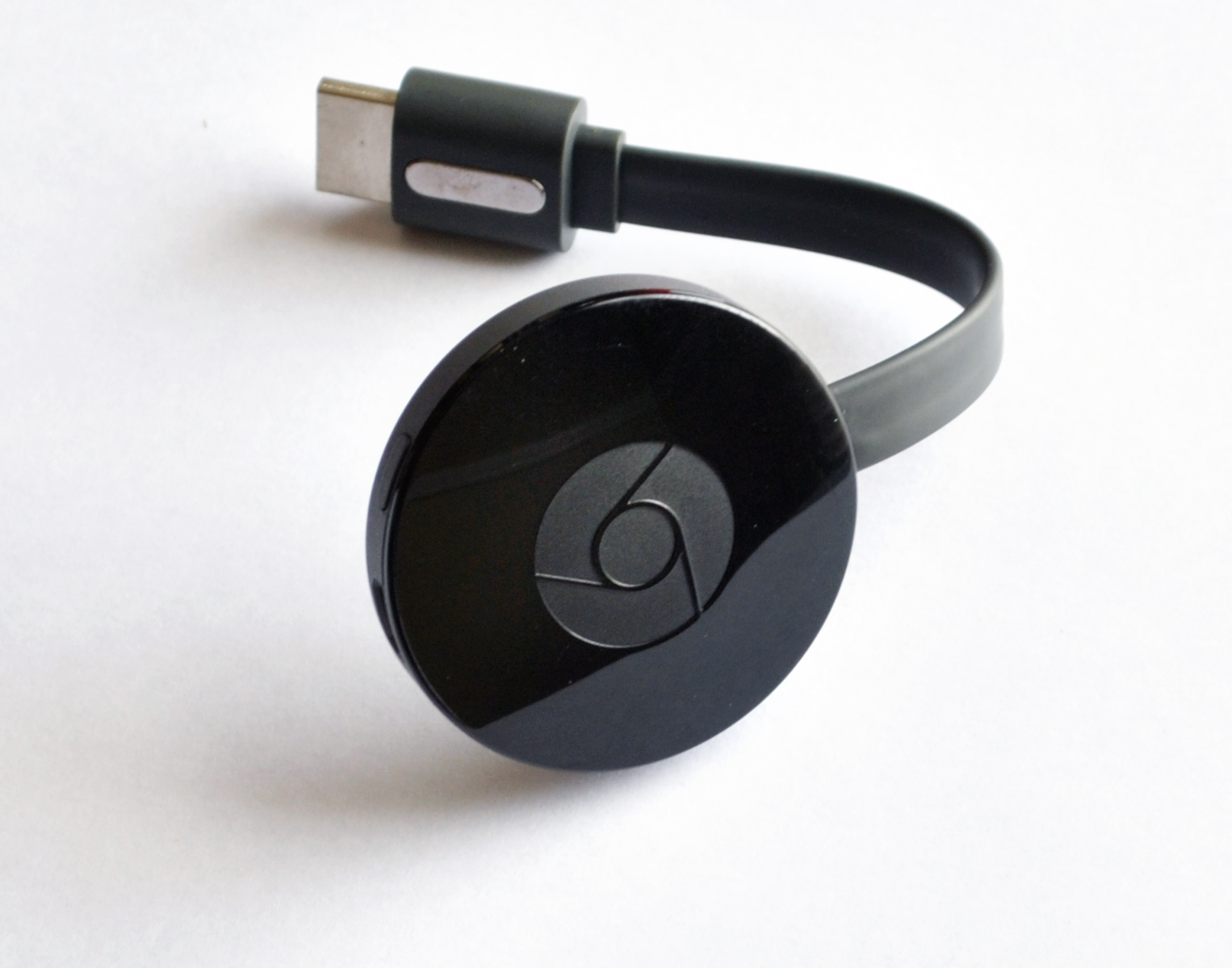
- The $30 Fix: Google Chromecast (HD, 2022)
- The $99 Fix: Apple TV 4K (If You’re iPhone-Heavy)
- The $40 Fix: Roku Express 4K (Remote-Centric)
- The $20 Fix: Amazon Fire TV Stick Lite (Alexa-Enabled)
- The Zero-Wi-Fi Fix: A Simple HDMI Cable (If Your Device Supports It)
- What to Do If Your TV Has No HDMI At All
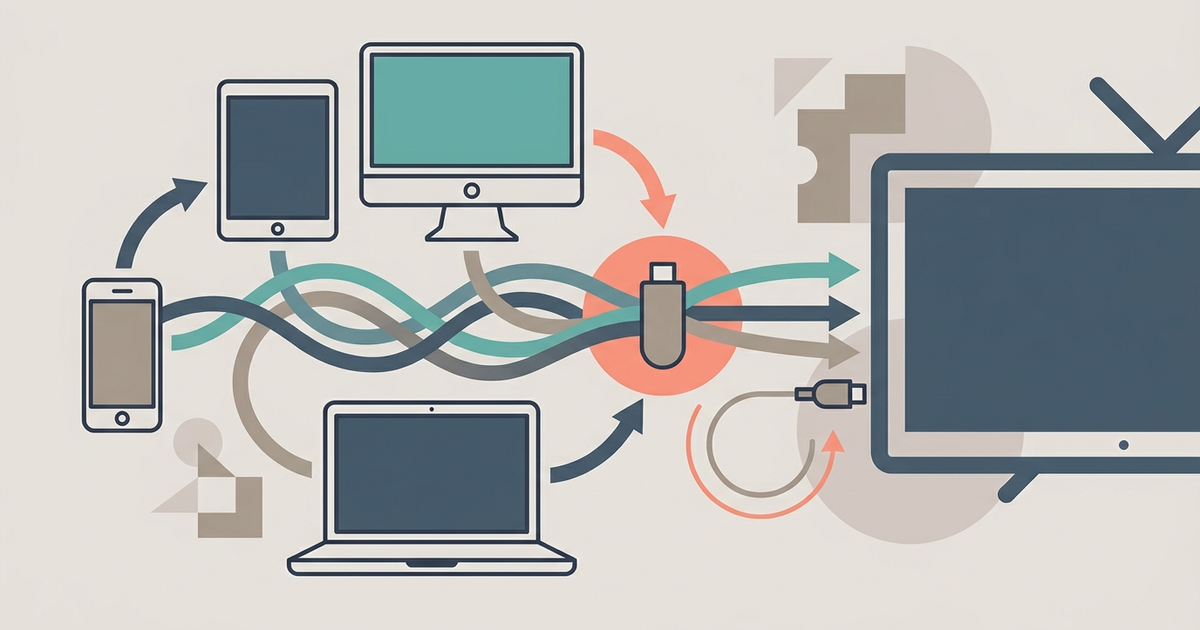
You plug a streaming stick into your TV’s HDMI port. That’s it. No new TV needed — just an HDMI port and a $20 device.

You Need One Thing: An HDMI Port and a Streaming Stick
Your old TV almost certainly has an HDMI port if it was made after 2004. Check the back or side edge. It looks like a trapezoid, wider at the top. If you see one, you’re done with hardware requirements. If you don’t, skip to the last section below.
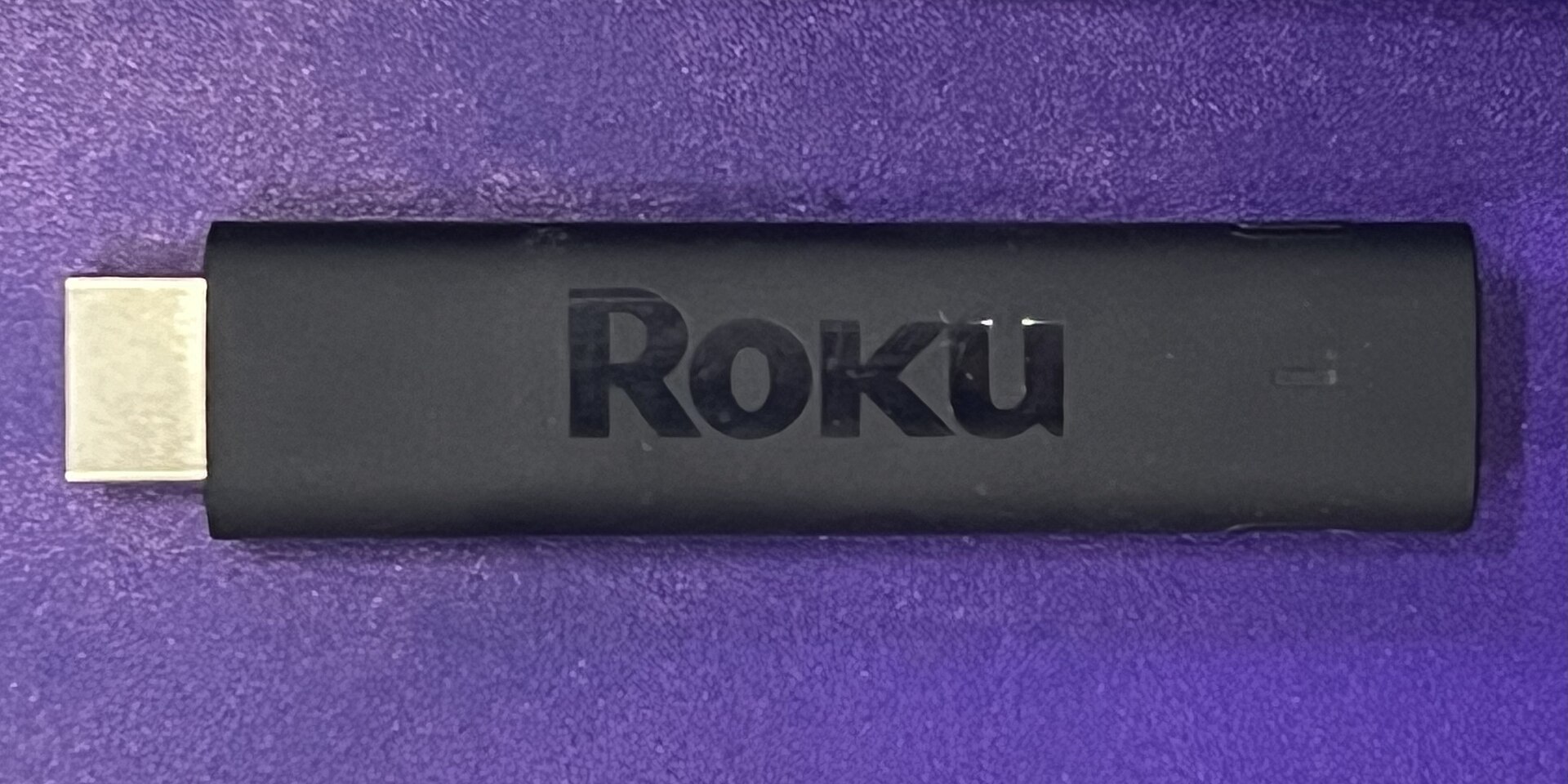
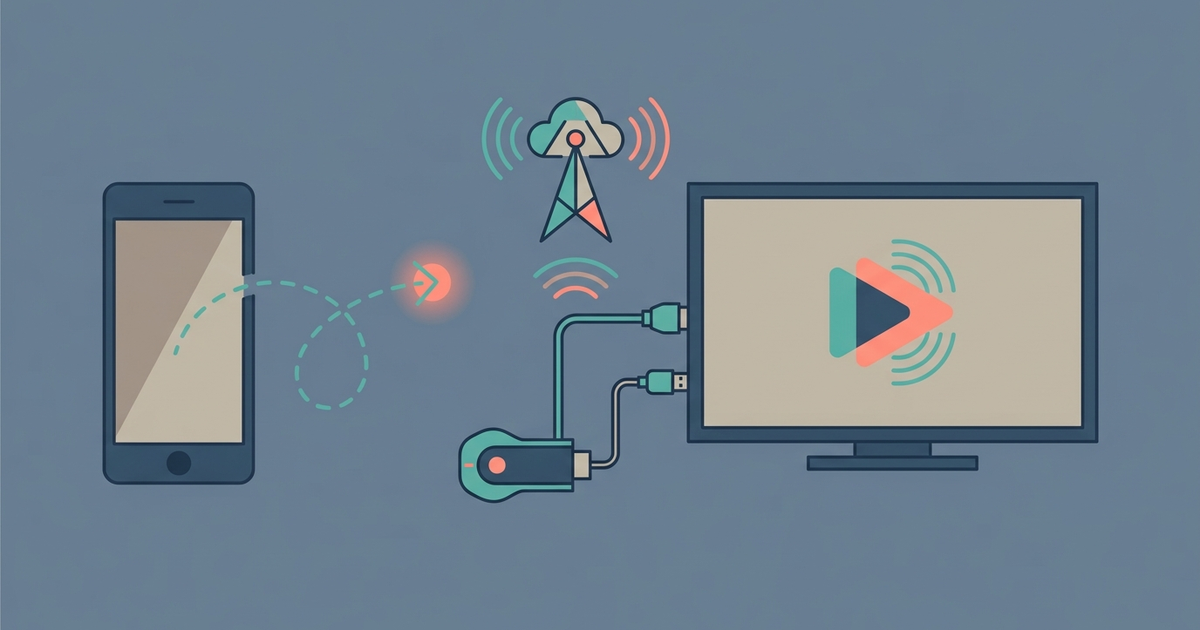
A streaming stick is a small dongle that runs a full operating system — Google TV, Roku OS, tvOS, or Fire OS. You plug it into the HDMI port, power it via USB (the stick comes with a wall plug and cable), and connect it to your Wi-Fi. Then you use your phone, laptop, or tablet to send video to it, or you use the remote that comes with the stick.
No smart features on the TV itself. The stick makes it smart.
The $30 Fix: Google Chromecast (HD, 2022)
Google’s Chromecast with Google TV (HD, 2022) costs $29.99 at Best Buy right now. It’s the cheapest way to cast from any phone — Android or iPhone — and from a laptop in Chrome.
You set it up with the Google Home app on your phone. After that, you tap the Cast button in any app that supports it: YouTube, Netflix, Hulu, Disney+, HBO Max. The video appears on your TV. You can also mirror your Android phone’s screen, but not an iPhone. iPhone mirroring requires AirPlay, which Chromecast doesn’t support.
The remote has a directional pad, volume, and a Google Assistant button. You can search by voice. The interface is Google TV, which is cluttered with recommendations, but you can hide them in settings.
Best for: Android users and anyone who already has Google Home devices. Skip it if you want to mirror an iPhone screen.
The $99 Fix: Apple TV 4K (If You’re iPhone-Heavy)
The Apple TV 4K (3rd gen, 64GB) costs $99 on Amazon. It’s the most expensive option here, but it’s the only one that handles AirPlay natively. If you own an iPhone, iPad, or Mac, you can send video to it with zero fumbling.
AirPlay works system-wide. Open a video in Safari, tap the AirPlay icon, pick the Apple TV. Or mirror your entire iPhone screen for presentations. The remote is a glass trackpad that feels premium but can be slippery — third-party silicone cases are $8.
The Apple TV runs tvOS, which is smooth and ad-free. Apps load fast. It also handles Dolby Vision and Dolby Atmos, though your old TV likely doesn’t support either. That’s fine — it still outputs 1080p or 720p cleanly.
One catch: you need an Apple ID. If you’re all-Android, skip this. For iPhone households, it’s the smoothest experience.
The $40 Fix: Roku Express 4K (Remote-Centric)
Roku’s Express 4K+ costs $39.99 at Walmart. It’s not a stick — it’s a small box that sits near your TV. It comes with a remote that has a headphone jack for private listening.
You don’t cast from your phone to a Roku. You use the remote. That’s the trade-off. The remote is simple: directional pad, home, back, and app shortcut buttons. You scroll through the Roku interface, which is ugly but fast and dead simple. No ads in the main menu, just a grid of apps.
Roku supports screen mirroring from Android and Windows laptops via Miracast. iPhones cannot mirror, but you can still AirPlay to Roku if you have a newer Express 4K+. Check the box for “AirPlay 2” support. Not all models have it.
Best for: people who hate smartphone apps and just want a remote. Worst for: anyone who wants to cast directly from a phone. You’ll need to open the app on the Roku first, then use your phone as a keyboard.
The $20 Fix: Amazon Fire TV Stick Lite (Alexa-Enabled)
The Amazon Fire TV Stick Lite costs $19.99, and it often drops to $14.99 during sales. It’s a basic streaming stick with a remote that has a dedicated Alexa button.
You set it up using the Fire TV app on your phone. After that, you can cast from your phone using the Alexa app or the Fire TV app, but the easiest method is using the remote. Say “Alexa, play Stranger Things on Netflix” and it launches the app and starts playback.
The Fire TV interface is aggressive about selling you Amazon content. Half the screen is ads for Prime Video. You can minimize this by using third-party launchers, but that requires sideloading apps — not for everyone.
It supports screen mirroring from Android and Windows, but not iPhone. If you have an iPhone, you’ll need to use the Fire TV app to push a link to the stick. That’s not real mirroring.
Best for: Alexa users and anyone on a tight budget. Avoid if you hate ads in your UI.
The Zero-Wi-Fi Fix: A Simple HDMI Cable (If Your Device Supports It)
Sometimes the cheapest fix is a wire. If your phone, laptop, or tablet has a USB-C port that supports video output, connect it directly to your TV with a USB-C to HDMI adapter. The Anker USB-C Hub (5-in-1, $15.99 on Amazon) adds HDMI, USB-A, and a 3.5mm jack. Plug it into your phone, plug an HDMI cable into the hub and the TV, and your screen shows up instantly.
This works on modern Android phones (Pixel 6 and later, Samsung Galaxy S21 and later) and most Windows laptops. It does not work on iPhones. Apple limits video output over Lightning or USB-C to specific adapters, and even then it’s limited to mirroring videos, not full desktop use. If you have an iPhone, you need a Lightning Digital AV Adapter ($49 from Apple, $20 third-party). That adapter works but is flaky with non-Apple cables.
No Wi-Fi needed. No lag for video playback. No batteries. Just a wire. Downside: your phone becomes a remote viewer — you can’t use it for anything else while connected. The cable is short, so your phone sits near the TV.
Best for: occasional use, like showing a slideshow or a single video. Not great for daily streaming because you have to plug and unplug each time.
What to Do If Your TV Has No HDMI At All
Old TVs from the 1990s or early 2000s use composite RCA jacks — three round connectors: yellow for video, red and white for audio. To use a streaming stick, you need an RCA-to-HDMI converter. The Tendak converter ($18.99 on Amazon) takes HDMI from your streaming stick and outputs composite video to your TV. It also has a USB port for power.
Setup: plug the streaming stick into the converter, plug the converter into the RCA inputs on your TV, then power the converter via USB. The picture will be 480p at best. Don’t expect sharpness. But it works.
One more option: a Miracast dongle. These are wireless display adapters that plug into HDMI. The Microsoft Wireless Display Adapter ($49.99 on Amazon) works with Windows laptops and some Android phones. It doesn’t need a streaming stick — it just mirrors whatever is on your screen. No Wi-Fi network required. The dongle creates its own direct connection. Video quality is acceptable at 1080p, but there’s noticeable lag, maybe half a second. Fine for presentations, not for fast action games.
If your TV has no HDMI and you don’t want to use an RCA converter, replace the TV. A 32-inch 1080p set costs $120 at Walmart. At that point, it’s not worth the hassle.
Part of our guide to The Casting Guide: Getting Any Screen Onto Your TV.