Home>Gadgets>Why Casting Drops Mid-Stream, and the Eight Usual Causes
Gadgets
Why Casting Drops Mid-Stream, and the Eight Usual Causes
Modified: 5 November 2026
Table of Contents
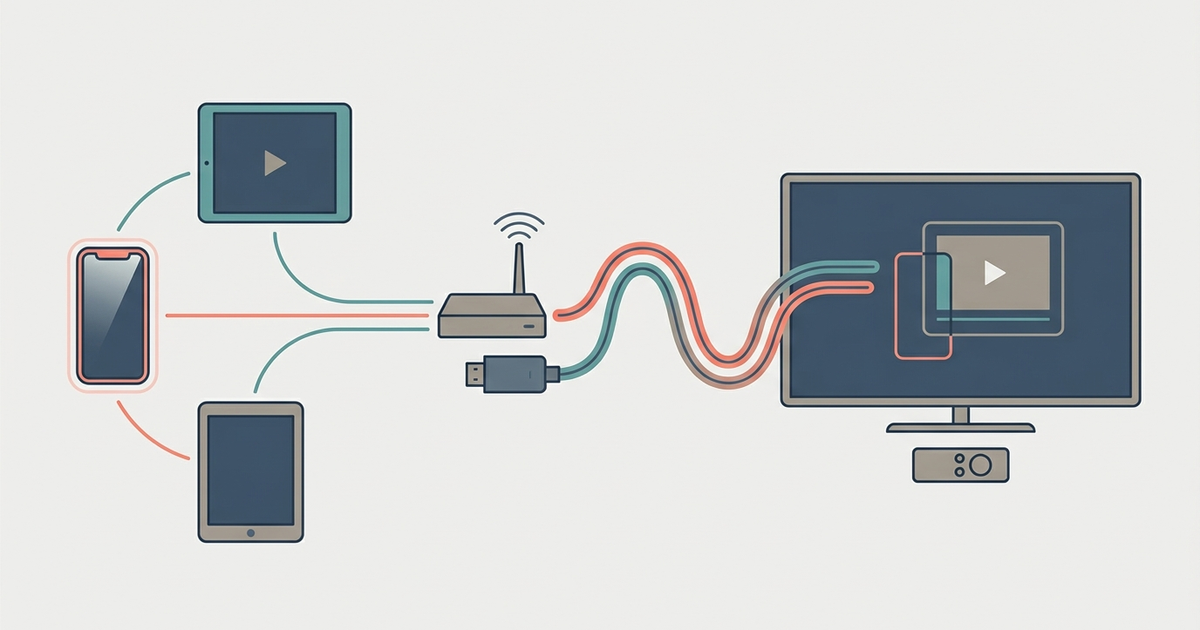
Your cast drops mid-stream because something interrupts the constant data flow between your phone, your Wi-Fi, and your streaming device. Here are the usual causes, and how to fix each one.

Wi-Fi Interference: The #1 Culprit
Wi-Fi interference is the most common reason casting fails. Microwaves, cordless phones, baby monitors, and even your neighbor's network all operate on the 2.4 GHz band. When they transmit, they stomp on your signal.
The fix is to use the 5 GHz band. It's faster and less crowded. It doesn't travel through walls as well, though. If your router supports both bands, make sure your phone and your casting device are on 5 GHz.
How to switch on a Google Nest Wifi: Open the Google Home app, tap your router, then tap Settings > Wi-Fi > Preferred band. Select 5 GHz. For the TP-Link Archer AX50, open the Tether app, tap Tools > Advanced > Wireless Settings. Under Band Selection, choose 5 GHz.
If your casting device can't stay connected to 5 GHz (common in rooms far from the router), you're better off on 2.4 GHz. It's slower but more reliable at range.
Router Placement and Signal Strength
Your router's location matters more than its brand. Put it on a shelf, in the open. Not inside a cabinet, not behind a TV, not on the floor. The signal spreads horizontally, so a central spot on the first floor is ideal.
Signal strength is measured in dBm. Anything below -70 dBm is weak and prone to drops. You can check this with a free app like Wi-Fi Analyzer (Android) or AirPort Utility (iOS, after enabling Wi-Fi Scan). Walk to where you cast from. If you see -75 dBm or worse, move the router closer or add a mesh node.
For a concrete test: Netflix has a built-in pattern. On your TV, go to Settings > Check Your Network. Run the test. It shows your real-time download speed. If it's below 10 Mbps for HD or 25 Mbps for 4K, your signal is the problem.
Bandwidth Hogs: What Else Is on Your Network
Other devices eating bandwidth will kill a cast. A family member downloading a game on Steam, a Ring camera uploading video, or a laptop syncing to iCloud can all starve your stream.
Check your router's admin page or app for current usage. On the TP-Link Archer AX50, open the Tether app and tap Devices. You see every device and its current bandwidth usage. On Google Nest Wifi, open Google Home, tap your router, then tap Devices. Look for anything using more than 2 Mbps that isn't you.
Pause those devices. If you can't pause, throttle them. Most modern routers let you set bandwidth limits per device. Or simply tell everyone else to stop downloading for ten minutes. Your stream needs a steady lane. A 4K stream consumes about 25 Mbps. If your total internet plan is 100 Mbps and someone starts a 50 Mbps download, your cast will buffer and drop.
Device Sleep and Power Saving Settings
Your phone is designed to save battery. That means it can kill the casting connection after a few seconds of inactivity. Power saving mode on many phones turns off Wi-Fi when the screen goes dark.
On a Samsung Galaxy S23: Swipe down, long-press the Power Saving icon, and toggle it off. Then go to Settings > Connections > Wi-Fi > Advanced > Turn on Wi-Fi automatically. Set it to "Never." On an iPhone 14: Go to Settings > Battery > Low Power Mode. Toggle it off. Then go to Settings > Wi-Fi > Ask to Join Networks. Set it to "Off." Both phones have a setting that disconnects Wi-Fi after 30 seconds of inactivity when power saving is on. Turn that off. Otherwise, your cast will drop the moment you put your phone down.
If you're casting from a laptop, check the power plan. On Windows, click the battery icon and set it to High Performance. On Mac, go to System Settings > Battery > Power Adapter and check "Prevent automatic sleeping when the display is off."
Outdated Firmware or App Versions
Firmware bugs cause random drops. Manufacturers push updates to fix exactly this. If your router or streaming device is running old code, you're asking for trouble.
For a Sony Bravia X90L: Press the Home button, go to Settings > Device Preferences > About > System Update. Select Check for Update. Install any available update. This applies to all Android TV-based devices.
For your phone, update the casting app. Google Home, Netflix, YouTube, Plex—whatever you're using to cast. Go to the app store and check for updates. Version numbers matter. If you're on YouTube app version 18.44.38 and the latest is 18.50.42, the bug may have been fixed two versions ago.
For your router: The Google Nest Wifi updates automatically by default on the 3 AM cycle. The TP-Link Archer AX50 will notify you in the Tether app. Tap the notification, then tap Update. Ignoring this is the cheapest fix you'll ever pass up.
HDCP Handshake Failures
HDCP (High-bandwidth Digital Content Protection) is the copy-protection protocol that checks if your device is authorized to display content. If the handshake fails mid-stream, the stream drops to black or freezes.
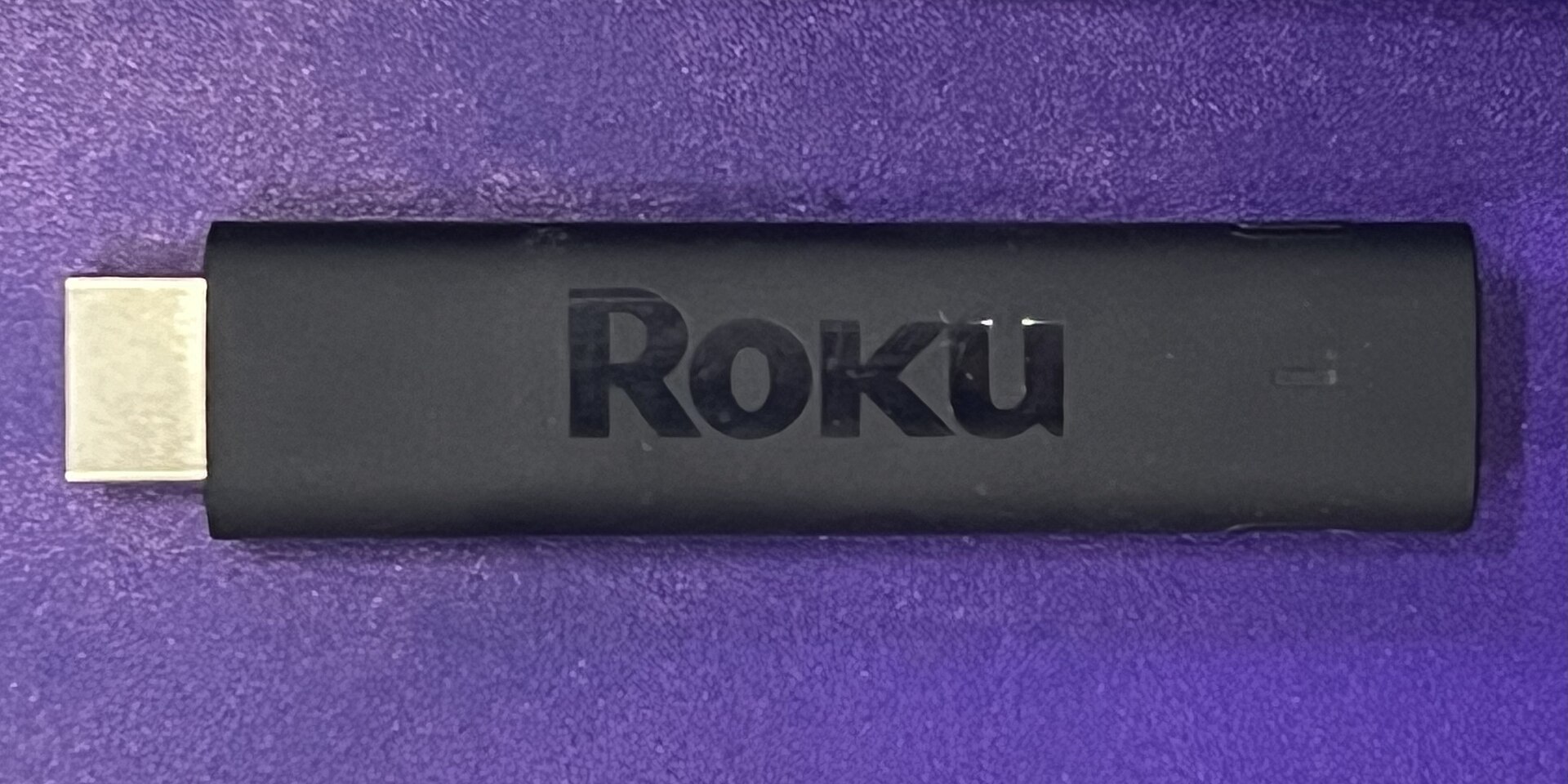
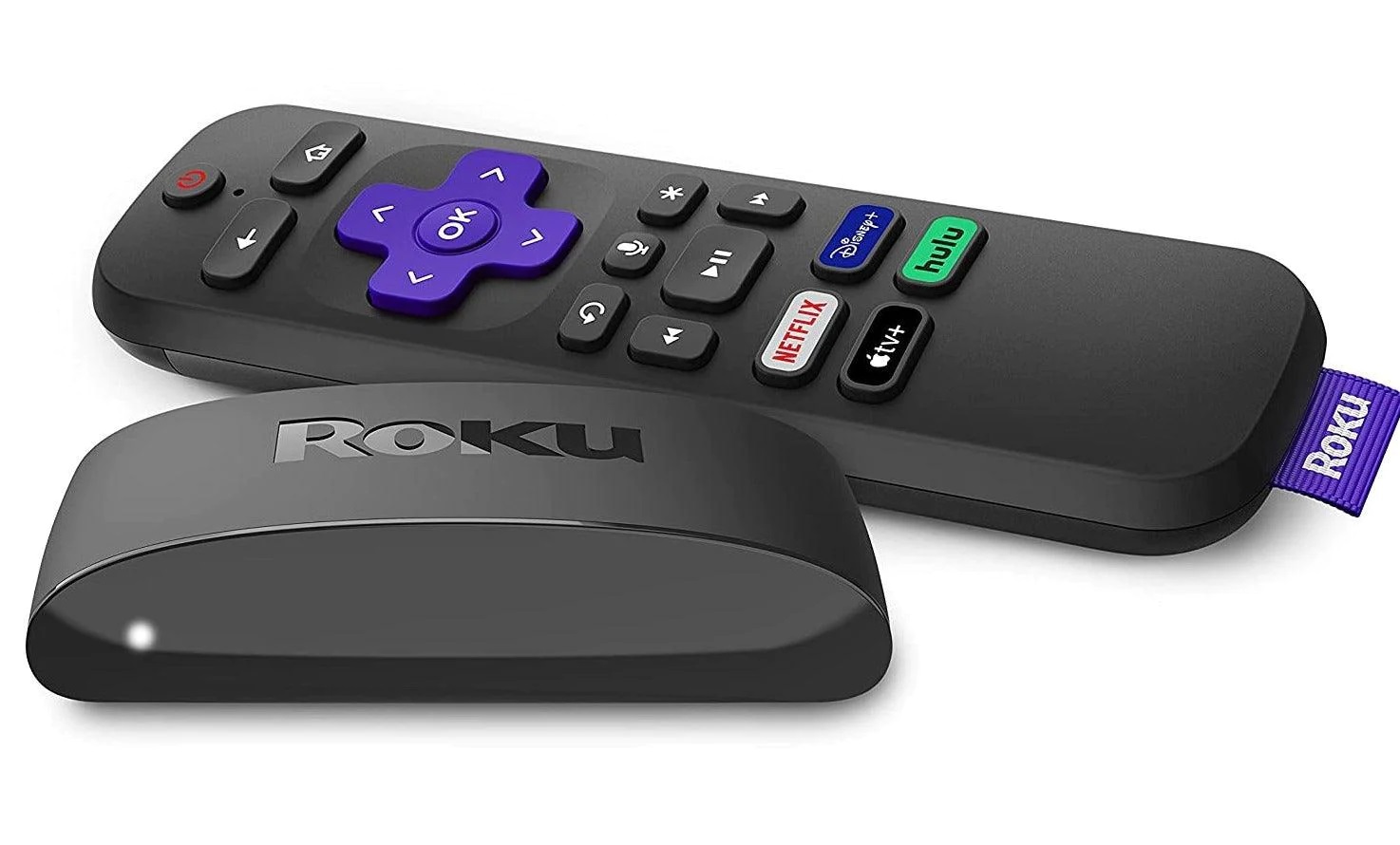
HDCP 2.2 is required for 4K streams. A Chromecast with Google TV ($49.99) or a Roku Streaming Stick 4K ($49.99) both support HDCP 2.2 out of the box. But your TV's HDMI port may not. Check your TV specs. Older TVs (pre-2017) often only have HDCP 1.4 on some ports.
The fix: Try a different HDMI port on your TV. Port 1 is usually HDCP 2.2, port 2 may be 1.4. Swap cables too. HDMI 2.1 cables are backward compatible and cheap. A bad cable can cause intermittent handshake failures.
If you're casting from a phone and the handshake fails, restart both your streaming device and your TV. That clears the handshake cache. Then try again. If it still fails, your TV's HDMI port may not support HDCP 2.2 for that specific resolution. Drop to 1080p and see if it holds.
Part of our guide to The Casting Guide: Getting Any Screen Onto Your TV.