Home>Gadgets>Miracast and Screen Mirroring When Casting Is Not an Option
Gadgets
Miracast and Screen Mirroring When Casting Is Not an Option
Modified: 9 November 2026
Table of Contents
- When Chromecast and AirPlay Won't Work
- Miracast: The Built-In Windows and Android Option
- How to Start a Miracast Connection on Windows 11
- How to Start a Miracast Connection on Android
- The Miracast Dongle: Microsoft Wireless Display Adapter vs. Third-Party Options
- Screen Mirroring Without Miracast: Roku, Fire TV, and Smart TV Workarounds
- The Wired Fallback: USB-C to HDMI (and When to Use It)
If you can't cast to your TV with Chromecast or AirPlay, use Miracast instead. It's built into Windows 11 and most Android phones, and it works over a direct Wi-Fi connection—no network required.

When Chromecast and AirPlay Won't Work
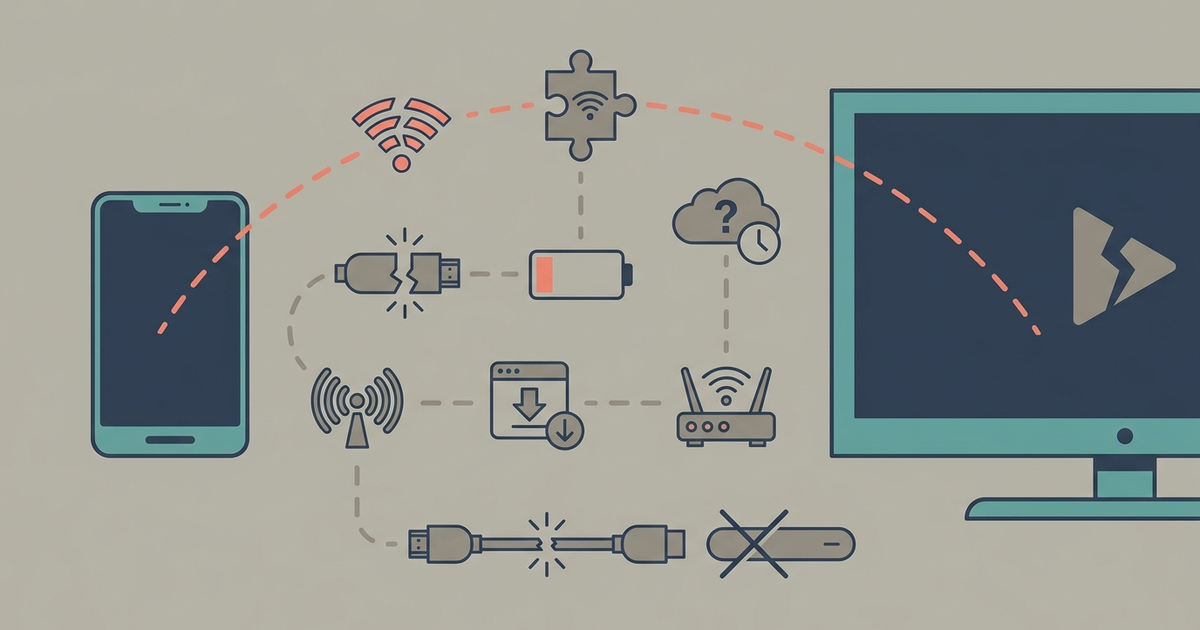
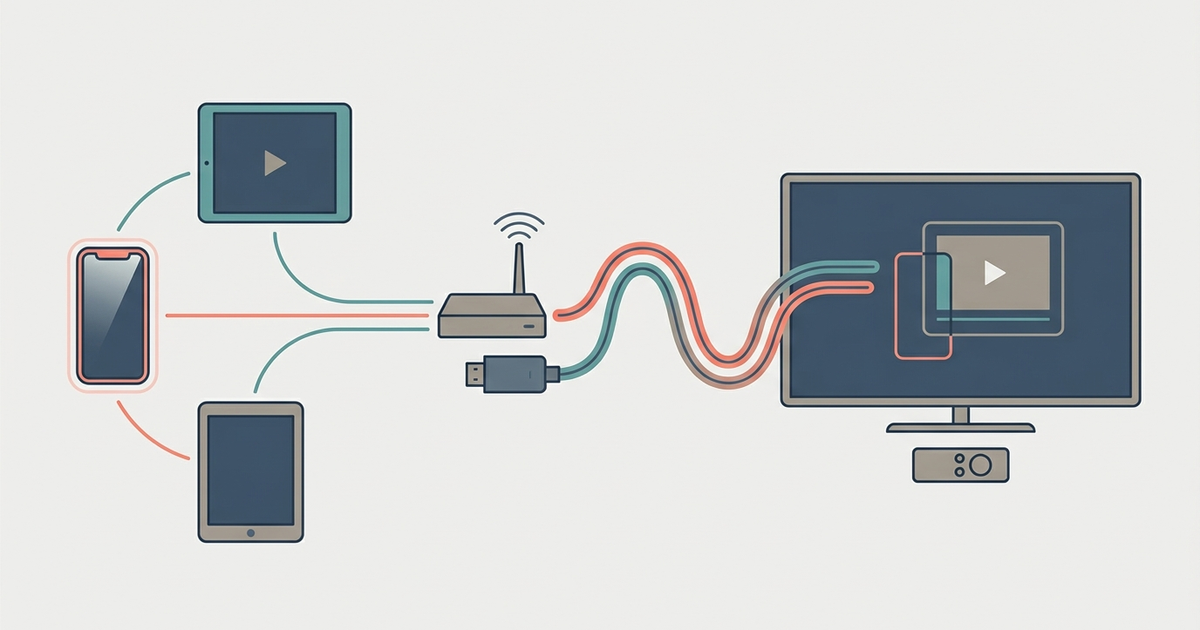
Chromecast and AirPlay both rely on your phone or computer and your TV being on the same Wi-Fi network. If you're in a hotel room, an office conference room, or anywhere without a shared network, they fail. Some corporate or school networks block peer-to-peer traffic entirely. Miracast creates a direct Wi-Fi link between your device and the display. No router. No login screen. No cloud dependency.
Miracast has been around since Windows 8.1 and Android 4.2. It's still the most reliable fallback when casting won't work. The catch: your TV or display must support Miracast, or you need a dongle that does.
Miracast: The Built-In Windows and Android Option
Miracast uses Wi-Fi Direct to transmit your screen. Latency is typically under 200 milliseconds, which is fine for presentations and video but not for fast-paced gaming. The video stream is compressed H.264, so expect some quality loss compared to a wired connection. Most modern smart TVs from Sony, LG, Samsung, and TCL support Miracast under names like "Screen Mirroring," "Smart View," or "Wireless Display." If your TV doesn't, you'll need a dongle.
You don't install anything. On Windows 11 and Android, the software is already there. You just need a compatible receiver.
How to Start a Miracast Connection on Windows 11
Press Win+K on your keyboard. That opens the Cast flyout from the Quick Settings panel. Windows scans for nearby wireless displays. Select the one you want. If your TV or dongle doesn't appear, make sure it's in pairing or input mode. Once connected, you can choose between Duplicate, Extend, or Second screen only in the Display settings (Win+P).
Windows 11 will remember the display for next time. If the connection drops, press Win+K again. If it still fails, restart both devices. Miracast is sensitive to interference from other 2.4 GHz devices. Move closer to the display if you're having trouble.
How to Start a Miracast Connection on Android
On a Google Pixel or stock Android phone, swipe down twice to open Quick Settings, then tap Cast. Your phone will list available devices. If your TV supports Miracast, it should appear. Tap it. On Samsung phones, the feature is called Smart View in Quick Settings. On OnePlus, it's under Cast or Screencast. On Xiaomi, look for Cast in the control center. The name varies. The technology is the same.
If the phone doesn't find anything, check that your TV or dongle is on the correct input. Some TVs require you to enable "Screen Mirroring" in the settings menu first. If you're using a dongle, it should show a waiting screen. Android will stream your entire screen, audio included. Some apps block the stream for DRM content like Netflix or Disney+.
The Miracast Dongle: Microsoft Wireless Display Adapter vs. Third-Party Options
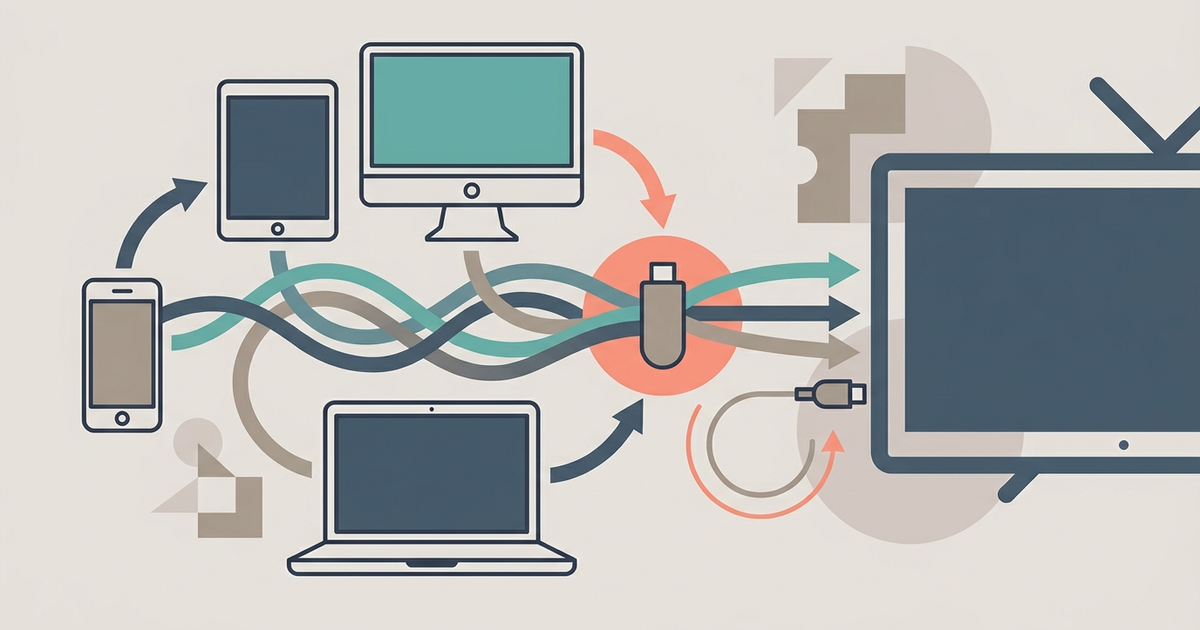
If your TV doesn't support Miracast, you need a dongle that plugs into an HDMI port and a USB power source. The two main choices are the Microsoft Wireless Display Adapter and generic dongles from brands like AnyCast, EzCast, or Roku (which we'll cover separately).
Microsoft Wireless Display Adapter ($49.99) is the gold standard. It supports Miracast, Wi-Fi Direct, and the newer Miracast over Infrastructure. It gets firmware updates through Windows. Setup is simple: plug it into HDMI, power it via USB, switch your TV to that input, and connect from Windows or Android. Latency is lower than most cheap dongles, and it handles interference better. If you're using this in a conference room or for daily work presentations, spend the $50.
Generic Miracast dongles ($15–$25) like the AnyCast M4 Plus or EzCast dongles work, but inconsistently. They often use older chipsets that struggle with Android 13 and above. Some require you to install a companion app on your phone, which defeats the purpose of Miracast being standard. Connection drops are common. Audio sync can drift after 10 minutes. If you're only using it once in a hotel room, a $20 dongle is fine. If you need it to work every time, don't gamble.
I'd buy the Microsoft adapter. It costs more, but it eliminates variables. Cheap dongles introduce troubleshooting time that outweighs the savings.
Screen Mirroring Without Miracast: Roku, Fire TV, and Smart TV Workarounds
Roku and Amazon Fire TV devices support screen mirroring, but they don't use standard Miracast. They use their own implementations that are mostly compatible with Windows and Android, with some caveats.
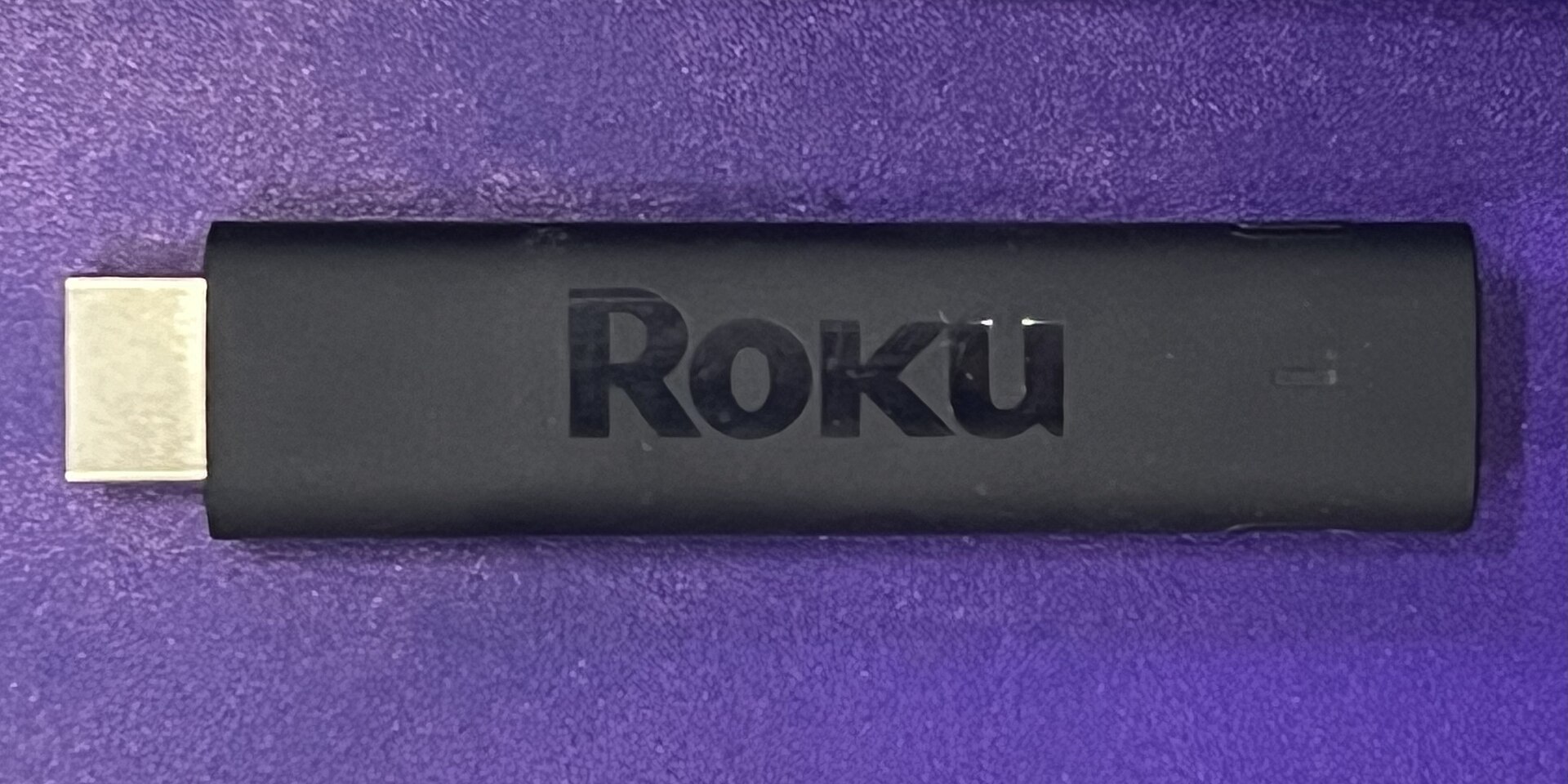
Roku: Go to Settings > System > Screen Mirroring. Set it to "Prompt" or "Always Allow." On your Windows 11 machine, press Win+K. Your Roku should appear as a wireless display. On Android, open the Cast menu and look for the Roku device. It works, but not with every Android phone. Roku uses a modified Miracast implementation that sometimes fails on Samsung or Xiaomi devices. If it doesn't connect, try rebooting the Roku and the phone.
Amazon Fire TV: Go to Settings > Display & Sounds > Enable Display Mirroring. On Windows, press Win+K and select the Fire TV. On Android, use the Cast menu. Fire TV uses a protocol called "Miracast over Wi-Fi Direct," but it's less reliable than a native Miracast receiver. Expect occasional lag and audio dropouts. It's a backup option, not a primary one.
Smart TVs: Sony calls it "Screen Mirroring." LG calls it "Screen Share." Samsung calls it "Smart View." Enable it in the TV's network or connection settings, then look for the TV in your device's Cast menu. These implementations vary in reliability. If your TV is more than three years old, it may not support Miracast at all. Check the manual or the manufacturer's support page.
The Wired Fallback: USB-C to HDMI (and When to Use It)
When wireless won't work—and it won't, sometimes—use a cable. A USB-C to HDMI adapter or cable gives you zero latency, no compression, and no interference. It also bypasses DRM restrictions, so Netflix and Disney+ will display properly.
If your Windows laptop or Android phone has a USB-C port that supports DisplayPort Alt Mode, you can connect directly to any HDMI display. The Anker USB-C to HDMI Adapter ($15.99) works with most USB-C devices. Plug it in, and your screen appears immediately. No pairing, no settings, no troubleshooting. On phones, you may need to go to Developer Options and enable "USB-C Display" if it doesn't work out of the box.
Use wired when you need reliability: giving a presentation, watching a movie without glitches, or mirroring DRM content. Use wireless when convenience matters more than quality. If you travel, carry both a USB-C to HDMI cable and a Miracast dongle. That covers every scenario.
One more thing: if your device doesn't support USB-C video output, you can't use this method. Check your laptop or phone specs before buying the cable. If it's not supported, Miracast or a cheap dongle is your only option.
Part of our guide to The Casting Guide: Getting Any Screen Onto Your TV.