Home>Software and Apps>How To Test Your Sign-Up Emails With a Disposable Inbox
Software and Apps
How To Test Your Sign-Up Emails With a Disposable Inbox
Modified: 18 September 2026
Table of Contents
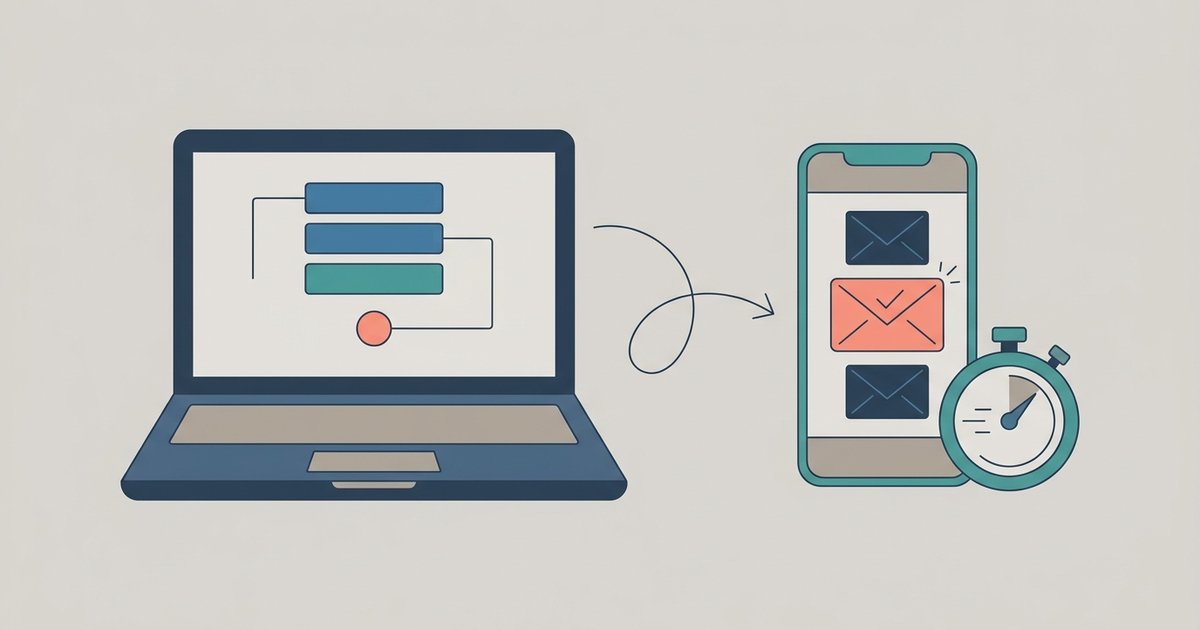
If you build or run a website with a sign-up form, you need to see your welcome and verification emails the way a brand new user sees them. A disposable inbox is a quick way to do that: each test gets a fresh address with no history, so you experience the first-time flow exactly as a new customer would. It is useful for manual checks, but it is not a replacement for proper test tooling or deliverability monitoring.
Why Test With a Fresh Inbox
Testing sign-up emails with your own work address hides problems. Your mail client already trusts your company's domain, you may have filters that sort the message automatically, and you cannot sign up twice with the same address to repeat the test. A new, empty inbox removes all of that. It also lets several people on a team run the same flow without creating throwaway accounts on a personal email service.
Common problems a fresh-inbox test catches include:
- Verification emails that never arrive, or arrive minutes later than expected.
- Links that point to a staging server, an expired token or a broken page.
- Missing or wrong personalization, such as a blank first name.
- Subject lines and sender names that look confusing in an inbox list.
- Emails that send twice when a user clicks the sign-up button repeatedly.
How to Run a Manual Sign-Up Test
- Open a disposable inbox. 10MinuteMail.now creates a 10-minute email address the moment the page loads, with no account, and shows incoming mail in real time. Copy the address.
- Use a private browser window for your own site, so no existing session, cookies or saved form data affect the test.
- Complete the sign-up with the disposable address and note the exact time you submit the form.
- Watch the inbox. Record how long the verification email takes to arrive. Anything beyond a minute or two will frustrate real users.
- Check the email itself. Read the sender name, subject line, preview text, body copy and every link. Click the verification link and confirm it lands on the right page and activates the account.
- Repeat the edge cases. Request the verification email again, try the link twice and try it after the account is already active, to see what error messages users get.
Because the inbox deletes itself when the timer runs out, you do not have to clean up test messages afterwards. If a test takes longer than expected, get a new address and start again rather than rushing.
What a Disposable Inbox Cannot Tell You
A temporary inbox shows you the content and timing of an email. It says very little about deliverability, which is whether real users' email providers put your message in the inbox, the spam folder or nowhere at all.
- Spam placement. Gmail, Outlook and Yahoo each make their own filtering decisions. To see where your mail lands, test with real accounts at those providers, or use a deliverability testing service that seeds messages across providers.
- Authentication. Check your sending domain's SPF, DKIM and DMARC records with your email provider's tools. Failures there cause delivery problems that a disposable inbox will not reveal.
- Rendering. A web-based temporary inbox shows one rendering of your email. Mobile apps and desktop clients can display it differently, so check the main clients your users have.
Watch Out for Your Own Blocklist
Many sign-up forms reject disposable email domains to cut down on fake accounts. If your site does this, your test will fail at the form, which is useful information in itself: it confirms the blocklist works. For end-to-end tests of the email content, either allow a specific test domain in your validation or run the test on a staging environment where the check is relaxed.
Use Proper Tools for Automated Testing
Manual checks with a disposable inbox suit quick reviews before a launch, copy changes and spot checks. For anything repeated or automated, use tooling built for the job:
- Local mail catchers capture every email your development environment sends, so you can inspect messages without delivering them anywhere.
- Email testing services with an API let automated test suites create inboxes, wait for a message and assert on its contents.
- Your email provider's logs show whether a message was accepted, delivered, deferred or bounced, which is the first place to look when a user says an email never arrived.
Do not point load tests or bulk sends at public disposable inbox services. They are shared resources, and hammering them is both unreliable for your test and unfair to other users.
A Simple Pre-Launch Checklist
| Check | How |
|---|---|
| Email arrives quickly | Time it with a fresh disposable inbox |
| Links work and activate the account | Click every link from the test email |
| Copy and personalization are right | Read the email as a first-time user |
| Inbox placement is healthy | Test real provider accounts or a seed service |
| Domain authentication passes | Check SPF, DKIM and DMARC with your provider |
The Bottom Line
A disposable inbox is the fastest way to see your sign-up emails through a new user's eyes: fresh address, real timing, no cleanup. Use it for manual checks before every change to your sign-up flow, and pair it with real provider accounts and your email service's logs so you also know the message reaches people's inboxes.
Frequently Asked Questions
Does Gmail block disposable email addresses in sign-up forms?
Gmail itself does not block disposable domains, but the website you are signing up to may reject them through its own validation rules. If your form refuses the address, that confirms your blocklist is working as intended.
Can I use a disposable inbox to test password reset emails too?
Yes, any transactional email flow works the same way. Trigger the password reset from your site, watch the disposable inbox for the message, and click the link to confirm it lands on the correct reset page.
Does Mailinator let me choose a custom email address?
Mailinator gives you a public inbox name you can pick, but anyone who knows that name can read the messages. For private testing, use a service that generates a random address instead.