Home>Software and Apps>PDF Tools Guide: Everything You Can Do With a PDF
Software and Apps
PDF Tools Guide: Everything You Can Do With a PDF
Modified: 19 September 2026
Table of Contents
- Why PDFs Are Everywhere
- Filling Out Forms Without a Printer
- Shrinking Files That Are Too Big to Send
- Getting Tables Out and Into a Spreadsheet
- Building One PDF From Photos
- Signing and Collecting Signatures
- Cleaning Up Pages
- Turning PDFs Back Into Slides
- A Word on Privacy
- Quick Reference
- The Bottom Line
- Frequently Asked Questions
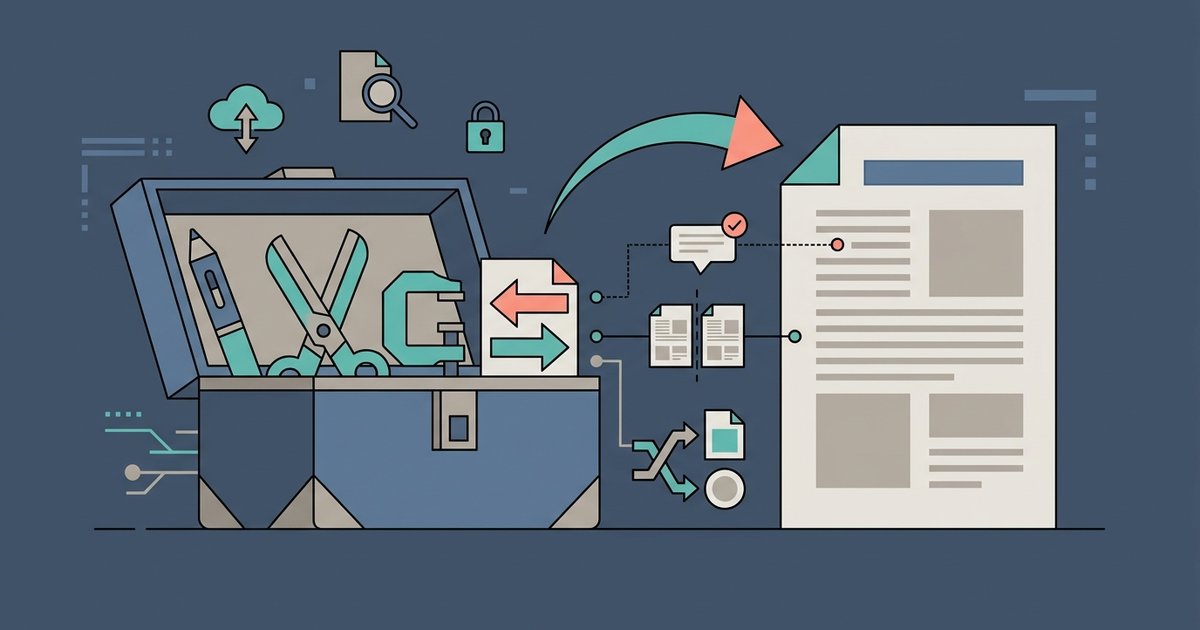
A PDF can do far more than sit in a downloads folder. You can fill it in, sign it, shrink it, pull the numbers out of it, rebuild it from photos, rearrange its pages and turn it back into slides, often from a phone and without buying software. This guide walks through the jobs people run into most and points you to a detailed walkthrough for each one.
The name is short for Portable Document Format, and the format is published as an international standard, ISO 32000, which is why a PDF opens the same way in so many different apps.
Why PDFs Are Everywhere
PDF became the default format for forms, statements, contracts and handouts because it looks the same on every screen and every printer. The fonts, spacing and page layout travel with the file, so the person who opens it sees what the sender saw. That reliability is also what makes PDFs frustrating. The format is designed to be read, not changed, so the moment you need to type into one, cut a page or reuse the data inside, you need a tool.
Most computers and phones can open a PDF, and many include a few basic editing features. For everything else, a browser-based toolkit covers the gaps. PDFBEAR offers free online PDF tools that run in any browser on Windows, Mac, Linux, Android and iOS, with nothing to install. The site says its standard tools are free with a 50 MB file limit, and guests can try them before creating a free account.
Filling Out Forms Without a Printer
Rental applications, school permission slips and insurance claims still arrive as PDFs, and they rarely arrive when you are near a printer. The good news is that you can fill out a PDF form on your phone in a few minutes. Forms built with interactive fields let you tap a box and type. Flat forms that only look like forms need a different approach, where you place text on top of the page.
Both iPhone and Android include some form-filling features, and web tools handle the rest. Our guide on how to fill out a PDF form on your phone explains how to tell which kind of form you have, how to fill each type and how to check the result before you send it.
Shrinking Files That Are Too Big to Send
Few things are more annoying than a file that bounces back from an email or gets rejected by an upload portal. If you have ever wondered why a PDF is so big when it only holds a few pages, the answer is usually images. Scanned pages, phone photos and high-resolution graphics carry far more data than text, and a form or contract that was scanned instead of exported can be many times larger than it needs to be.
Compression fixes most of these files. It re-encodes the images at a size that still reads well on screen and strips out data the file does not need. The walkthrough on how to shrink a PDF for email and uploads covers the common causes, the compression levels to choose and what to try when a file will not get smaller.
Getting Tables Out and Into a Spreadsheet
Bank statements, price lists and reports often come as PDFs even though the data inside belongs in a spreadsheet. Retyping it is slow and invites mistakes. A better approach is to convert a PDF to Excel so the rows and columns land in cells you can sort, filter and total.
How well that works depends on the file. A PDF exported from a spreadsheet usually converts cleanly, while a scanned statement needs text recognition first and a table without gridlines may need some tidying afterward. The spoke guide on converting a PDF to Excel without retyping the data explains what to expect and how to check the numbers once they arrive.
Building One PDF From Photos
A phone camera is the scanner most people actually have. The trouble is that photos scatter: ten receipts become ten attachments, homework pages arrive out of order and a two-sided ID ends up split across two messages. The fix is to turn phone photos into a single PDF, with every page in the right order and one file to send.
Your phone may already have a document scanner built in, and online converters can take a batch of photos and bind them into pages. Our guide to turning phone photos into a single PDF covers taking good photos, converting them, adding them to an existing PDF and keeping the result small enough to email.
Signing and Collecting Signatures
The print, sign, scan routine is still surprisingly common, but you rarely need it. You can get a document signed without printing it, whether you are the one signing or you need someone else to sign. Signing your own copy takes a minute in a browser or with the markup tools on a phone. Getting a signature from someone else is mostly about sending the file in a way that makes signing easy for them.
It also helps to know what kind of signature you are creating. A drawn or typed signature placed on the page is fine for many everyday agreements, while some formal processes require a certificate-based digital signature. The signature guide explains the difference and walks through both sides of the exchange.
Cleaning Up Pages
A PDF is often right in its content and wrong in its arrangement. A scan picks up blank backs, a merged file puts the appendix first or a report carries pages you should not share. You can remove or reorder pages in a few clicks instead of rebuilding the document.
There are three related jobs here: deleting pages you do not want, rearranging and rotating the pages you keep, and extracting a few pages into a new file. The guide on how to remove or reorder pages in a PDF explains which one fits your situation, plus the built-in options on a Mac.
Turning PDFs Back Into Slides
Sometimes the only copy of a presentation is the PDF someone exported for the handout. When you need to present it again or update a few numbers, you can convert a PDF to PowerPoint and edit the slides rather than start from scratch. Each page becomes a slide, and text comes through as editable boxes where the converter can detect it.
The results depend on how the PDF was made. A deck exported from PowerPoint converts back well, while a scanned handout turns into picture slides. Our walkthrough on converting a PDF to PowerPoint slides covers the steps, the usual clean-up and when it makes more sense to rebuild.
A Word on Privacy
Online PDF tools work by uploading your file to a server, processing it and sending the result back. That is convenient, but it matters when the file holds an ID number, a bank balance or a signature. Before you upload, check how the service handles files. PDFBEAR says uploads travel over HTTPS, files are processed automatically without human review, and free-account files are kept in a personal file manager for a limited time after your last activity, where you can delete them sooner yourself.
For documents you would rather not upload at all, use the tools already on your devices. Preview on a Mac can rearrange pages and reduce file size, the Notes app on iPhone and the Google Drive app on Android can scan documents, and the markup tools on iPhone can add a signature. These options are more limited, but the file never leaves your device.
Quick Reference
| What you need to do | Tool to use | Watch out for |
|---|---|---|
| Complete a form on your phone | Fill PDF Forms or Edit PDF | Flat forms have no fields to tap |
| Make a file small enough to send | Compress PDF | Text-only files barely shrink |
| Reuse a table in a spreadsheet | PDF to Excel | Scans need text recognition first |
| Combine photos into one document | JPG to PDF and Merge PDF | Page order follows the upload order |
| Sign or collect signatures | eSign PDF | A drawn signature is not a certified digital signature |
| Delete or rearrange pages | Organize PDF or Delete PDF Pages | Links to removed pages break |
| Edit a deck you only have as a PDF | PDF to PPT | Scanned pages become picture slides |
The Bottom Line
Most PDF problems come down to a handful of jobs: filling, shrinking, extracting, combining, signing, reorganizing and converting. Figure out which one you are facing, pick the matching tool and check the result before you send it. Use a browser tool when you want speed and convenience, and keep the built-in options on your phone or computer in mind for files that should stay on your own device.
Frequently Asked Questions
How do I scan a document with the Notes app on iPhone?
Open a note, tap the camera icon above the keyboard, and choose Scan Documents. The camera automatically captures pages when it detects a document, or you can press the shutter button manually, then save the scan as a single PDF inside the note.
Can I compress a PDF on a Mac without uploading it anywhere?
Yes, open the file in Preview, choose File then Export, and select Reduce File Size from the Quartz Filter menu. The result depends on the images inside the PDF, and text-heavy files may not shrink much.
What is the 50 MB file limit on PDFBEAR's free tools?
It is the maximum size of a single PDF you can upload for processing with the standard free tools. Files larger than 50 MB need a different approach, such as compressing the PDF first or splitting it into smaller parts.
How do I add a signature using markup tools on an iPhone?
Open the PDF in the Files app, tap the markup icon that looks like a pen tip, then tap the plus button and choose Signature. You can draw a new signature with your finger or use a saved one, then drag it into place on the page.