Home>Software and Apps>How To Remove or Reorder Pages in a PDF
Software and Apps
How To Remove or Reorder Pages in a PDF
Modified: 19 September 2026
Table of Contents
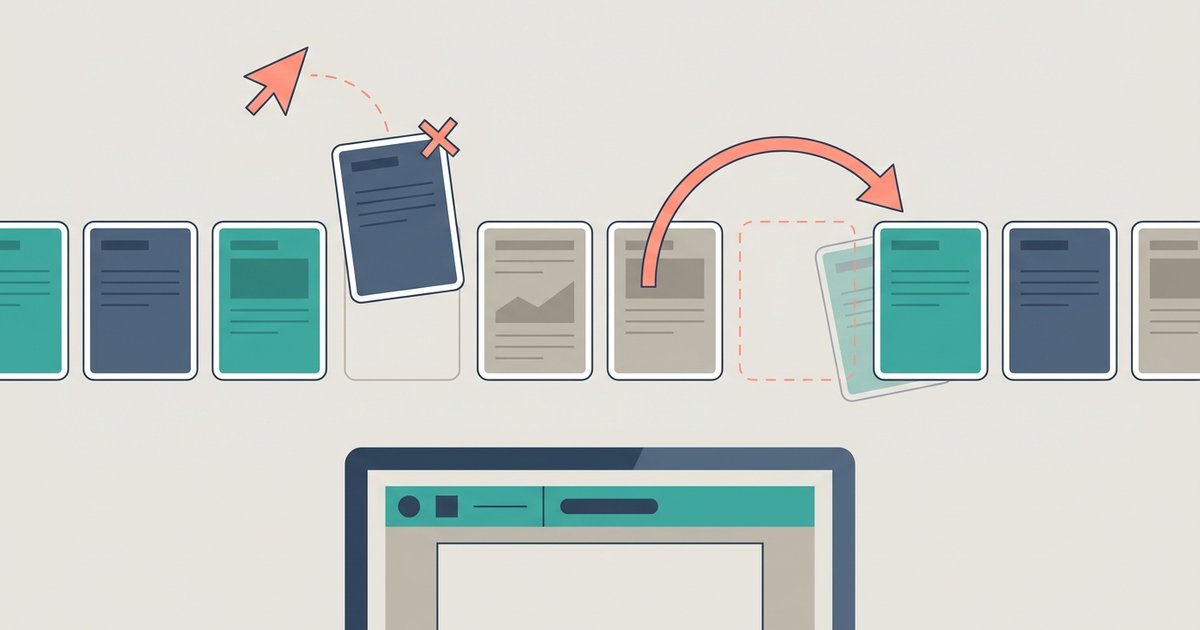
To remove or reorder pages in a PDF, open it in a page organizer, drag the page thumbnails into the order you want, delete the pages you do not need and download the updated file. If you only need to cut a few pages, a delete tool where you pick page numbers is even quicker. Both take a minute in a browser, and a Mac can do it offline with Preview.
Three Related Jobs
Page cleanup usually falls into one of three tasks, and picking the right one saves time.
- Reorder and rotate: the pages are all there but in the wrong sequence, or some scans came in sideways.
- Delete: you want to keep most of the document and drop a few pages, such as blank backs, duplicates or an internal page you should not share.
- Extract: you want only a few pages, saved as a new file, and the rest left behind.
Reorder, Rotate and Remove Pages With PDFBEAR
PDFBEAR's Organize PDF tool lets you reorder, rotate and delete PDF pages in one pass, in any browser. Here is how it works:
- Open the tool and upload your PDF. Each page appears as a thumbnail.
- Drag pages into the right order. Pick up a thumbnail and drop it where it belongs.
- Hover over a page to rotate or remove it. Turn sideways scans upright and delete blank, duplicate or unwanted pages.
- Click Apply Changes. All your edits are combined into one new PDF.
- Download the organized file and flip through it once to confirm the order.
The site lists a free file size limit of 50 MB. A password-protected PDF must be unlocked first, or its pages will not render as thumbnails.
Just Need to Delete a Few Pages?
If the order is fine and you only need to cut some pages, PDFBEAR's Delete PDF Pages tool is quicker for long documents. You upload the file, select or enter the pages you want gone, click Apply Changes and download the trimmed PDF. Entering page numbers is faster than scrolling through hundreds of thumbnails.
A couple of things to know before you delete:
- There is no undo inside the new file. The downloaded copy no longer contains the removed pages. The tool does not change your original, so keep it until you are sure.
- Internal links can break. A table of contents or cross-reference that pointed to a removed or shifted page may now land in the wrong place. If the document has page numbers printed on it, those will not update either.
Want to Keep Only a Few Pages?
When you need three pages out of a fifty-page report, deleting forty-seven pages is the long way round. PDFBEAR's Extract Pages from PDF tool works the other way: you choose the pages or ranges you want, and it builds a new PDF from just those. Your original file stays whole.
This is handy for sending only the signature page of a contract, one chapter of a report or a single statement from a year's worth of bank records.
Count Pages the Right Way
The most common mistake in page tools is selecting the wrong page numbers. The number printed in a page's footer is often not its position in the file. A cover, a title page, a table of contents or roman-numeral front matter pushes everything down, so the page labeled 12 might really be page 14.
Page tools work on the file's actual order. Count from the very first page in the file, or rely on the thumbnail view, which shows each page's true position.
Common Reasons to Clean Up a PDF
Scanned packets with blank backs. Double-sided scanning often picks up blank pages. Deleting them shortens the file and makes it easier to read.
Merged files in the wrong order. When several PDFs are combined, the order follows the upload list, which does not always match what you intended. A quick pass in the organizer fixes it.
Sideways scans. Pages scanned in landscape or photographed at an angle can appear rotated. Rotate them so every page faces the same way.
Sharing only what is needed. Before you send a document, remove internal notes, pricing pages or personal details the recipient does not need. Deleting a page removes it from the copy you send. If you only need to hide part of a page, use a proper redaction tool rather than covering it with a black box, which can leave the text underneath.
The Offline Option on a Mac
Preview, the PDF viewer built into macOS, handles all of this without uploading anything. Apple's guide explains how:
- To move pages, choose View > Thumbnails or View > Contact Sheet, then drag pages to their new location.
- To delete pages, open the same view, select the page or pages, then press the Delete key or choose Edit > Delete.
Preview is a good choice for sensitive documents on a Mac. On Windows, Chromebooks and phones, the built-in options vary more, which is why a browser tool is often the fastest route there.
Finish the Job
Once the pages are right, a few follow-up steps are common:
- Add page numbers if the document needs them and the original numbering no longer matches.
- Merge the cleaned-up file with other documents if it is part of a larger packet.
- Compress the result if it needs to go by email or through an upload form.
Privacy Considerations
Organizing pages online means uploading the whole document, including the pages you plan to remove. PDFBEAR says files travel over a secure HTTPS connection, no person reads them and they are deleted from its servers after processing. With a free account, files are kept in a personal file manager for a limited time after your last activity, and you can delete them sooner. If the pages you are removing are the sensitive part, a local tool like Preview avoids uploading them at all.
The Bottom Line
Use an organizer when pages are out of order or sideways, a delete tool when you only need to cut a few pages and an extract tool when you want just a handful. Count pages by their position in the file, keep your original until you have checked the result, and use Preview on a Mac when the document should not leave your computer.