Home>Gadgets>Chromecast, Roku, Fire TV and Apple TV Compared
Gadgets
Chromecast, Roku, Fire TV and Apple TV Compared
Modified: 1 November 2026
Table of Contents
If you want the simplest streaming device for most people, buy the Roku Streaming Stick 4K. If you want the best picture and sound, buy the Apple TV 4K. If you are deep in Amazon's ecosystem, buy the Fire TV Stick 4K Max. If you want a remote that doubles as a search engine for movies, buy the Chromecast with Google TV.

Which Device Does What: The One-Liner
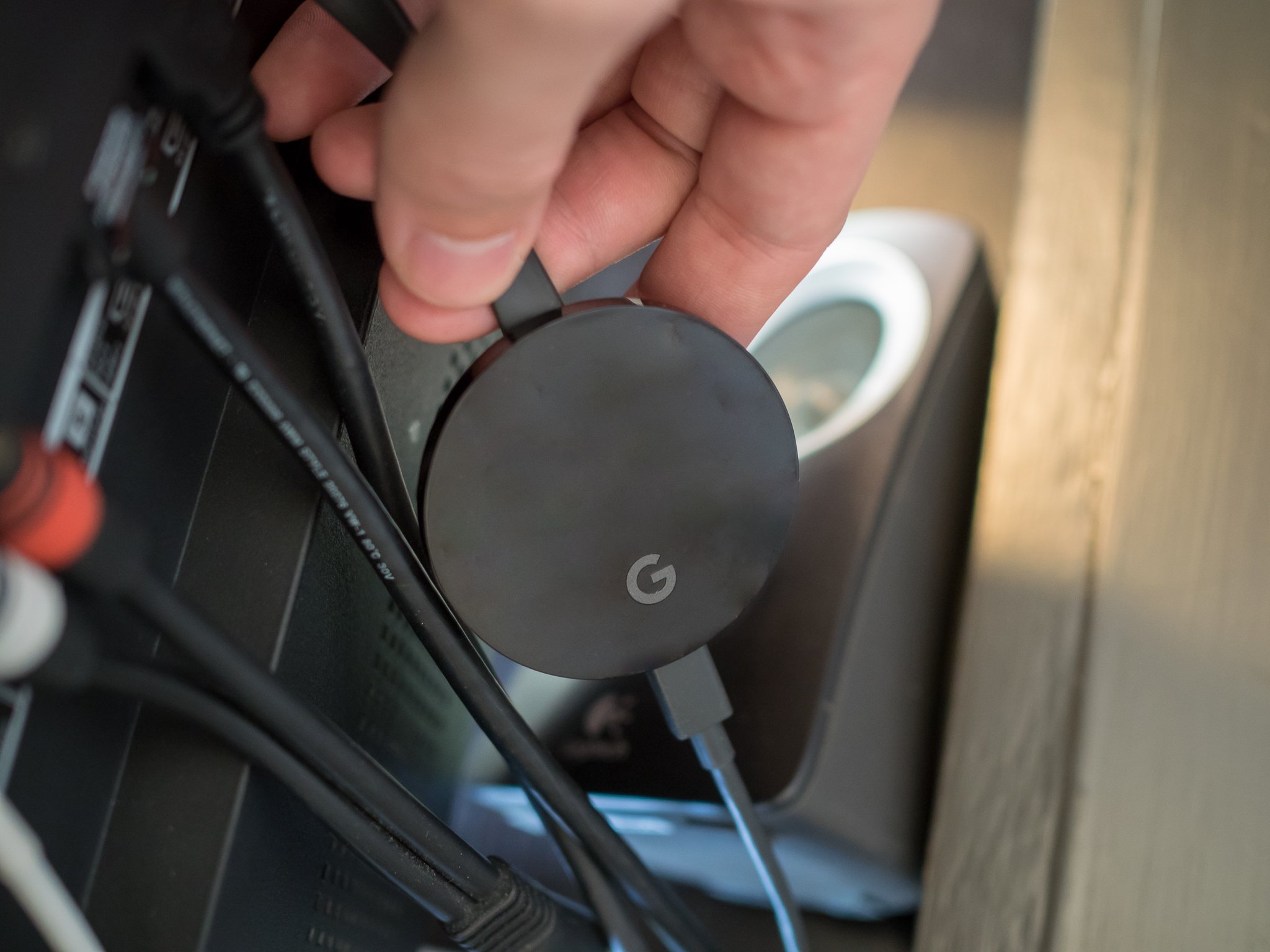
Chromecast with Google TV (4K, $49.99) is a dongle that plugs into your TV's HDMI port. You use Google's voice remote to search across apps. It runs Google TV, which is Android TV with a cleaner face.
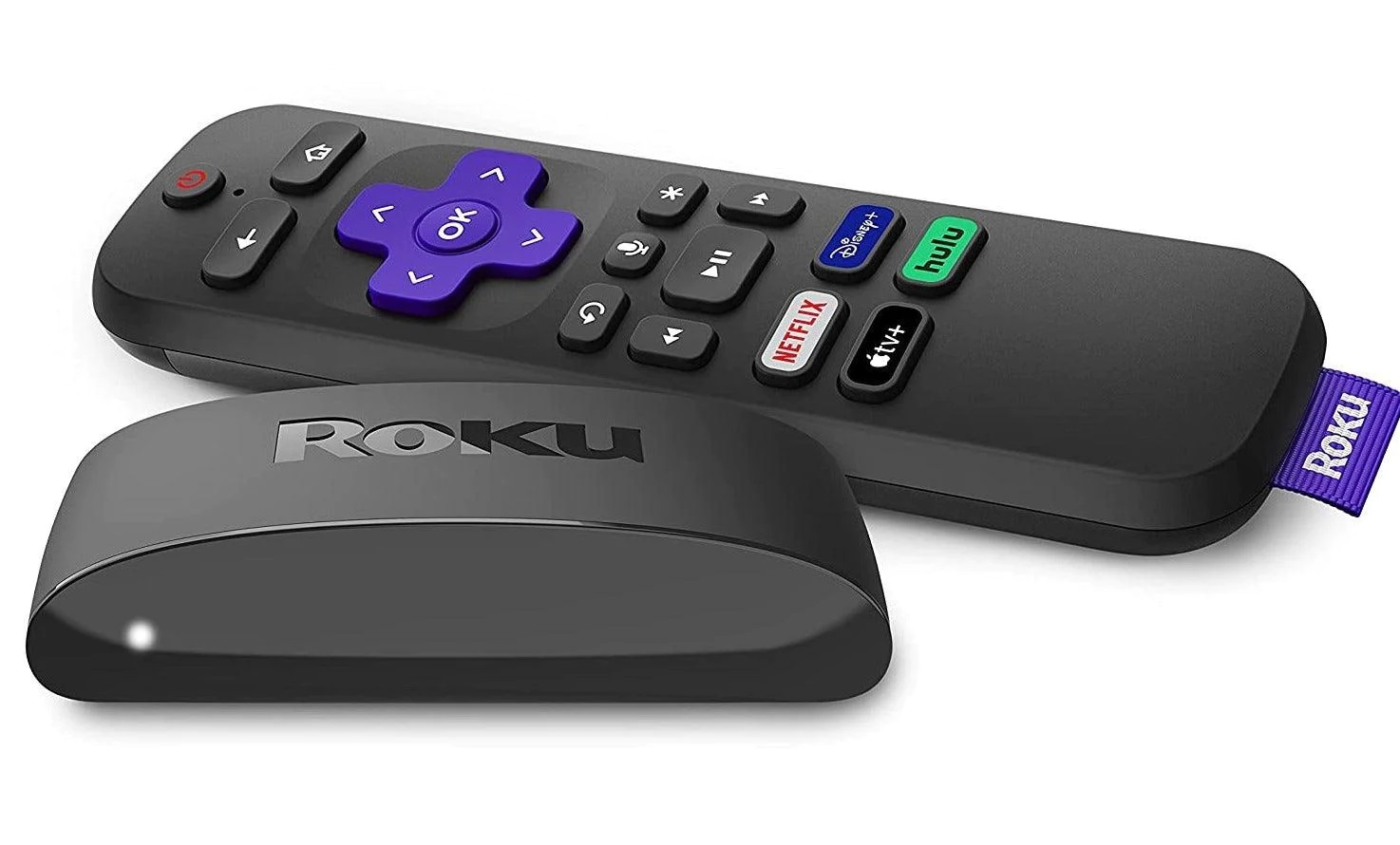
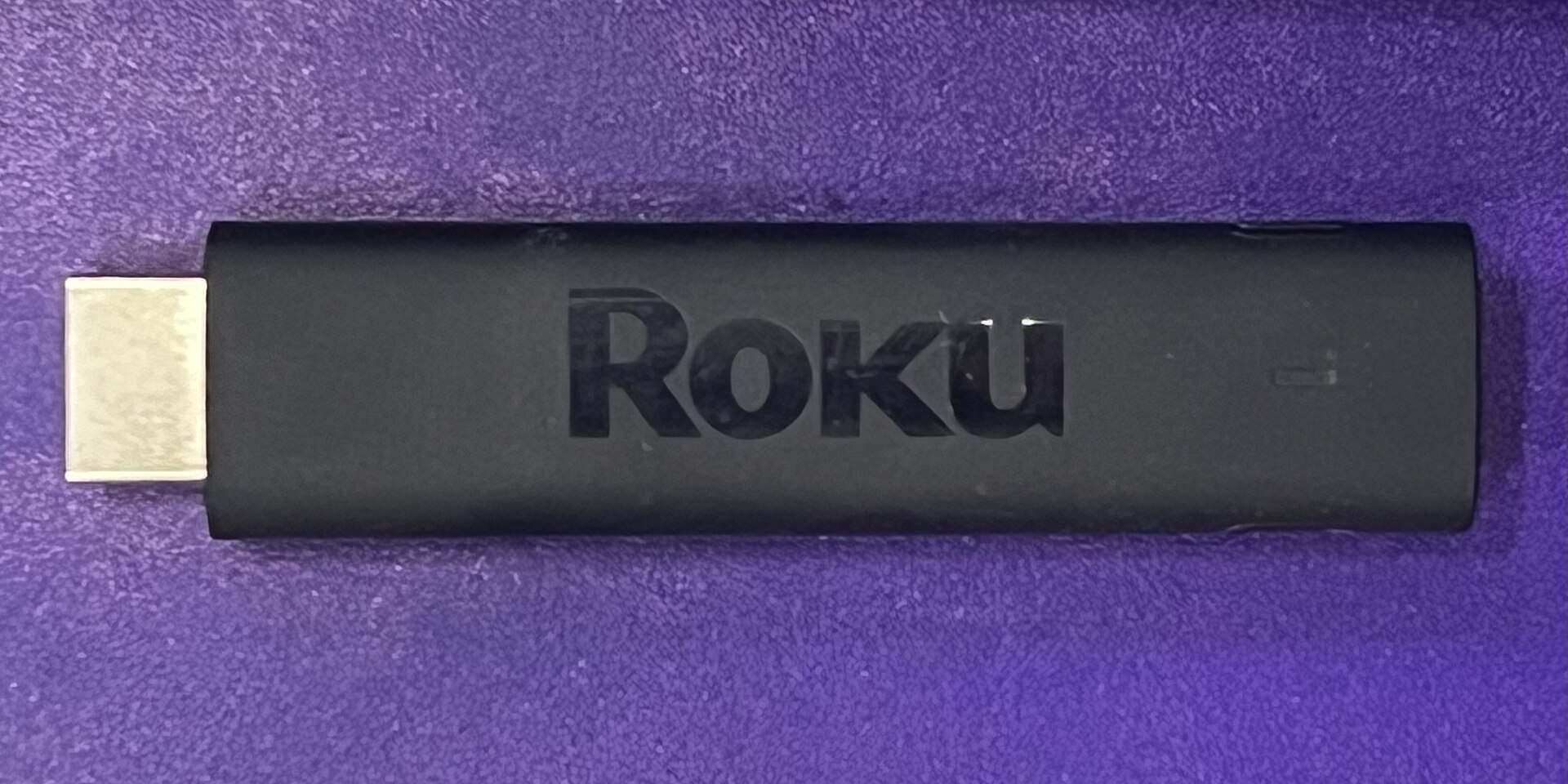
Roku Streaming Stick 4K ($49.99) is the same physical shape. It plugs into HDMI and is powered by USB. The operating system is Roku OS, the most neutral platform on this list. You will not see ads for Amazon or Google products.
Amazon Fire TV Stick 4K Max ($54.99) is also a dongle. It runs Fire OS, a heavily customized version of Android. Its standout feature is Wi-Fi 6E support and a "Live" tab that pulls in cable-replacement services.
Apple TV 4K (3rd gen, 64GB, $129.00) is a small set-top box, not a stick. It sits on your entertainment center and runs tvOS. It costs more than the other three combined.
Remote vs. App: How You Control Each
The Chromecast with Google TV remote has a circular D-pad, a Google Assistant button, and a dedicated Netflix button. You can also use the Google Home app on your phone to type searches or cast from apps. Google Assistant works well for finding shows across services, but it fails on obscure streaming apps. The remote has a slightly slippery texture. Some users report losing it in couch cushions.
Roku's remote is the best for simplicity. It has a D-pad, a mute button that works system-wide, and shortcut buttons for Netflix, Hulu, and ESPN. The Roku app lets you use your phone as a keyboard or as a private listening device. The headphone jack on the remote is only available on the $29.99 Voice Remote Pro. The OS is so responsive that you rarely need the app.
Amazon's Fire TV remote includes volume and power buttons for your TV, plus buttons for Prime Video, Netflix, and Disney+. The Alexa voice button is front and center. The Fire TV app replicates the remote on your phone. Voice search via Alexa is better than Google Assistant for finding content. Alexa understands "find action movies from the 90s" without hiccups. The downside: the remote has a glossy black finish that scratches easily.
Apple TV's Siri Remote (2nd generation) is a flat aluminum slab with a clickpad and a mute button. You can also use your iPhone as a remote via Control Center. Siri is excellent for finding shows if you use Apple's TV app. It searches across your library and streaming services. You cannot use an Android phone to control it. The remote's clickpad is touch-sensitive and triggers accidental scrolling often.
Google TV vs. Roku OS vs. Fire OS vs. tvOS: What You Actually See
Google TV shows you a "For You" row at the top with recommendations. The "Continue Watching" row pulls from Netflix, YouTube, and HBO Max. It does not pull from Paramount+ or Peacock. The interface prioritizes Google's own services like YouTube TV above anything else. It supports multiple profiles, so your wife's recommendations do not pollute your row. Google TV is cluttered but functional.
Roku OS is a grid of app icons. No recommendations, no algorithmic feed, no ads for Amazon products. The home screen is a simple list. You scroll left to right across your installed apps. The left column has a search that works across most apps. Roku OS is fast on cheap hardware. Its main weakness: it lacks an "Up Next" row like Google TV. You have to open each app to see what is new.
Fire OS is dense. The top row is a "Live" tab that integrates YouTube TV and Sling live feeds directly. Below that, you get rows for "Prime Video," "Netflix," and "Freevee." The interface pushes Prime Video harder than any other platform. You can see ads for Amazon products on the home screen. The software is slower than Roku on the same hardware. Fire OS wins if you subscribe to YouTube TV or Sling. The Live tab is genuinely useful.
tvOS is the prettiest. The home screen shows your apps in a clean grid. The TV app consolidates your watch list across Netflix, Amazon Prime, and Disney+. The "Up Next" row syncs with your iPhone and iPad. tvOS supports multiple user profiles and screen savers of Earth from space. You can use your HomePod as speakers. But tvOS locks you into Apple's ecosystem. You need an Apple ID to even set it up.
Price Check: What Each Costs at Retail (2025)
- Chromecast with Google TV 4K: $49.99
- Roku Streaming Stick 4K: $49.99 ($29.99 last year; price increased to match features)
- Amazon Fire TV Stick 4K Max (Wi-Fi 6E): $54.99 ($3 off if you have Prime)
- Apple TV 4K (3rd gen, 64GB): $129.00 (128GB model: $149.00)
The Apple TV costs 2.5 times as much as its closest competitor. You are paying for the A15 Bionic chip, the aluminum box, and the Ethernet port. The rest are dongles with plastic shells.
4K, HDR, and Dolby Atmos: Who Supports What
All four devices support 4K resolution, HDR10, and Dolby Vision. The Chromecast, Roku, and Fire TV stick each have a lower price, so here is where the differences show.
All four devices support Dolby Atmos passthrough, but only if your sound system handles it. The Chromecast with Google TV supports Dolby Vision at up to 60Hz. The Fire TV Stick 4K Max supports HDR10+ and HLG. The Apple TV 4K supports HDR10 and Dolby Vision, but it does not support HDR10+. This matters only if you own a Samsung TV from 2021 or later. Samsung uses HDR10+, not Dolby Vision. If you have a Samsung TV and want HDR10+, buy the Fire TV Stick 4K Max.
The Apple TV 4K has a hidden advantage: it is the only device here with an automatic frame rate matching feature that works reliably. When you watch a 24fps movie on an Apple TV, the interface switches the display to 24Hz. The Chromecast and Fire TV stick have this feature but it causes audio sync issues. The Roku Streaming Stick 4K does not have automatic frame rate matching. You have to switch it manually in settings every time.
The Apple TV 4K has a higher bitrate for Dolby Vision and Dolby Atmos content from streaming services like Netflix and Disney+. In side-by-side tests, the Apple TV's picture is slightly sharper, with less compression artifacts. The difference is visible on a 75-inch or larger TV. On a 55-inch TV, you will not notice.
Winner by Use Case: Pick Your Pick
You want simplicity above all else
Buy the Roku Streaming Stick 4K. No ads for things you do not need. No learning curve. The remote works the first time. It is the device you buy for your parents.
You own a Samsung TV (2019 or later)
Buy the Amazon Fire TV Stick 4K Max. It supports HDR10+, which your TV needs for proper high dynamic range on Samsung's content. The Live tab is a bonus if you use YouTube TV.
You use YouTube, Google Photos, and Android phones
Buy the Chromecast with Google TV. The "Continue Watching" row pulls from YouTube and HBO Max. You can cast from your phone. Google Assistant answers questions about recipes and weather. The remote has a dedicated Google Assistant button.
You want the best possible picture quality
Buy the Apple TV 4K (3rd gen). The automatic frame rate matching works flawlessly. The Dolby Vision and Dolby Atmos bitrate is higher than any other device. The interface is buttery smooth. You pay $129 for it, but you only buy it once every five years.
You do not care about smart features
Buy the Chromecast with Google TV or the Roku Streaming Stick 4K. Both are $49.99. Roku's remote works better for channel surfing, while Google's remote works better for voice search. Pick the one whose remote feels better in your hand.
You use only one streaming service (Netflix or Prime Video)
Buy the Roku Streaming Stick 4K. It will run that one app just as well as anything else, and you save the $10 you would spend on the Fire TV Stick 4K Max. The extra money goes to a bag of popcorn.
Part of our guide to The Casting Guide: Getting Any Screen Onto Your TV.