Home>Software and Apps>How to Use Dual SIM for Work and Personal Numbers
Software and Apps
How to Use Dual SIM for Work and Personal Numbers
Modified: 16 October 2026
Table of Contents
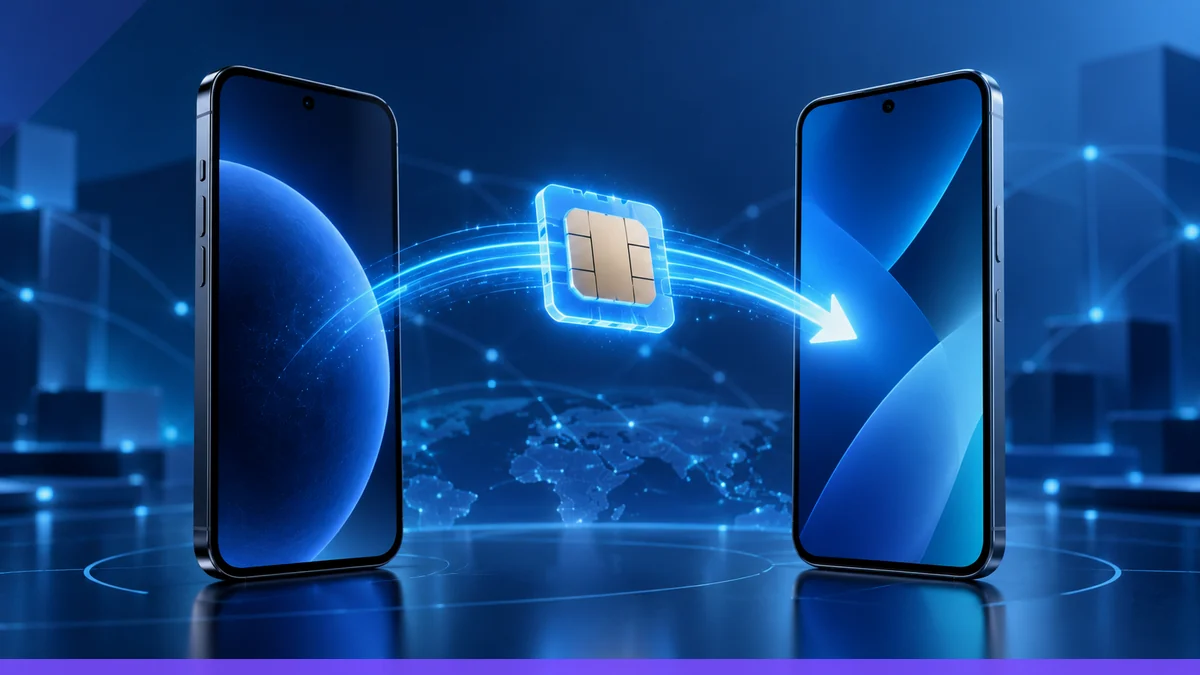
Use dual-SIM setup to keep work and personal numbers separate on supported iPhone and Pixel models by assigning one line to calls and another to cellular data, then changing those defaults as needed. Apple and Google both document line selection in their phone settings, and Apple also documents contact-specific line choice on iPhone.
Supported phones and SIM combinations
Apple says Dual SIM works with one physical SIM and one eSIM, and iPhone 13 models and later also support two eSIMs. Apple’s guide lists one physical SIM plus one eSIM for iPhone SE (2nd generation), iPhone XR, iPhone XS, iPhone 11, iPhone 12, iPhone 13, iPhone 14, and later, and two eSIMs for iPhone SE (3rd generation), iPhone 13, and later.
Google says Pixel 3a and later Pixel phones can use two SIMs, one physical SIM card and one eSIM. Google also says Pixel 7, Pixel 7 Pro, and later can use two eSIM profiles at once if the carrier allows it, and that on Pixel 10 and later in the US, except Pixel 10 Pro Fold, only eSIM works.
Label the lines so work and personal stay obvious
On iPhone, Apple's Dual SIM guidance says to go to the Settings app, tap Cellular, then tap each line and choose a label such as primary, secondary, business, or personal. Apple says the label appears in Phone, Messages, and Contacts so you can tell which line is being used.
On Pixel, Google says to open the Settings app and manage SIMs from the network and internet area, where each SIM can be given a name so you can identify the lines. Google also says dual SIM on Pixel is called Dual SIM Dual Standby, or DSDS.
Choose the default line for calls and data
Apple says to go to Settings > Cellular and make sure both lines are turned on, then tap Cellular Data to choose the default data line. Apple also says to turn on Allow Cellular Data Switching if you want the phone to use either line depending on coverage and availability.
Apple says to tap Default Voice Line in Settings > Cellular and choose the line used for outgoing calls.
Google says you can choose which SIM to use for different actions, like calling or messaging. Google’s Pixel guidance also says you can choose a default SIM for calls and texts in the SIM settings, with the exact naming shown in the phone’s settings screens.
Set a contact to use one number every time
Apple says you can assign a preferred line for specific contacts in Contacts so calls and messages to that person use the selected number. The label appears on the contact card, which makes it easier to keep work contacts on the work line and personal contacts on the personal line.
Apple also says the Phone app lets you choose the line before placing a call, so you can override the default when needed.
Prevent accidental work calls or personal data use
To avoid sending personal data over a work line, set the cellular data default line in Settings > Cellular on iPhone and leave Allow Cellular Data Switching off if you do not want automatic switching.
To avoid calling from the wrong number, set the Default Voice Line on iPhone and check the line shown before you tap call. Apple says each line is shown in the Phone and Messages apps, which helps confirm the active number before you send a message or place a call.
On Pixel, Google says the phone lets you pick which SIM is used for calls, messaging, and data, so the practical safeguard is to verify the selected SIM in Settings before making changes. Google's Pixel eSIM guidance also states that carrier support affects some dual-eSIM use, so line behavior can vary by carrier.
What to check if the two lines do not behave as expected
Apple says both lines must be turned on in Settings > Cellular before you can use Dual SIM. If one line is missing, Apple’s documentation points back to cellular setup rather than any special work or personal mode.
Google says dual eSIM on Pixel 7, Pixel 7 Pro, and later depends on carrier support, so not every carrier configuration will behave the same. Google also notes a US-only limitation on Pixel 10 and later, except Pixel 10 Pro Fold, where only eSIM is supported.
If the carrier or device does not support a second active line, the device may still show SIM settings but will not offer the same dual-line options documented for supported models.
More eSIM resources: Browse our eSIM guides and troubleshooting resources for compatibility, setup, travel-data and account-safety advice.