Home>Tips and Tricks>How To Get an Accurate AI Transcript From a Messy Recording
Tips and Tricks
How To Get an Accurate AI Transcript From a Messy Recording
Modified: 17 September 2026
Table of Contents
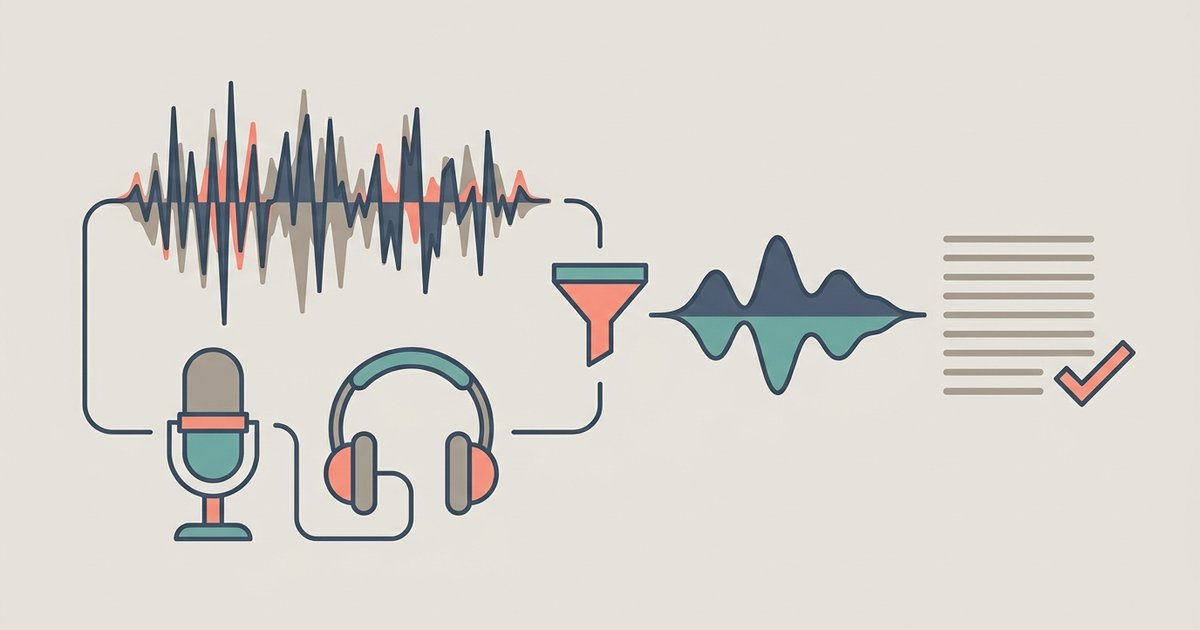
AI transcription is impressive on a clean podcast and frustrating on real-world audio: a phone propped on a café table, a Zoom call with two people talking over each other, a lecture recorded from the back row. The good news is that most of the accuracy you lose can be won back, some of it before you upload and some of it after. Here is how to get a transcript you can actually rely on from a recording that is far from perfect.
Why Messy Recordings Break AI Transcription
Speech recognition models are good at clear speech in a quiet room. Accuracy drops for a handful of predictable reasons:
- Background noise such as traffic, air conditioning, music or clattering cups masks the quieter parts of words.
- Echo and distance smear sounds together, which is why a phone at the far end of a meeting room performs badly.
- Crosstalk, when two people speak at once, leaves the model guessing which words belong to which voice.
- Accents, fast speech and mumbling increase substitutions, especially for short words.
- Uncommon vocabulary, including surnames, brand names, jargon and acronyms, gets replaced with similar-sounding common words.
- Heavy compression from voice notes and messaging apps strips out detail the model uses to tell sounds apart.
Knowing which of these you are dealing with tells you where to focus.
Fix What You Can Before You Transcribe
You cannot re-record an interview that already happened, but you can often improve the file you upload:
- Use the original file. Upload the recording straight from the device or meeting platform instead of a copy that was forwarded through a chat app and compressed again.
- Trim dead air. Cut long silences, hold music and small talk at the start and end. It shortens processing and removes sections that produce junk text.
- Apply light noise reduction. Free editors such as Audacity include a noise reduction effect. Use it gently; aggressive settings create a watery, robotic sound that transcribes worse than the original.
- Normalise the volume. If one speaker is much quieter, boosting the overall level helps the model pick up their words.
- Split very long recordings at natural breaks if your tool struggles with length, then transcribe each part.
Choose Settings That Match the Recording
Most transcription tools ask a couple of questions before they start, and the answers matter. Set the spoken language explicitly rather than relying on auto-detection, particularly for accented English or recordings that mix languages. Turn on speaker identification for anything with more than one voice, so the transcript separates who said what instead of blending replies into one paragraph.
Transcript.you's audio transcription tool works this way: pick the language, upload an audio or video file such as MP3, M4A, WAV, MP4 or MOV, and it returns a transcript with speakers labelled. It has a dedicated interview transcription page as well. You can try it without signing up on short clips of up to five minutes and 50 MB; longer recordings and exports beyond plain text require a paid plan.
Review the Transcript the Smart Way
Reading a full transcript word by word is slow and unnecessary. Work through it in passes:
- Scan for gaps and gibberish. Missing chunks and sentences that make no sense usually line up with noisy moments or crosstalk. Note their timestamps.
- Listen back to those timestamps only. Correct what was said in each flagged section rather than replaying the whole file.
- Fix names and terms globally. If a surname or product name is misheard the same way throughout, one find-and-replace fixes every instance.
- Check numbers. "Fifteen" and "fifty", "a hundred and eighty" and "one eighty" are classic errors, and numbers are often the details people act on.
- Confirm speaker labels at key moments. Automatic speaker detection can swap people who sound similar, so check it wherever it matters who said something.
When to Use a Summary, and When Not To
AI summaries of a transcript are useful for a first read, but they inherit every error in the transcript and can add their own. A summary can also quietly drop words like "not", "unless" or "only", reversing the meaning. Use summaries to decide where to look, then quote from the corrected transcript itself for anything that goes into a report, article or legal record.
Record Better Next Time
The fastest way to an accurate transcript is a better recording. A few habits prevent most problems:
| Situation | What to do |
|---|---|
| In-person interview | Place the phone or a small clip-on mic close to the person speaking, away from hard reflective surfaces |
| Online call | Use the platform's built-in recording instead of recording your speakers with a second device |
| Group meeting | Ask people not to talk over each other and to say their name before key points |
| Lecture | Sit near the front or record from the lectern with permission |
| Noisy venue | Move to a quieter corner, turn off fans and close windows before you start |
Always get consent before recording people. Many places require the agreement of everyone on the call or in the room.
The Bottom Line
A messy recording does not have to mean a useless transcript. Upload the best original file you have, tell the tool the language and turn on speaker labels, then spend your review time on the noisy moments, names and numbers rather than every line. That combination turns an imperfect recording into text accurate enough to quote.
Frequently Asked Questions
Does Transcript.you keep my audio file after it finishes transcribing?
Transcript.you processes the file to return a transcript with speakers labelled and does not store it permanently. What happens to the file depends on the tool's data retention policy, which you should check before uploading sensitive recordings.
Can I add custom vocabulary like surnames and jargon to Transcript.you before transcribing?
Some transcription services allow custom vocabularies or phrase hints to improve recognition of jargon, proper nouns and specialized terms. Check whether your chosen tool offers this feature and add uncommon names and acronyms before you start the transcription.
How close should a phone microphone be to a speaker for a clean recording?
Position the microphone close to the person speaking, ideally within three feet, and away from hard reflective surfaces. For an in-person interview, placing the phone or a small clip-on mic near the speaker captures clear vocals and reduces ambient noise.