Home>How-To Guides>How to Disable, Remove and Reinstall an eSIM Safely

How-To Guides
How to Disable, Remove and Reinstall an eSIM Safely
Modified: 20 October 2026
Table of Contents
Turn the line off when you only need to stop service temporarily, remove the eSIM when the phone is being sold, traded in, or the plan is being retired, and reinstall only when the carrier or provider has issued a fresh transfer, QR code, or activation path. Apple and Google both document that eSIM activation and transfer can depend on device compatibility, software version, Bluetooth proximity, and carrier support, and Apple notes that a transferred plan can deactivate the previous SIM when activation completes.
When to turn an eSIM line off
On iPhone, Apple documents a cellular line workflow under Settings > Cellular, and the activation page shows that a plan can be transferred from another iPhone through Set Up Cellular or Add eSIM. If the goal is to pause use of a line without changing the carrier record, turning the line off is the safer first step because the plan remains available for later reactivation on the same device or another supported device.
Apple’s setup guidance says to begin eSIM transfer only when both devices are nearby, Bluetooth is on, both devices are signed in to the same Apple Account, the previous iPhone is unlocked with its passcode, and both devices run iOS 18.4 or later for eSIM Quick Transfer. The page also says that if a carrier banner appears after activation, the user is redirected to the carrier’s webpage to complete the transfer.
When removal is appropriate
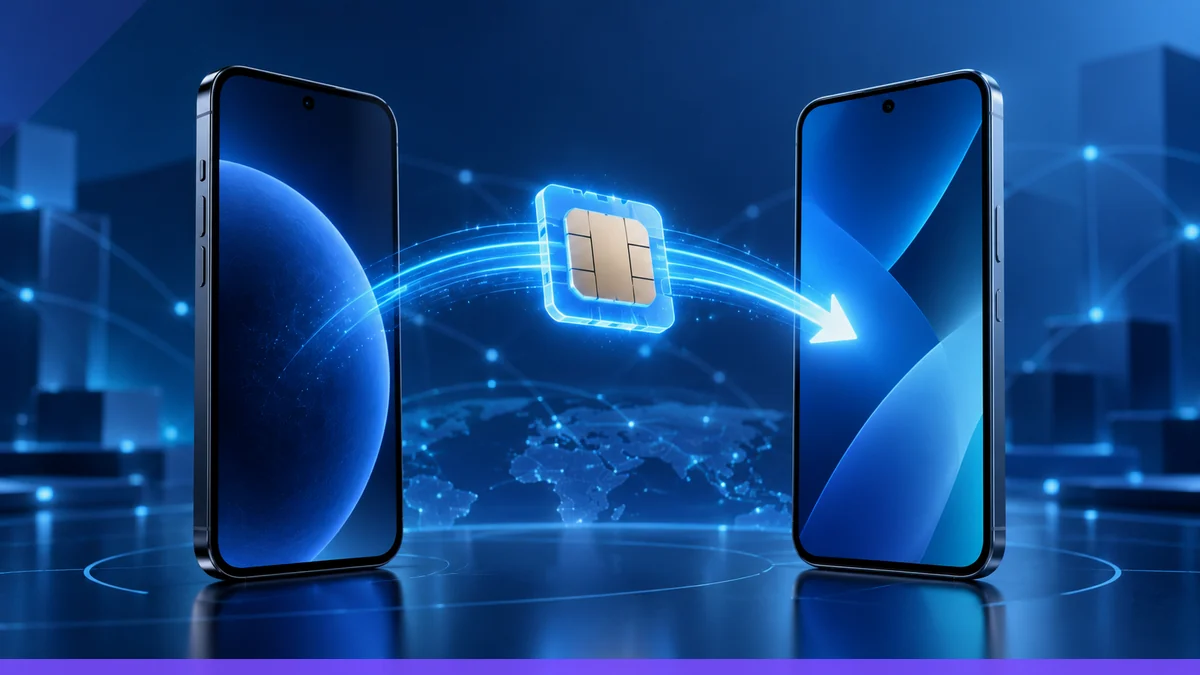
Remove an eSIM when the plan should no longer remain on the device, such as before handing the phone to another owner or when replacing the line with a different activation. Apple says that once a new iPhone’s cellular plan activates, the previous SIM is deactivated on the old device, which is why users should not delete the old line until they are sure service has moved successfully.
Google's Pixel eSIM guidance places setup under Settings > Network & internet > SIMs > Add SIM > Set up an eSIM. That path is the documented route for adding a new eSIM on Pixel phones, and it is the cleanest way to replace an old line with a newly issued one when the carrier has provided fresh activation details.
How to reinstall safely
For iPhone, reinstalling usually means going back through Settings > Cellular > Set Up Cellular or Add eSIM, then following the on-screen transfer or carrier instructions. Apple says that if you cannot see a list of numbers during setup, you should tap Transfer From Nearby iPhone, and if the setup screen shows Finish Setting Up Your Carrier’s Cellular Plan, you are sent to the carrier’s webpage to finish the eSIM transfer.
For Pixel phones, Google documents the setup flow as Settings > Network & internet > SIMs > Add SIM > Set up an eSIM. Google also documents a dual-SIM route that reaches the same eSIM setup screen through the SIMs menu, which is useful when a phone already has another active SIM and the user is adding a second line.
The safest reinstall approach is to use the provider’s most recent activation method rather than trying to reuse an old QR code or deleted profile. That is the practical meaning of safe eSIM removal and recovery: remove only after service has been confirmed on the replacement setup path, then reinstall only with the carrier or provider’s current instructions.
When carrier or provider help is needed
Apple says that if the carrier or device does not support transfer from Android to iPhone, the user should contact the carrier to activate the eSIM. Apple also says to contact the carrier if the phone still cannot set up an eSIM after the standard steps, and it advises collecting the phone number, carrier account password or PIN, and the device’s IMEI or EID for support.
Apple's eSIM transfer guidance also notes that some carriers and select smartphone manufacturers support transferring a SIM between Android and iPhone only with iOS 26 and later. If the device or carrier does not support that transfer, activation must be handled by the carrier instead of by the phone’s built-in transfer flow.
Google’s Pixel documentation shows setup, but it does not document a universal self-service recovery path for every carrier or every lost profile. When the existing profile is gone and setup does not complete through Network & internet > SIMs > Add SIM, carrier or provider help is the documented fallback.
What not to do
- Do not delete the only working eSIM profile until the replacement line is active and the phone can place a call or connect as expected.
- Do not assume a QR code from an old activation will work again if the provider has issued a new one.
- Do not expect cross-platform transfer to work unless the device, operating system, and carrier support that transfer path.
- Do not skip carrier help when Apple or Google says the setup process is redirected or unsupported.
Practical order of operations
- Confirm whether the goal is temporary suspension, permanent removal, or device-to-device transfer.
- Use the documented settings path for the phone in use: iPhone Settings > Cellular; Pixel Settings > Network & internet > SIMs.
- Complete the transfer or activation before removing the old profile whenever possible.
- If the phone shows a carrier page, a verification prompt, or an unsupported transfer message, finish the process with the carrier or provider.
- If setup fails after the documented steps, ask the carrier for a fresh eSIM activation method rather than repeatedly reusing the same deleted profile.
More eSIM resources: Browse our eSIM guides and troubleshooting resources for compatibility, setup, travel-data and account-safety advice.