Home>Software and Apps>The Torrent Client Handbook
Software and Apps
The Torrent Client Handbook
Modified: 8 September 2026
Table of Contents
- What Is a Torrent Client and Why You Need a Good One (or Not)
- The Best Torrent Clients for Windows 11 and 10 (2025)
- The Best Torrent Clients for macOS Sequoia and Ventura (2025)
- The Best Torrent Clients for Linux (Ubuntu 24.04, Fedora 39)
- How to Choose Based on Security: Built-in VPN, Encryption, and Kill Switch
- Setting Up Your Client for Top Download Speed (and Avoiding ISP Throttling)
- The Best Clients for Private Trackers and Seedbox Integration
- Common Torrent Client Mistakes That Slow You Down or Risk Your Privacy
- In this guide
- Frequently Asked Questions
Don't rely on the uTorrent you used in 2010. The best torrent client for you depends entirely on your operating system, your tolerance for ads, and how concerned you are about privacy. This guide nails down the exact version, setup, and security choices you need for Windows, macOS, and Linux in 2025.

What Is a Torrent Client and Why You Need a Good One (or Not)
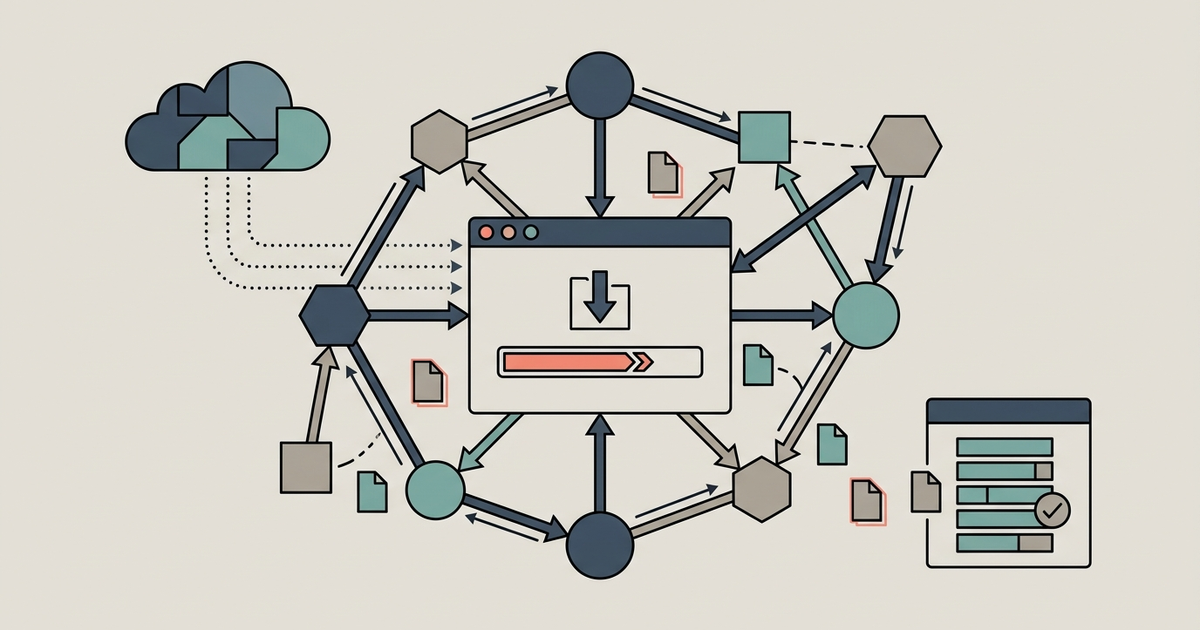
A torrent client is the software that downloads and uploads pieces of files from a swarm of other users. Without a good one, you waste bandwidth, expose your IP address, and risk malware. If you only download public trackers occasionally, stick with qBittorrent. If you use private trackers or run a seedbox, your choice changes. You need a client that handles thousands of active connections, respects your privacy, and doesn't shove ads in your face.
The Best Torrent Clients for Windows 11 and 10 (2025)
qBittorrent 5.0 is your default answer. It's free, open-source, and has zero ads. Version 5.0 adds native support for an integrated search engine that scrapes Jackett-compatible indexes out of the box. On Windows 11, it handles 500+ active torrents without a hiccup. Download it from qbittorrent.org. Avoid the Windows Store version; it's outdated and runs a wrapper that slows things down.
BiglyBT (formerly Vuze) is the choice for power users who want I2P support. It's cross-libtorrent, meaning it can run alongside other clients without conflict. Version 3.6 ships with a built-in RSS feed scanner that triggers on title filters. It's heavier than qBittorrent—expect 150 MB RAM at idle—but if you need anonymous torrenting over I2P, BiglyBT does it cleanly. It's free, no ads.
Tixati 3.0 is the underdog for Windows users who obsess over disk I/O stats. It shows real-time read/write speeds per drive, peer blocklist support via ZIP files, and a detailed bandwidth scheduler. No ads, completely free. The UI looks like it's from 2008. The trade-off: it lacks built-in search and has no macOS or Linux version worth using.
Skip uTorrent Web and BitTorrent Web. The free versions inject ads, bundle offers for AV software, and have reduced encryption options. The paid version ($4.99/month) removes ads but you're still running proprietary software with a history of bundled crypto miners. Not worth it.
The Best Torrent Clients for macOS Sequoia and Ventura (2025)
Transmission 4.0 is the only client you want on macOS. It's the lightest resource consumer of any client here—under 50 MB RAM with 50 active torrents. Version 4.0 finally adds support for BitTorrent v2 and hybrid torrents. On Sequoia, it integrates with the system's native notifications and handles sleep/wake cycles cleanly. It's free, open-source, and available via Homebrew or transmissionbt.com. No ads, no bundled software.
qBittorrent 5.0 also runs on macOS, but the Qt interface looks and feels like a Windows app. It works, but on a MacBook Air with M3, Transmission uses half the CPU cycles during idle seeding. If you need the search plugins, qBittorrent is your fallback. The plugins are easier to install than on Transmission.
Deluge 2.1.1 works on macOS but only via Homebrew. It's a pain because the GTK interface requires XQuartz. Skip it unless you absolutely need the thin client mode for remote seedbox management. For local macOS use, Transmission wins.
The Best Torrent Clients for Linux (Ubuntu 24.04, Fedora 39)
qBittorrent 5.0 is the first choice on both distros. Install it via sudo apt install qbittorrent on Ubuntu or sudo dnf install qbittorrent on Fedora. The Qt interface blends well with KDE and GNOME. You get the same integrated search and full encryption control as Windows. No terminal fuss for basic use.
Deluge 2.1.1 shines on Linux for seedbox setups. It has a plugin ecosystem that lets you run a headless daemon on your server and control it via a thin client on your desktop. Install deluged and deluge-web on Ubuntu, then set up a web UI on port 8112. For private trackers that require seeding ratios, Deluge's per-torrent speed limits and queue management are more granular than qBittorrent's.
Transmission 4.0 is fine for headless servers but it's minimalistic. No built-in search, no plugin system. If you want a remote GUI, it has a web interface on port 9091. It's the safest bet for low-memory systems (Raspberry Pi 5 with 2 GB RAM, for example).
How to Choose Based on Security: Built-in VPN, Encryption, and Kill Switch
No torrent client comes with a built-in VPN. That's a marketing lie. Some premium clients (like BitTorrent Pro's $4.99 plan) bundle a VPN from a third party, but you lose control over the VPN provider. Don't rely on it.
Encryption is your real friend. In qBittorrent 5.0, RC4 encryption is disabled by default. You must enable it manually: go to Tools > Options > BitTorrent > Encryption mode, set it to "Required." This forces your traffic to look like random data to ISP filters. On private trackers, keep encryption on "Enabled" but not "Required" because some peers don't support it.
A kill switch is handled outside the client. Use your VPN's network lock feature (e.g., ProtonVPN's kill switch on Windows, Mullvad's always-on firewall on macOS). In qBittorrent, you can set a network interface binding: Tools > Options > Advanced > Network Interface, choose your VPN's virtual adapter. If your VPN drops, qBittorrent cuts out instantly.
Tixati has a built-in peer blocklist that downloads from sources like iblocklist. It blocks known ISP copyright enforcer IPs. It's not a kill switch, but it reduces your exposure on public trackers.
Setting Up Your Client for Top Download Speed (and Avoiding ISP Throttling)
Port forwarding does not increase raw speed. It makes your client connect to more peers, which fills your bandwidth. Without it, you get fewer incoming connections and slower downloads on private trackers. On Windows 11, open Windows Defender Firewall and add an inbound rule for TCP and UDP on port 51413 (or whatever you choose in qBittorrent's settings). On macOS, System Settings > Network > Firewall > Options, add Transmission or qBittorrent to the allowed list.
Encryption stops ISP throttling. Most ISPs look at the BitTorrent handshake and throttle after a few seconds. Set encryption to "Required" in your client. If your download drops from 50 MB/s to 10 MB/s, that's ISP throttling. Encryption fixes it 90% of the time.
Adjust connection limits. In qBittorrent 5.0, set global max connections to 500, per-torrent to 100. Set upload slots to 8. These numbers balance seeding without choking your download. On a gigabit fiber line, increase global connections to 2000, but your router's NAT table will hate you.
The Best Clients for Private Trackers and Seedbox Integration
qBittorrent 5.0 works with all private trackers (TorrentLeech, IPT, FileList) out of the box. For private trackers, disable DHT, PEX, and LPD. They count as unapproved sources. Go to Tools > Options > BitTorrent, uncheck all three. Otherwise, the tracker might ban you.
Deluge 2.1.1 is the seedbox champion. Install deluged on your seedbox (running Ubuntu 24.04), set a password, and use the thin client on your desktop. It feels local even though the files are remote. The AutoAdd plugin lets you monitor a folder for new .torrent files. Drop a torrent in that folder, and it auto-downloads on the seedbox. No client installed on your personal machine.
Transmission 4.0 is the default on many seedboxes (like UltraSeedbox or WhatBox). It's fast and light. If your seedbox runs Transmission, you can control it via the built-in web interface or use Transmission Remote GUI on your desktop. No plugin ecosystem, but for basic ratio management, it's fine.
Common Torrent Client Mistakes That Slow You Down or Risk Your Privacy
Keeping DHT enabled on private trackers leaks your IP to the public swarm. Disable it for every private tracker. If you accidentally seed a torrent from a private tracker with DHT on, you expose your IP to anyone.
Not binding to your VPN's network interface is the number one cause of IP leaks. In qBittorrent, go to Tools > Options > Advanced > Network Interface. Select your VPN adapter (tun0 on Linux, "Local Area Connection* 2" on Windows). If your VPN disconnects, qBittorrent loses its network and stops instantly.
Running too many torrents at once kills your router. Fifty active downloads with 100 connections each equals 5000 connections. Most home routers die at 500 active NAT sessions. Cap your global connections to 500 total. Download in batches of 5-10 files max.
Using uTorrent Web or BitTorrent Web for private trackers is a mistake. They inject ads and web services that phone home. Some versions bundle AVG antivirus installation during setup. Stick with open-source clients.
Ignoring encryption invites throttling. If your ISP sees plain BitTorrent traffic, they throttle you. Encryption is a one-click fix. Do it before your first download.
Always test your settings—encryption, port forwarding, VPN binding—with a free Linux distro torrent (like Ubuntu 24.04 ISO) before hitting private trackers. If the test fails, you fix it before risking a ban.
In this guide
- qBittorrent vs Transmission vs Deluge: Which Client to Actually Use
- How To Set Up qBittorrent Safely on Windows and macOS
- What Is a Seedbox, and When Is One Worth Paying For
- How To Tell a Cloned Torrent Index From the Real One
- Why Torrent Indexes Disappear, and What Replaces Them
- How To Verify a Download Before You Open It
- Torrenting and the Law: What Actually Carries Risk
- Troubleshooting Slow Torrent Speeds
Frequently Asked Questions
How do I set a download speed limit in qBittorrent 5.0?
Go to Tools > Options > Speed and set the global rate limits in KiB/s. You can also right-click any torrent and choose "Limit download rate" for per-torrent control. What you set depends on your total bandwidth and how much you want to leave for streaming or browsing.
Does Transmission 4.0 on macOS support remote control from my phone?
Yes, enable the web interface in Transmission's preferences under Remote, set a password, and pick a port like 9091. Then access it from any device on your local network. The interface is minimal but handles adding, pausing, and removing torrents cleanly.
Can I use Deluge's thin client without installing XQuartz on macOS?
No, the Deluge GTK interface on macOS requires XQuartz, which makes it clunky. The workaround is running deluged on a remote machine and using the Deluge web UI in your browser instead. That skips the thin client entirely on your Mac.
What network interface should I bind qBittorrent to on Windows 11?
Select your VPN's virtual adapter under Tools > Options > Advanced > Network Interface, often named something like "Local Area Connection 2" or "ProtonVPN TUN." The exact name varies by VPN provider. This binding cuts all traffic the instant your VPN drops.
How do I enable UPnP port forwarding in Tixati 3.0?
Open Settings > Network > Connections and check "Use UPnP NAT port mapping." Tixati will attempt to open the port you specified automatically. Whether this works depends on your router supporting UPnP and having it enabled in its own settings.
Why does BiglyBT use so much RAM compared to other clients?
BiglyBT runs on a cross-libtorrent framework and includes I2P support, RSS scanning, and a plugin system, all of which load into memory. Expect around 150 MB at idle. On systems with 8 GB or more RAM this is negligible, but on older machines it adds up.